반응형

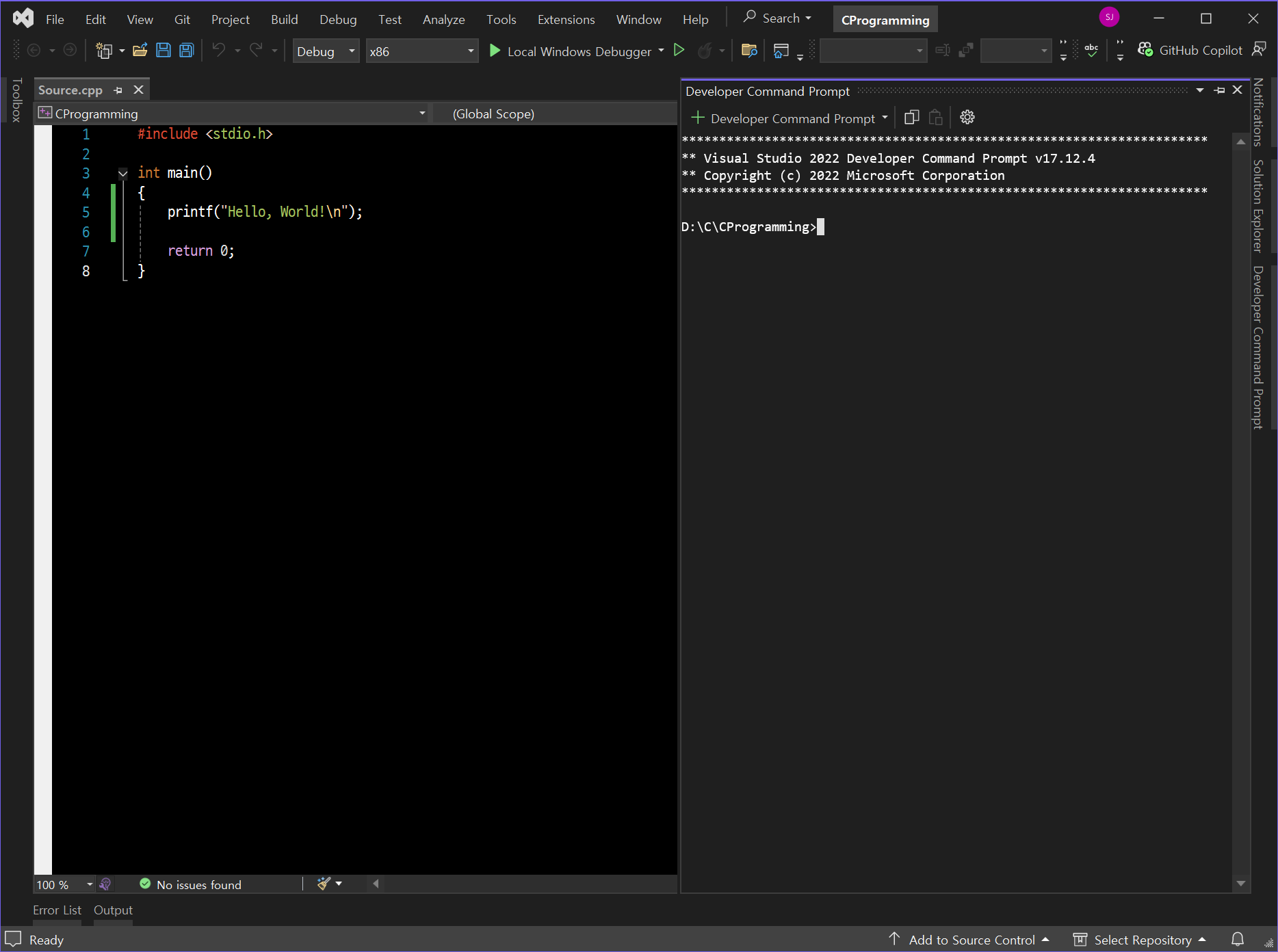
Visual Studio를 사용하다 터미널(콘솔) 창을 열어야 할 경우가 있다. Window+R - cmd 명령을 실행해 작업 경로로 이동해도 되지만 Visual Studio에서 바로 작업 경로 터미널 창을 열 수 있다.
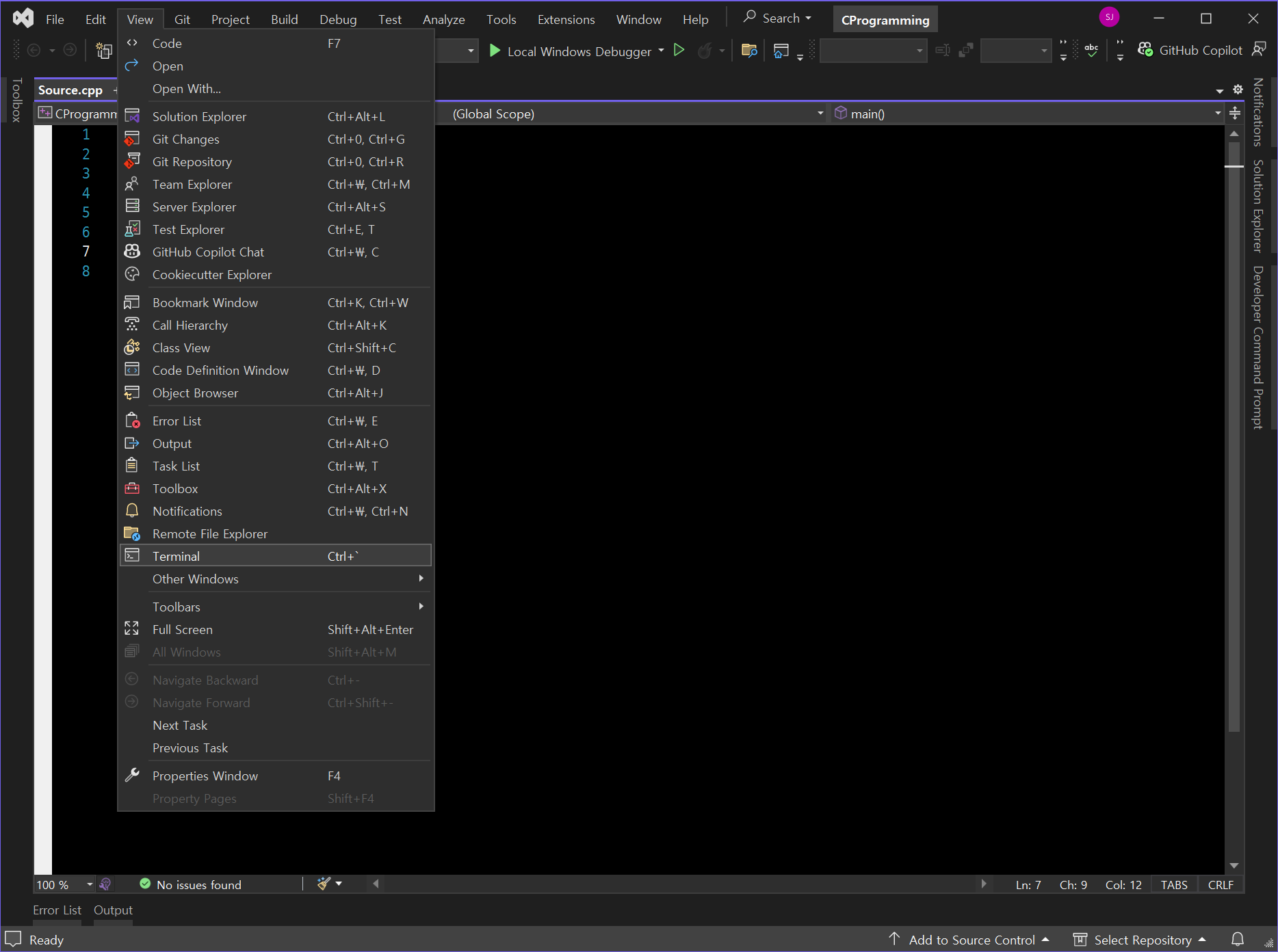
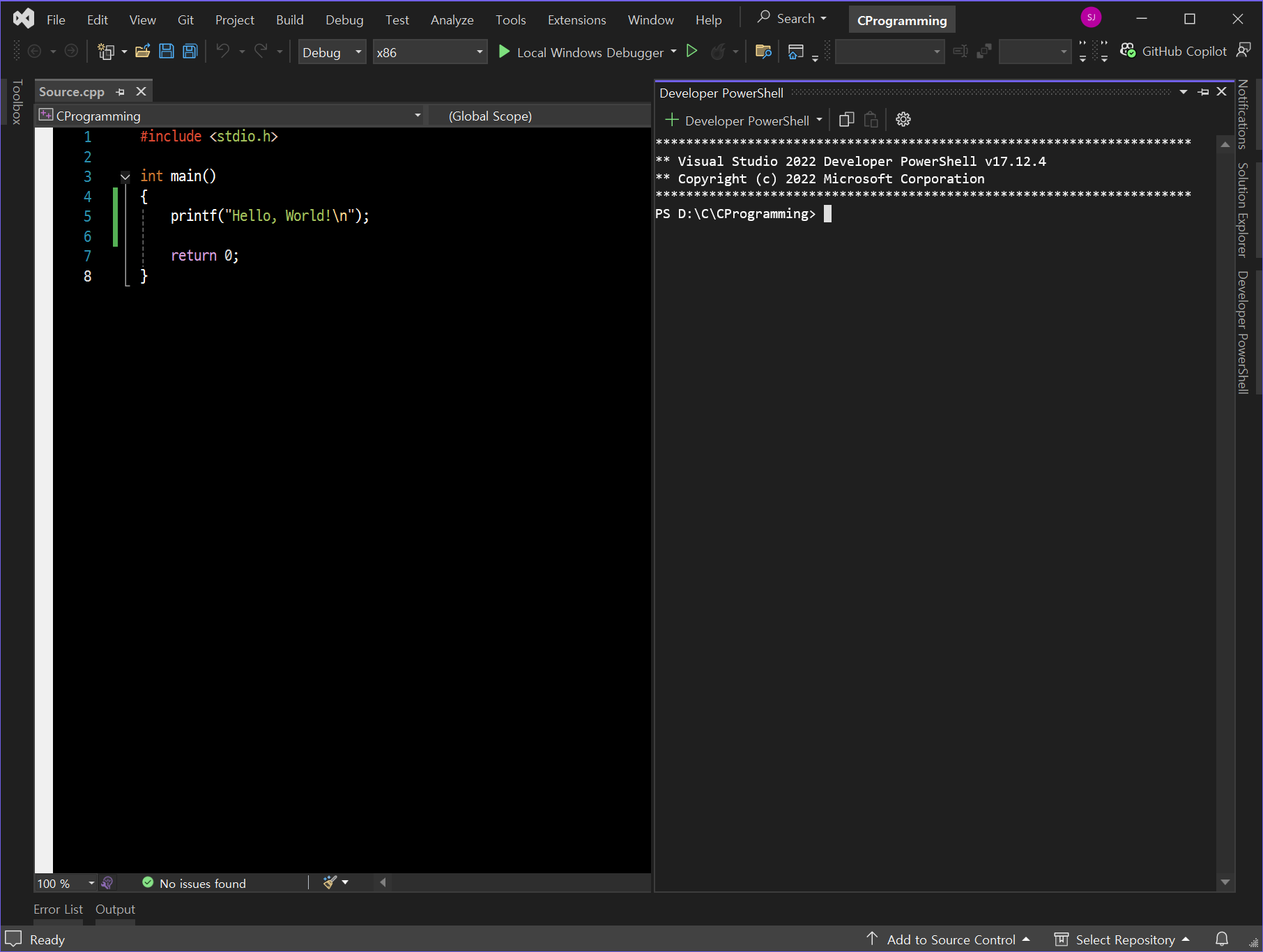
 

View - Terminal (단축키: Ctrl+`)


Developer PowerShell 창이 열린다.


PowerShell 창에서 작업해도 되지만 원한다면 Deveoper Command Prompt로 바꿀 수 있다.
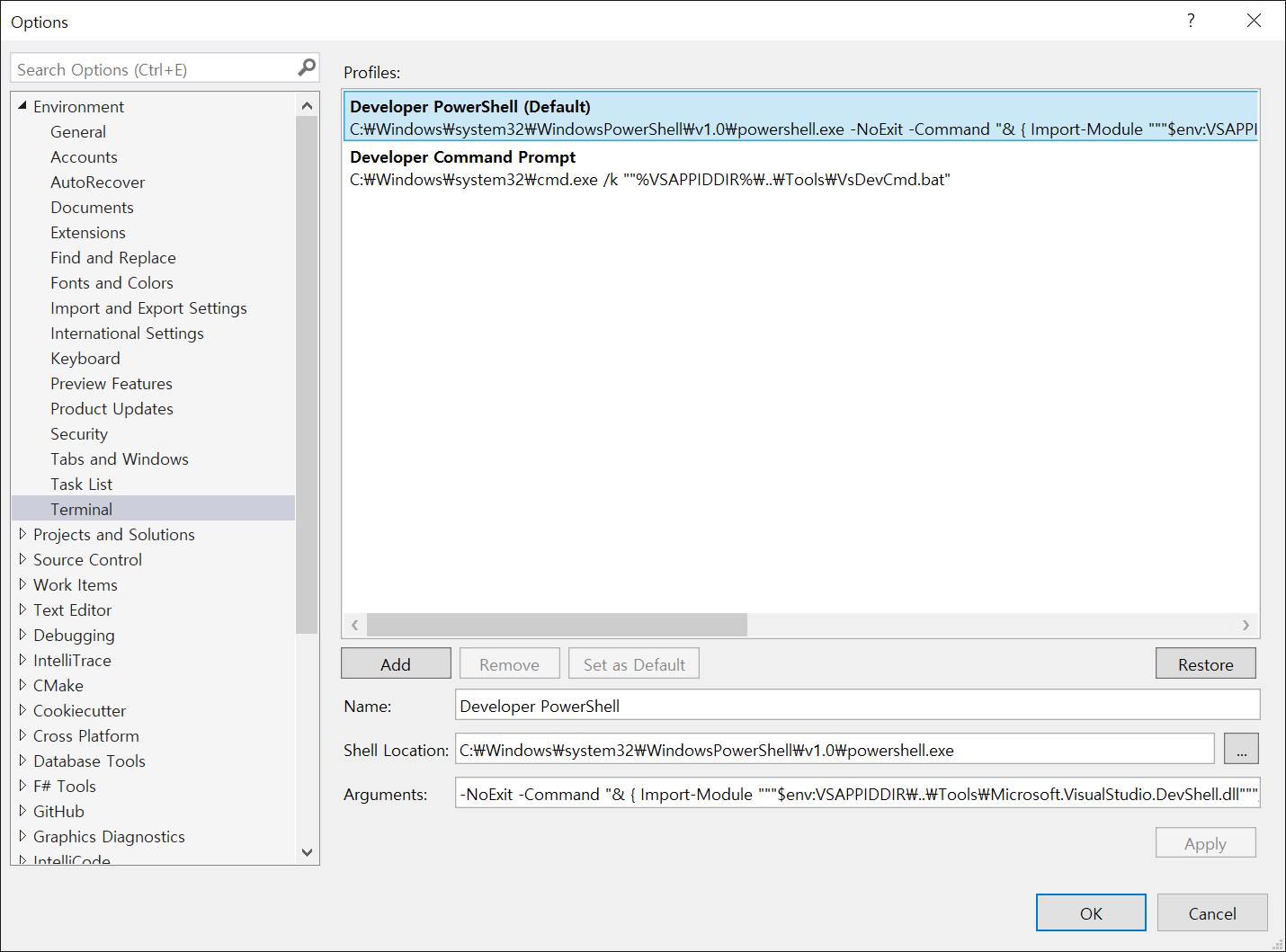
 

Options - Terminal 을 확인해 보면 Developer PowerShell이 기본으로 설정되어 있다.


Developer Command Prompt를 기본으로 설정한다. (Set as Default)


View - Terminal (단축키: Ctrl+`) 을 선택하면 Developer Command Prompt가 열린다.


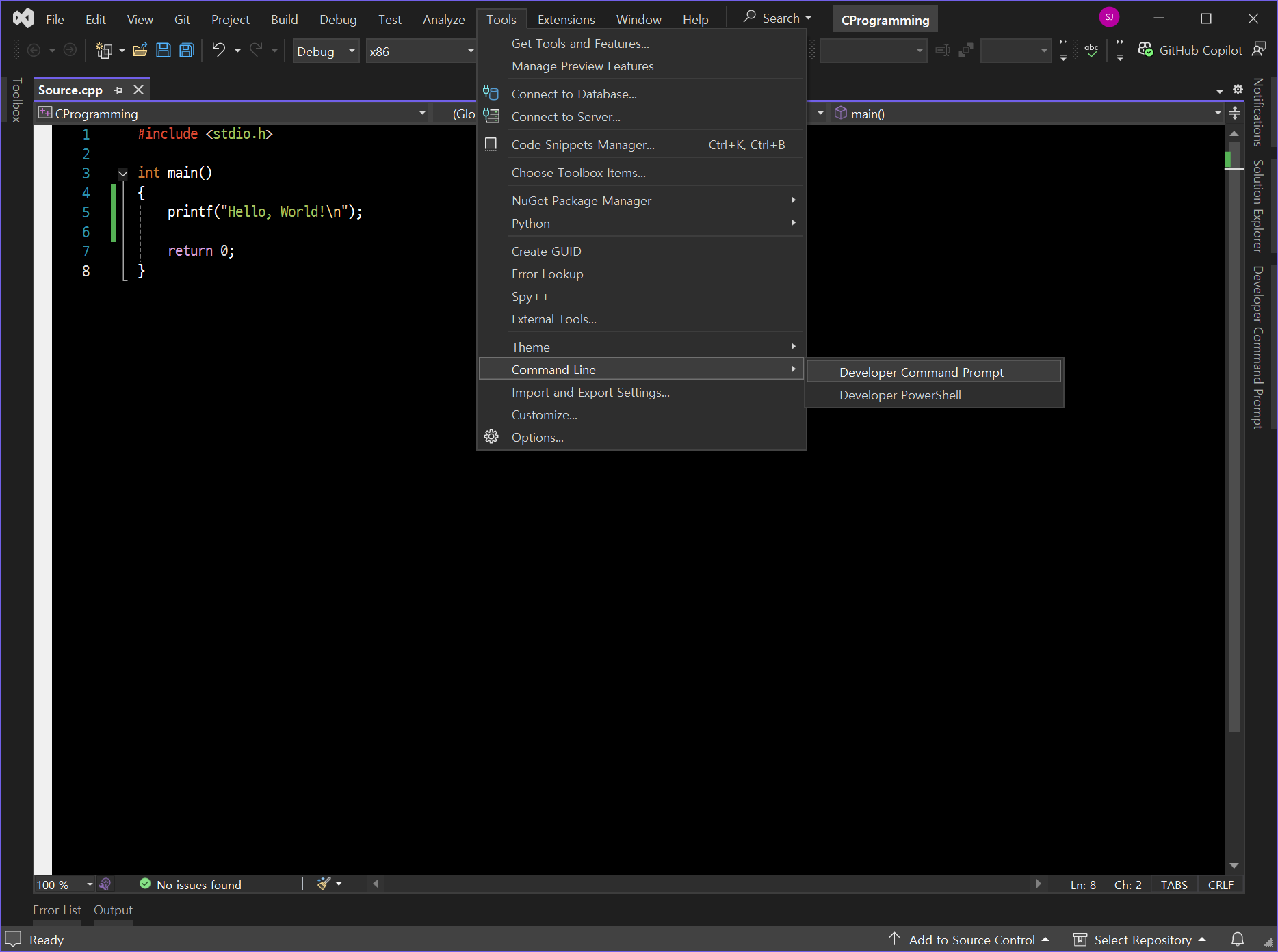
Tools - Command Line - Developer Command Prompt / Developer PowerShell 을 선택해도 원하는 창을 바로 열 수 있다.


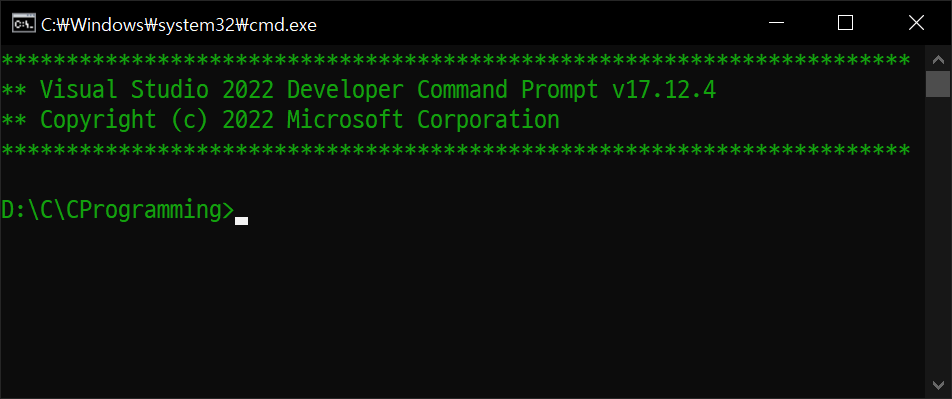
차이가 있다면 Visual Studio에서 열리는게 아닌, 독립된 창으로 열린다.


반응형
Posted by J-sean
:
반응형

'Open Command Line' opens a command line at the root of the project. Support for all consoles such as CMD, PowerShell, Bash, etc. Provides syntax highlighting, Intellisense and execution of .cmd and .bat files.


This extension adds a new command to the project context menu that will open a command prompt on the project's path. If the solution node is selected in Solution Explorer, then a console will open at the root of the .sln file.


Open Command LIne은 작업 중인 Visual Studio 프로젝트 폴더에서 바로 command prompt를 열 수 있게 해주는 extension 입니다.

CMD, PowerShell, Bash등을 지원합니다.


Run Tools - Extensions and Updates...


Search 'Open Command Line' on Online tab and click Download.


Installation starts when Visual Studio closes.


Close Visual Studio and click Modify on VSIX Installer.


Install it.


Click Close.


Right-click on Solution Explorer - Open Command Line - Default(cmd) (Shortcut: Alt + Space)


Command Prompt opens on the project's path.


Right-click on Solution Explorer - Open Command Line - Settings...


You can change settings.


반응형
Posted by J-sean
: