반응형

텍스트 길이에 맞게 사이즈가 자동으로 조절되는 UI 이미지를 만들어 보자.


짧은 텍스트


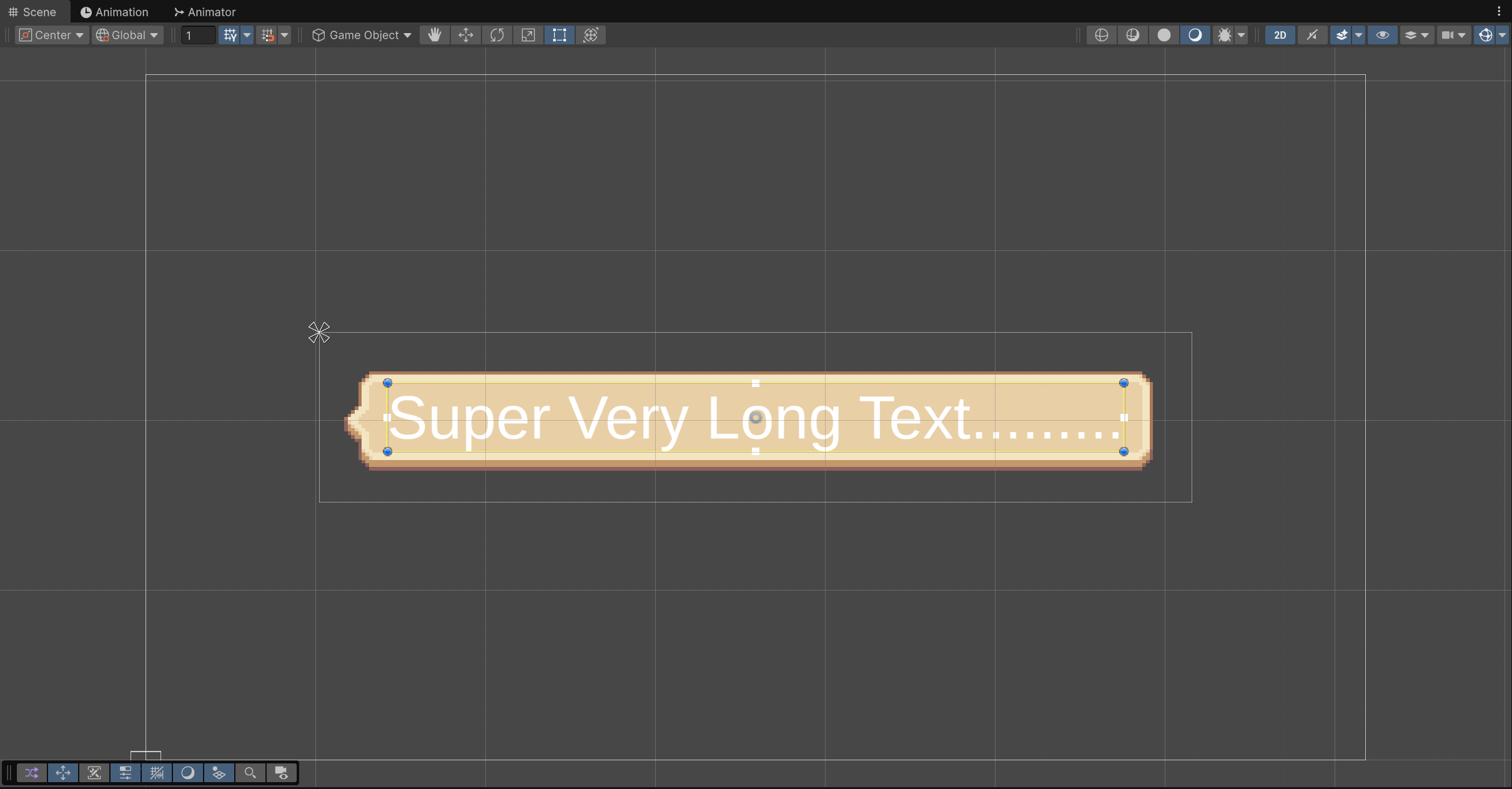
긴 텍스트


dialog box.png
0.00MB

대화 상자 이미지를 임포트한다.


대화상자 이미지 인스펙터 창에서 아래와 같이 변경하고 Apply를 클릭한다.

  • Sprite Mode - Single
  • Mesh Type - Full Rect
  • Filter Mode - Point (no filter)
  • Compression - None


Sprite Editor에서 적당히 Border를 설정한다.


UI - Image를 생성하고 그 하위에 UI - Text - TextMeshPro를 생성한다.


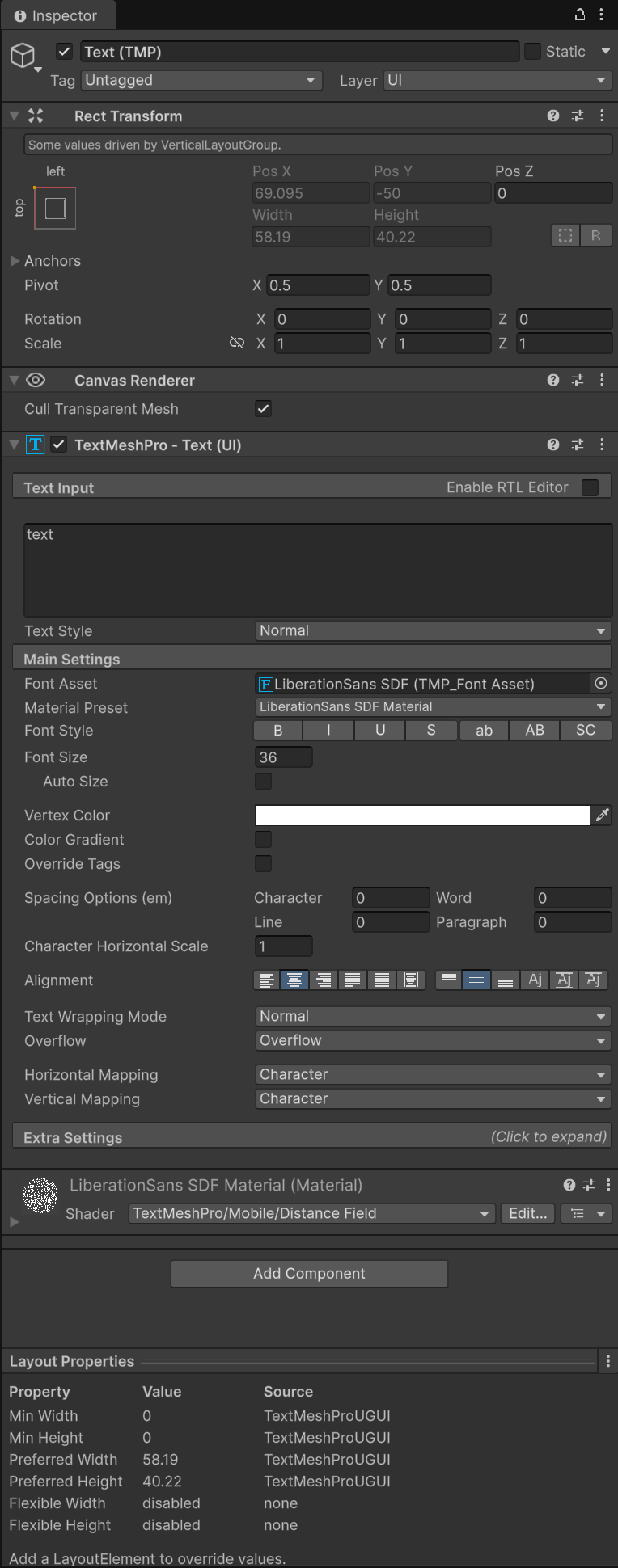
Text 오브젝트는 아래와 같이 설정한다.

  • Font Asset - 필요하다면 Window - TextMeshPro - Font Asset Creator에서 폰트를 생성해 지정한다.
  • Alignment - Center, Middle 설정


Image 오브젝트는 아래와 같이 설정한다.

  • Source Image - 위에서 설정한 대화 상자 이미지를 지정한다.
  • Image Type - Sliced

Vertical Layout Group 컴포넌트 추가

  • Padding - 이미지와 텍스트에 맞게 적당히 설정한다.
  • Child Alignment - Middle Center
  • Control Child Size - Width, Height 체크 (Height는 꼭 하지 않아도 된다)

Content Size Fitter 추가

  • Horizontal Fit - Preferred Size


이제 텍스트를 변경해 보자.


변경된 텍스트 길이에 맞게 이미지 사이즈가 자동으로 조절된다.


반응형
Posted by J-sean
:
반응형

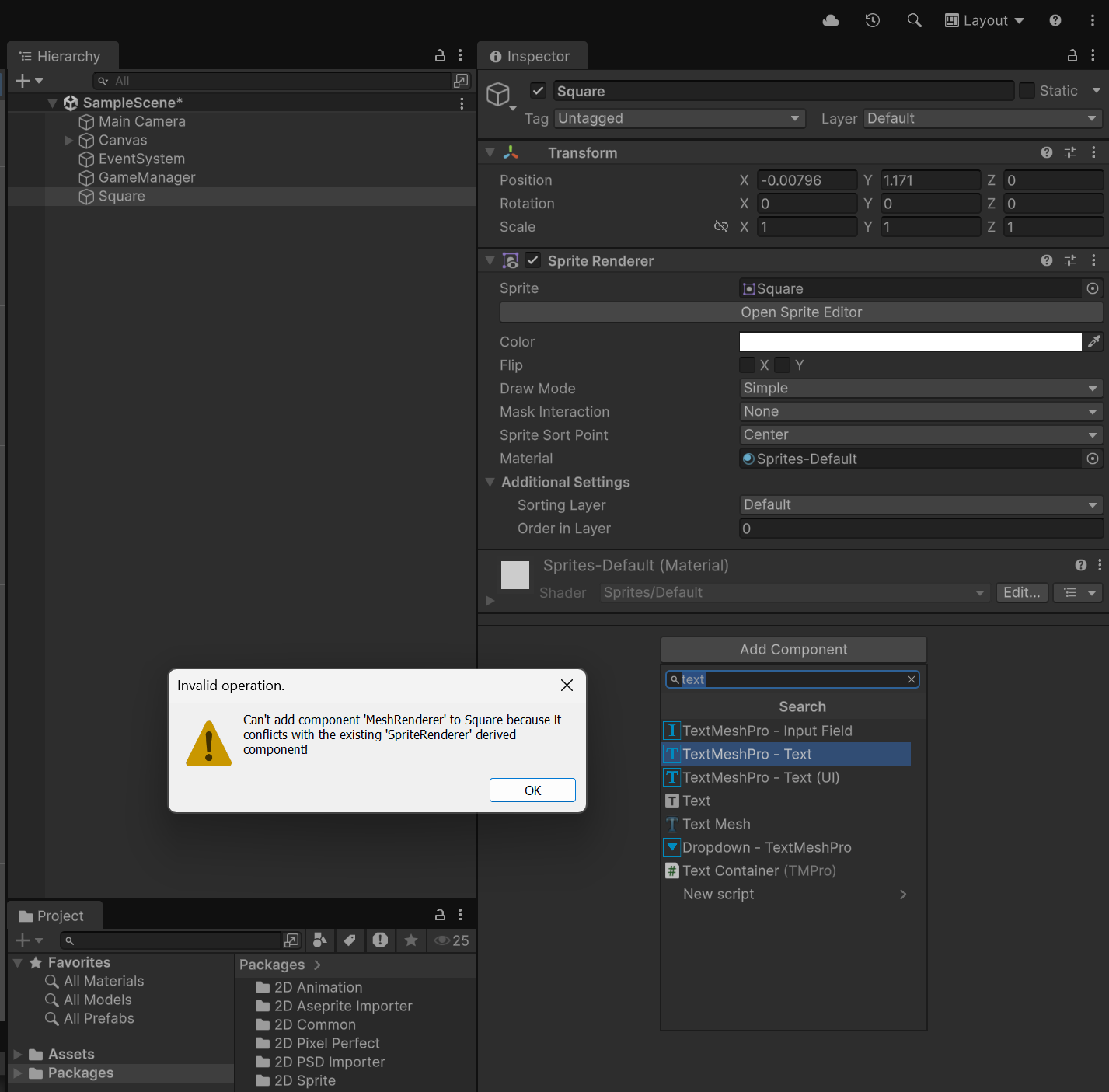
2D Sprite에 Text를 추가해 보자.


렌더러가 충돌하기 때문에 Sprite에 그냥 Text를 추가할 수 없다.


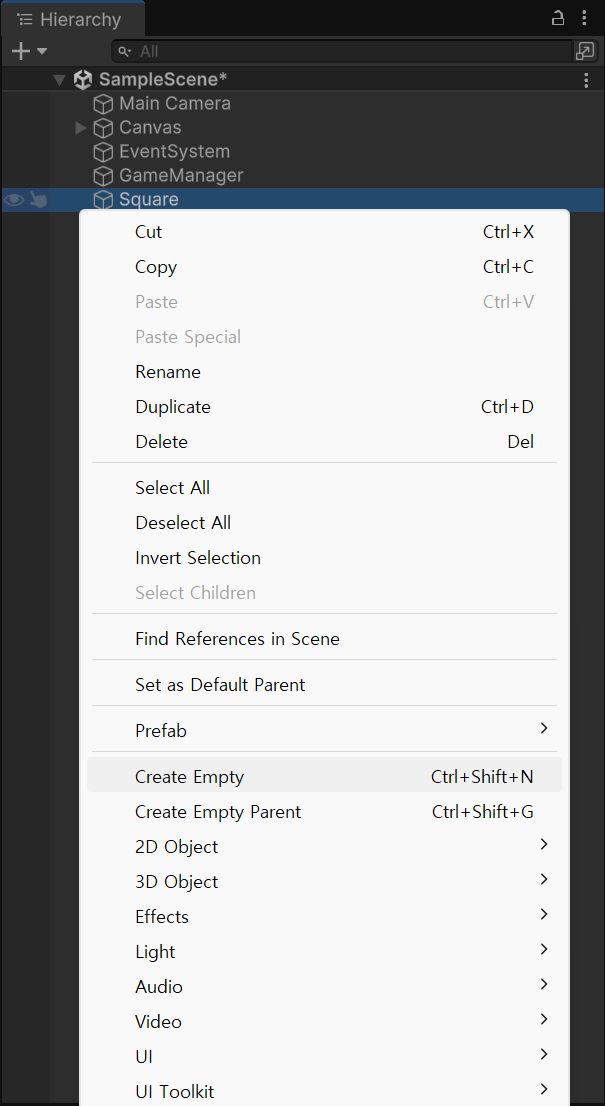
우선 텍스트를 추가하려는 오브젝트에 Empty 오브젝트를 하나 추가한다.


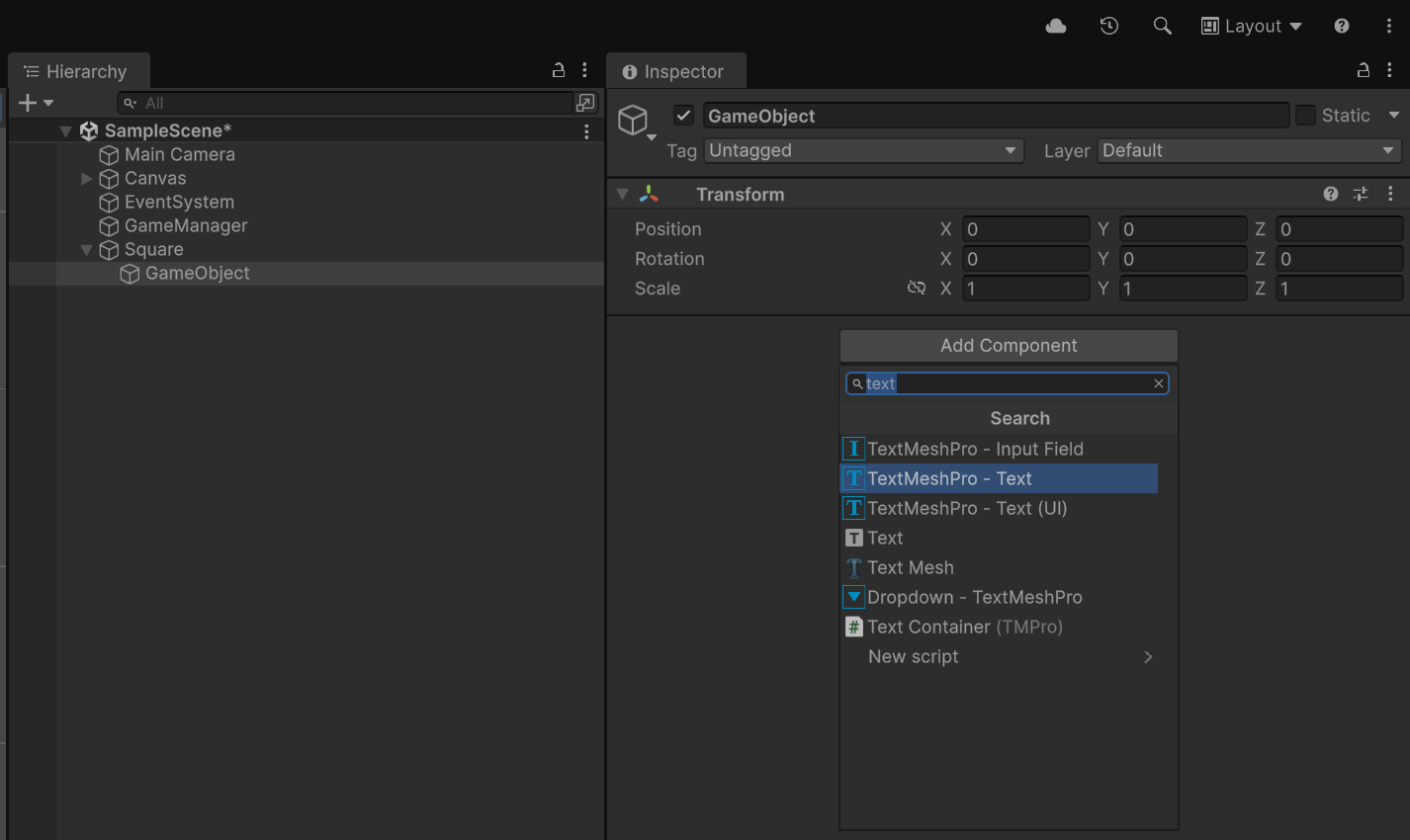
빈 오브젝트에서 Text를 추가한다.


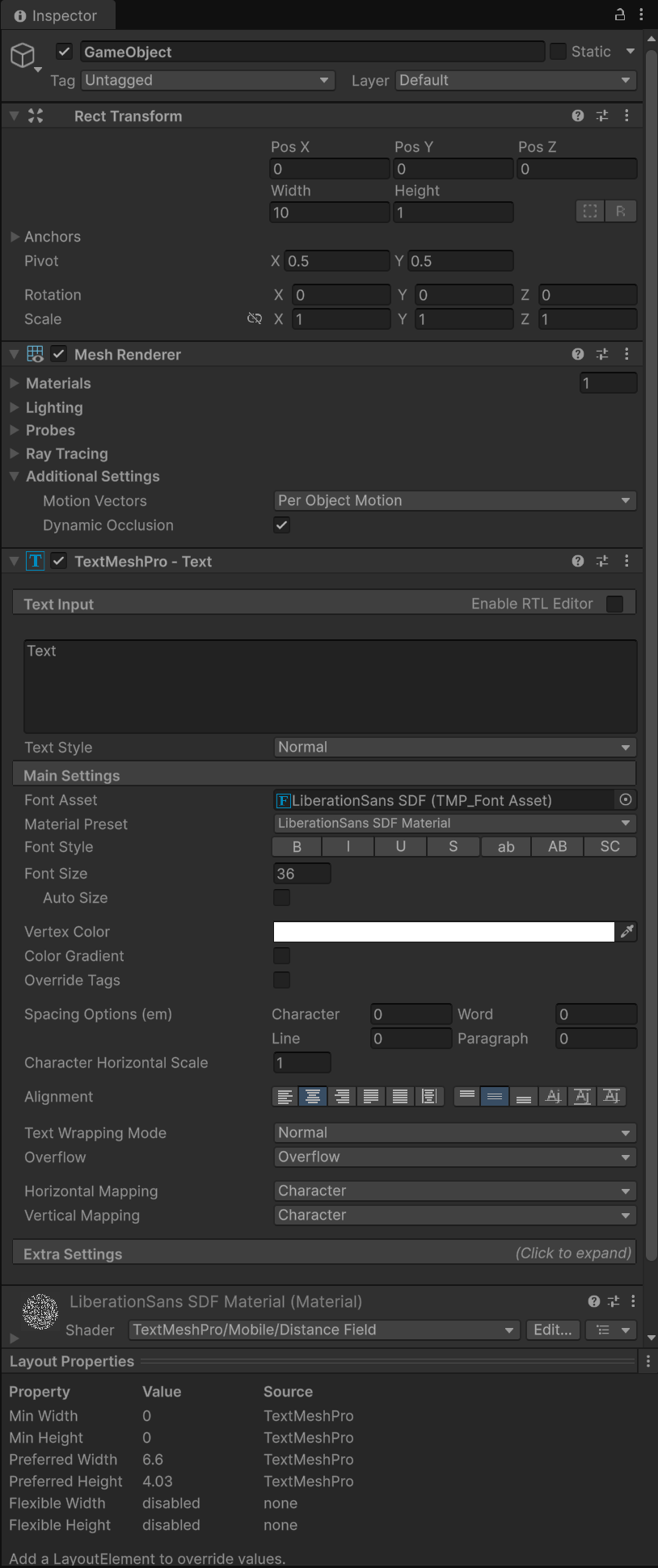
Rect Transform - Width, Height를 텍스트에 맞게 조절하고 다른 옵션도 적당히 세팅한다.


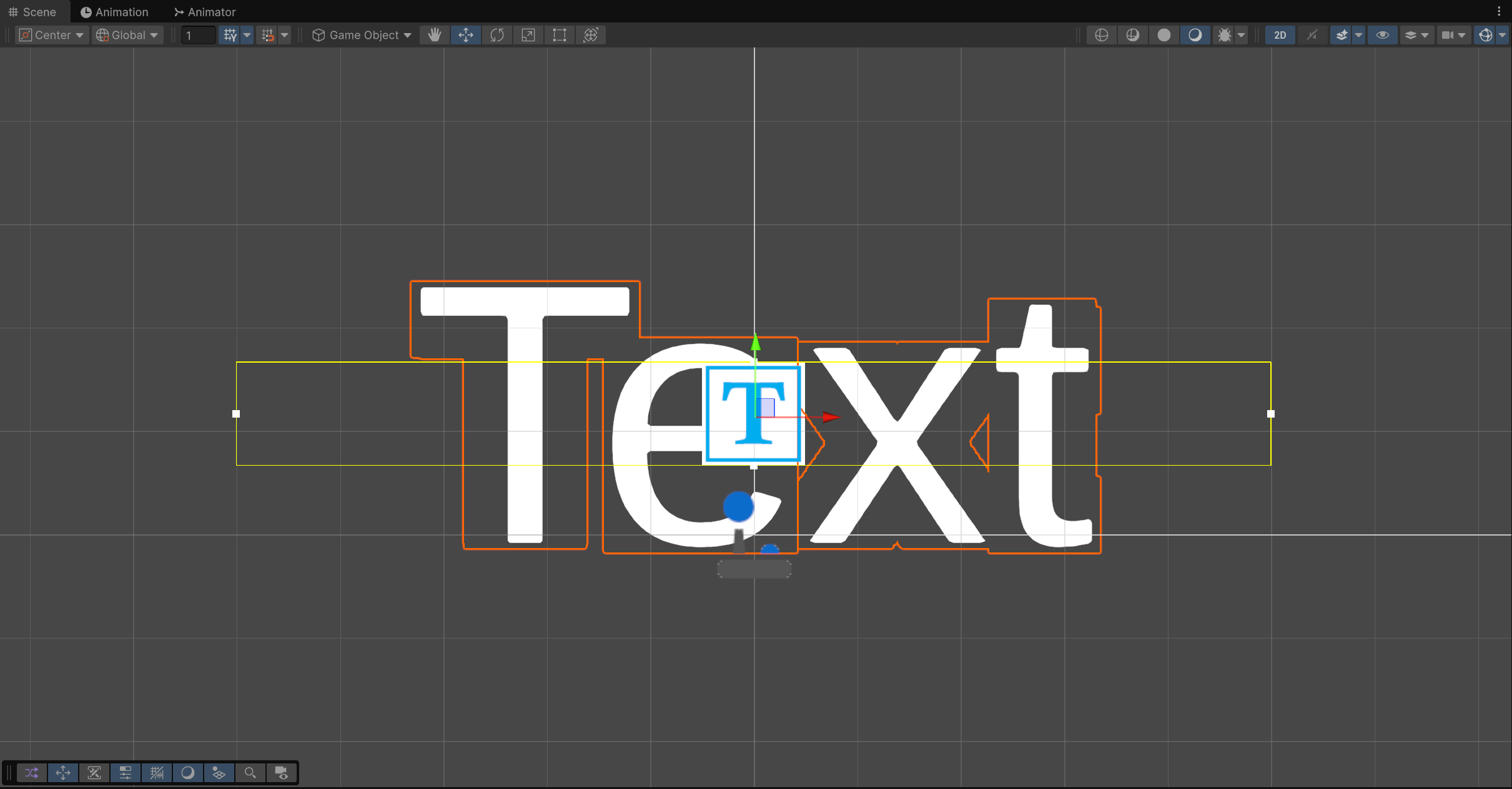
Text가 표시된다.


하지만 텍스트 길이에 따라 항상 이미지 크기를 조절해야 한다.

Content Size Fitter 컴포넌트와 간단한 스크립트를 사용하면 자동으로 텍스트 길이에 맞는 이미지를 표시할 수 있다.

dialog box.png
0.00MB


실습을 위해 위 이미지를 임포트한다.


Inspector 에서 위와 같이 설정한다.


Sprite Editor 에서 위와 같이 설정한다.


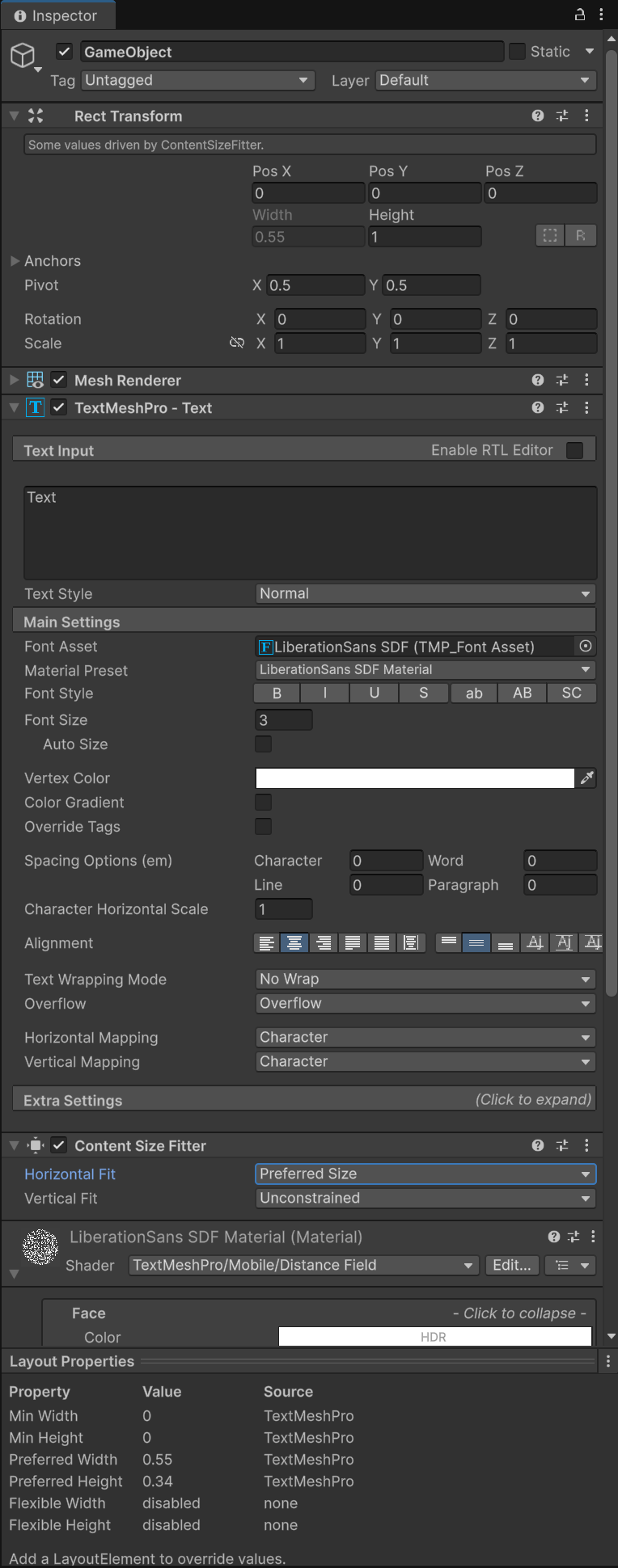
2D Sprite Renderer에는 위 이미지 파일을 지정하고 자식(텍스트) 오브젝트에는 Content Size Fitter 컴포넌트를 추가하고 아래와 같이 설정한다.


Content Size Fitter - Horizontal Fit - Preferred Size로 변경한다.

이제 Rect Transform - Width 필드가 비활성화 되어 수정할 수 없게 된다.


using TMPro;
using UnityEngine;
using UnityEngine.UI;

public class word : MonoBehaviour
{
    void Start()
    {
        RectTransform crt = GetComponentInChildren<RectTransform>();
        crt.gameObject.GetComponent<TextMeshPro>().text = "Very very long long text";
        // 미리 자식 오브젝트 Rect Transform을 가져오고, TextMeshPro - text 변경

        LayoutRebuilder.ForceRebuildLayoutImmediate(crt);
        // Forces an immediate rebuild of the layout element and child layout elements
        // affected by the calculations.
        // 위에서 TexhMeshPro - text 값이 변경되고 Content Size Fitter에 의해
        // Rect Transform - Width(sizeDelta.x) 값이 변경 되지만 바로 되지는 않는다.
        // 아래 코드에서 값을 가져오기 전에 업데이트 한다.

        Debug.Log(crt);
        Debug.Log(crt.sizeDelta.x);

        SpriteRenderer sr = GetComponent<SpriteRenderer>();
        sr.size = new Vector2(crt.sizeDelta.x + 0.7f, sr.size.y);
        // 폰트, 폰트 사이즈, 이미지에 따라 다르겠지만 이 예제의 경우
        // Rect Transform - Width(sizeDelta.x) 값에 0.7f를 더하면 적당하다.
    }

    void Update()
    {        
    }
}


Sprite Renderer가 있는 부모 오브젝트(Square)에 위 스크립트를 추가한다.


게임을 실행하기 전 텍스트


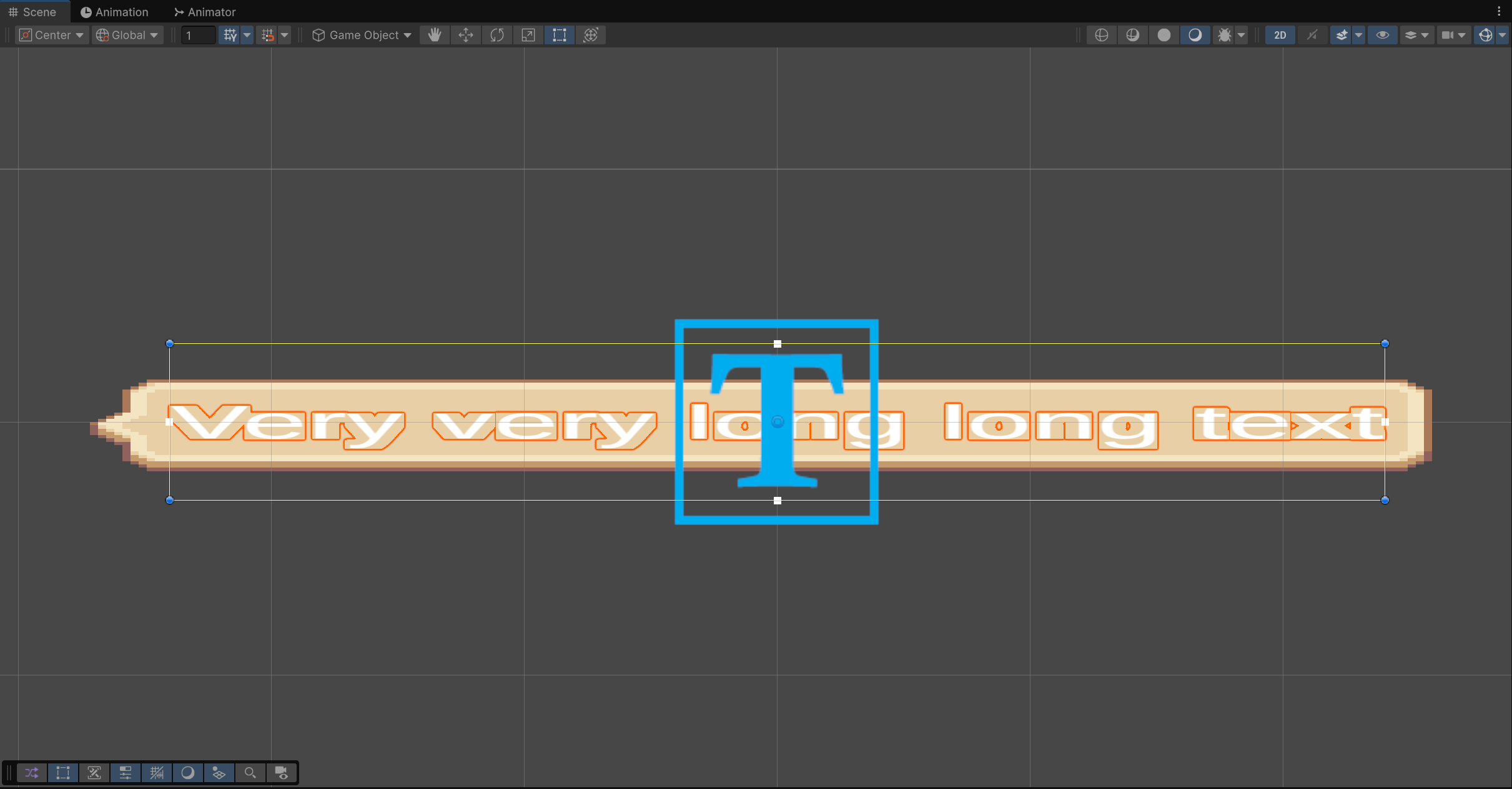
게임 실행 후 텍스트


게임을 실행하면 텍스트가 바뀌고 그에 맞게 이미지의 길이도 자동으로 변경된다.


반응형
Posted by J-sean
:
반응형

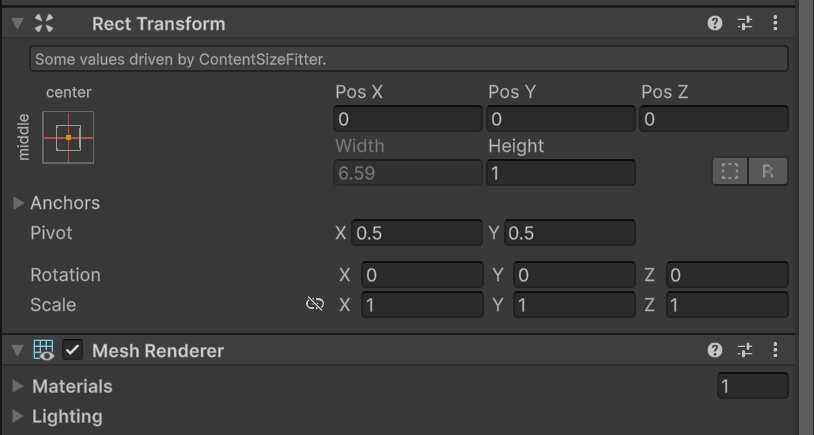
Content Size Fitter가 사용된 오브젝트는 설정에 따라 Rect Transform의 Width, Height 필드가 잠기고 Some values driven by ContentSizeFitter라는 메세지가 표시된다.


Content Size Filter


Rect Transform


그리고 이 Rect Transform의 sizeDelta(Width, Height 정보가 있는 Vector2 구조체)를 스크립트에서 확인해 보면 (0, 0)을 반환하는 경우가 발생할 수 있다. 아래 코드를 참고해서 해결하자.


void Start()
{   
    RectTransform[] crt = GetComponentsInChildren<RectTransform>();
    // 자식 오브젝트와 같은 컴포넌트를 가진 상태에서 GetComponentInChildren<>()을 사용해 그
    // 컴포넌트를 가져오면 항상 자신의 컴포넌트가 리턴된다. 또, GetComponenetsInChildren<>()
    // 사용시 0번 인덱스도 자신이 된다.

    LayoutRebuilder.ForceRebuildLayoutImmediate(crt[1]);
    //Canvas.ForceUpdateCanvases();
    // LayoutRebuilder.ForceRebuildLayoutImmediate()대신 위 함수를 사용해도 된다.
    // 하지만 비효율적.

    Vector2 size = crt[1].sizeDelta;
    //Vector2 size = new Vector2(crt[1].rect.width, crt[1].rect.height);
    
    Debug.Log(crt[1]);
    Debug.Log(size);

    SpriteRenderer sr = GetComponent<SpriteRenderer>();
    sr.size = size;
    // Sprite Renderer 사이즈를 자식 오브젝트 Rect Transform 사이즈로 설정한다.
}


부모 오브젝트에 Rect Transform, Sprite Renderer 가 있는 상태에서 위 코드가 포함된 스크립트를 추가했다. 자식 오브젝트에도 Rect Transform이 있고 Content Size Fitter가 추가되어 있다.

sizeDelta 정보에 접근하기 전, ForceRebuildLayoutImmediate()(또는 ForceUpdateCanvases()) 를 먼저 실행하지 않으면 Rect Transform에 필요한 계산이 끝나지 않아 부정확한 정보가 넘어올 수 있다.


Rect Transform Details

Note that some RectTransform calculations are performed at the end of a frame, just before calculating UI vertices, in order to ensure that they are up to date with all the latest changes performed throughout the frame. This means that they haven't yet been calculated for the first time in the Start callback and first Update callback.
You can work around this by creating a Start() callback and adding Canvas.ForceUpdateCanvases() method to it. This will force Canvas to be updated not at the end of the frame, but when that method is called.


반응형
Posted by J-sean
:
반응형

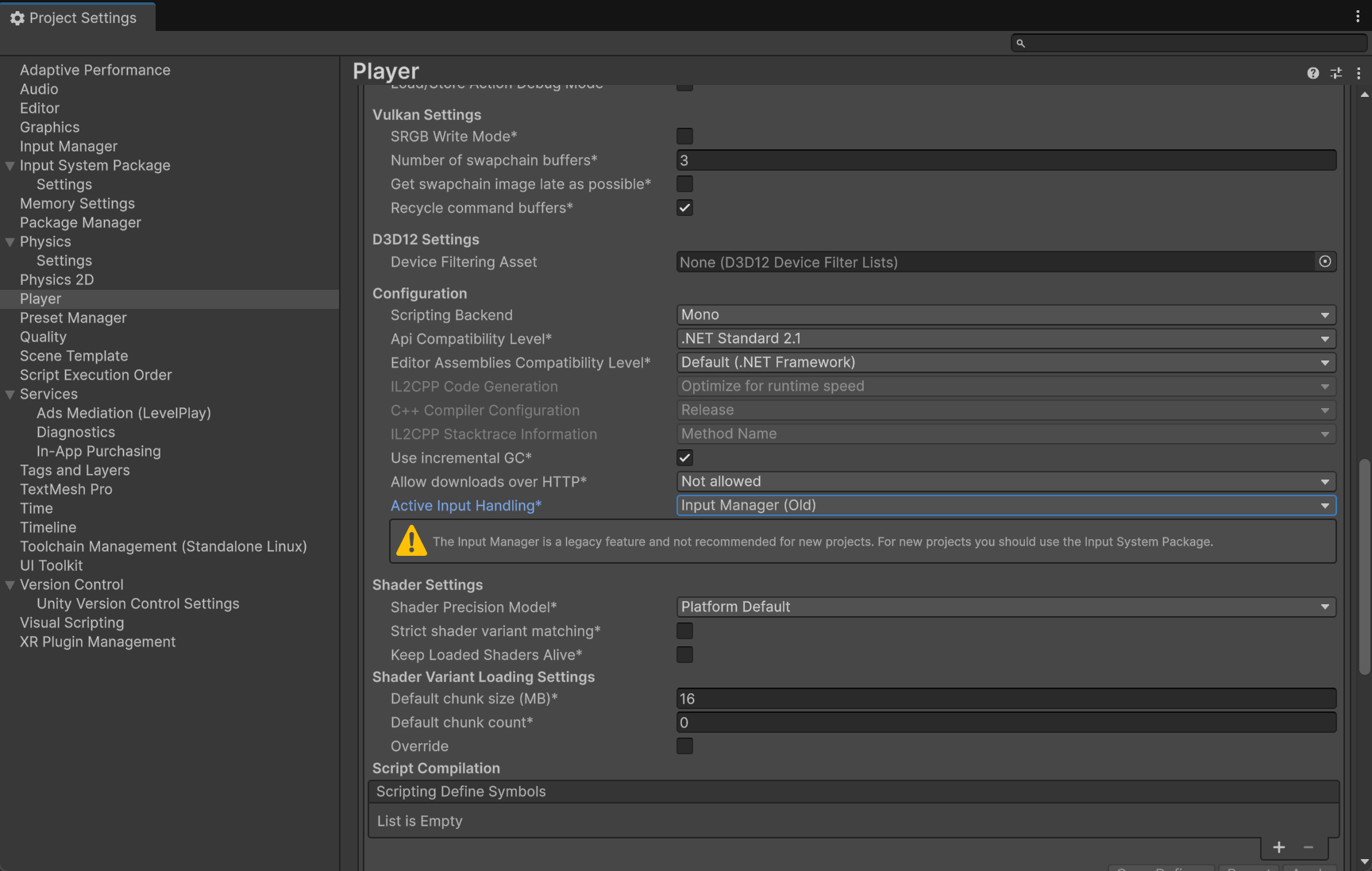
배경이 투명한 애플리케이션을 만들어 보자.


우선 Built-in Render Pipeline의 경우다.


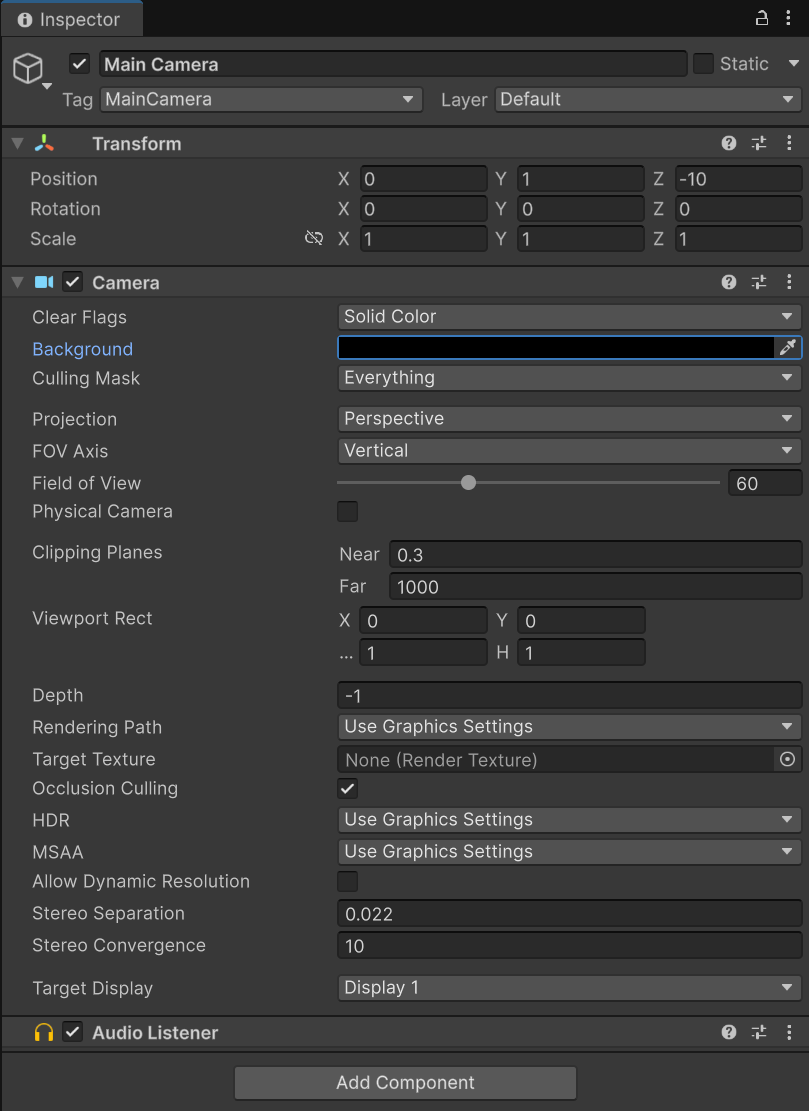
Clear Flags - Solid Color, Background - Black


Use DXGI flip model swapchain for D3D11 체크 해제


Auto Graphics API for Windows 체크 해제 하고 Direct3D11을 위로 올린다.


간단한 입력을 위해 Input Manager를 사용했다.


using System;
using UnityEngine;
using System.Runtime.InteropServices;

public class NewBehaviourScript : MonoBehaviour
{
    public struct MARGINS
    {
        public int leftWidth;
        public int rightWidth;
        public int topHeight;
        public int bottomHeight;
    }

    [DllImport("user32.dll")]
    public static extern IntPtr GetActiveWindow();

    [DllImport("user32.dll")]
    public static extern IntPtr SetWindowLongPtr(IntPtr hWnd, int nIndex, IntPtr dwNewLong);

    [DllImport("user32.dll")]
    public static extern int BringWindowToTop(IntPtr hwnd);

    [DllImport("user32.dll")]
    [return: MarshalAs(UnmanagedType.Bool)]
    public static extern bool SetWindowPos(IntPtr hWnd, IntPtr hWndInsertAfter, int x, int y, int cx, int cy, uint uFlags);

    [DllImport("Dwmapi.dll")]
    public static extern uint DwmExtendFrameIntoClientArea(IntPtr hWnd, ref MARGINS margins);

    static readonly IntPtr HWND_TOPMOST = new IntPtr(-1);
    static readonly IntPtr HWND_NOTOPMOST = new IntPtr(-2);

    IntPtr hWnd;
    const UInt32 SWP_NOSIZE = 0x0001;
    const UInt32 SWP_NOMOVE = 0x0002;

    const int GWL_EXSTYLE = -20;
    const long WS_EX_LAYERED = 0x00080000L;
    const long WS_EX_TRANSTPARENT = 0x00000020L;

    void Start()
    {
        Application.runInBackground = true;

        hWnd = GetActiveWindow();

        MARGINS margins = new MARGINS { leftWidth = -1 };
        DwmExtendFrameIntoClientArea(hWnd, ref margins);
        // Negative margins have special meaning to DwmExtendFrameIntoClientArea.
        // Negative margins create the "sheet of glass" effect, where the client area
        // is rendered as a solid surface with no window border.
        SetWindowLongPtr(hWnd, GWL_EXSTYLE, (IntPtr)WS_EX_LAYERED);

        BringWindowToTop(hWnd);
        SetWindowPos(hWnd, HWND_TOPMOST, 0, 0, 0, 0, SWP_NOSIZE);
    }

    bool toggle = true;
    void Update()
    {
        if (Input.GetKeyUp(KeyCode.Space))
        {
            toggle = !toggle;

            BringWindowToTop(hWnd);
            SetWindowPos(hWnd, HWND_TOPMOST, 0, 0, 0, 0, SWP_NOSIZE);

            if (toggle)
            {
                SetWindowLongPtr(hWnd, GWL_EXSTYLE, (IntPtr)WS_EX_LAYERED);
            }
            else
            {
                SetWindowLongPtr(hWnd, GWL_EXSTYLE, (IntPtr)(WS_EX_LAYERED | WS_EX_TRANSTPARENT));
            }
        }
    }
}


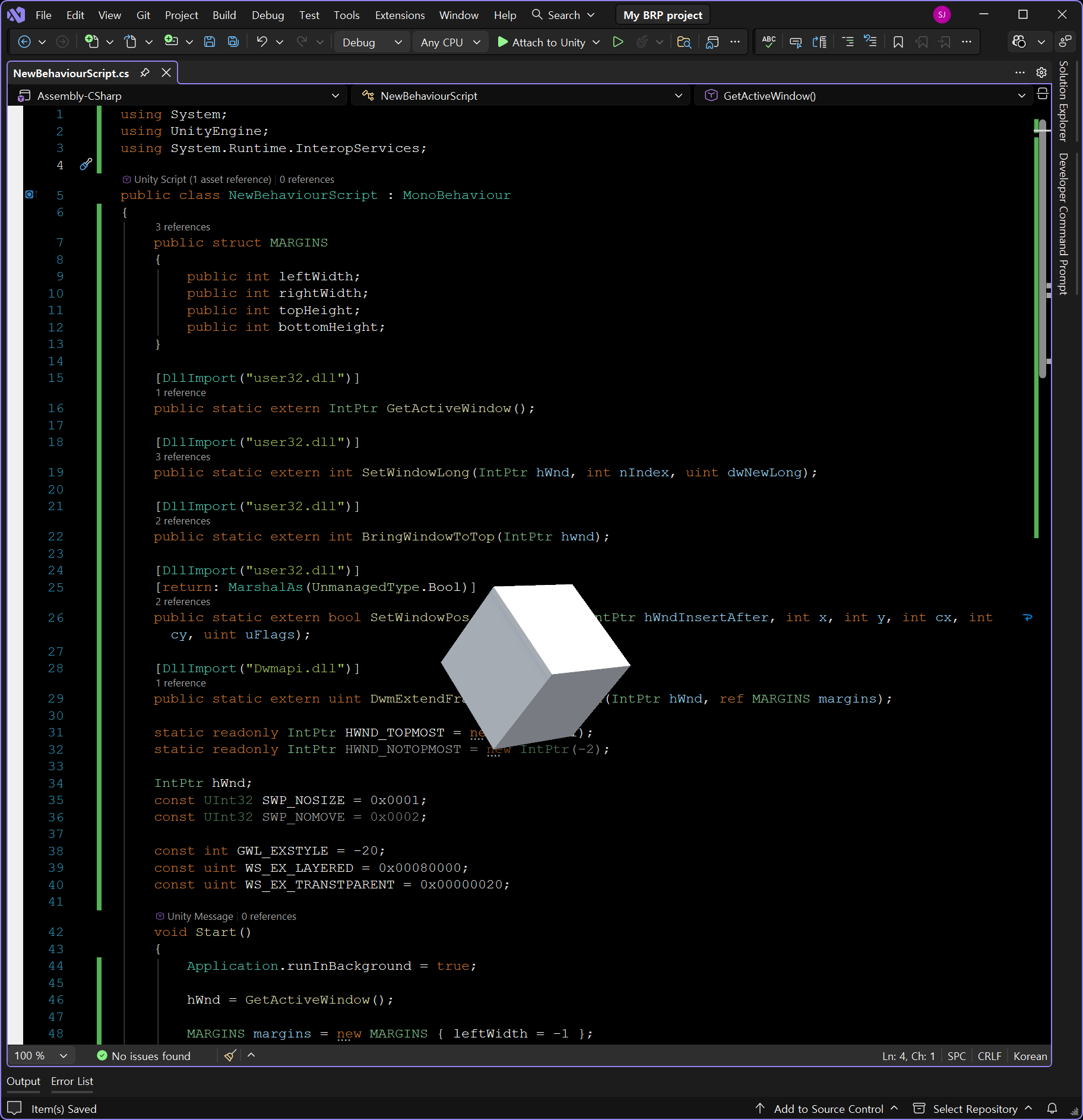
스크립트를 작성하고 적당한 오브젝트에 추가한다. 스페이스 키를 누르면 배경의 존재 유무가 변경된다.


빌드하고 실행하면 투명한 배경에서 애플리케이션이 표시된다.


Univeral Reder Pipeline의 경우,

1. 프로젝트 창에서 Assets/settings/PC_Renderer(예: Renderer2D)/Post-Processing/*Enabled 체크 해제*
2. 프로젝트 창에서 Assets/settings/PC_RP(예: UniversalRP)/Quality/HDR/*체크 해제*

작업을 추가로 진행해야 한다.


※ 참고

https://youtu.be/RqgsGaMPZTw?si=ypzYCdXufnlmBRSd


반응형
Posted by J-sean
:
반응형

유니티 Input System Package 사용방법.


Workflow - Actions

대부분의 경우 권장되는 방법이다.

Responding to Actions

각 입력에 대해 반응하는 방법이다.

Method Description
InputAction.WasPerformedThisFrame() True if the InputAction.phase of the action has, at any point during the current frame, changed to Performed.
InputAction.WasCompletedThisFrame() True if the InputAction.phase of the action has, at any point during the current frame, changed away from Performed to any other phase. This can be useful for Button actions or Value actions with interactions like Press or Hold when you want to know the frame the interaction stops being performed. For actions with the default Interaction, this method will always return false for Value and Pass-Through actions (since the phase stays in Started for Value actions and stays in Performed for Pass-Through).
InputAction.IsPressed() True if the level of actuation on the action has crossed the press point and did not yet fall to or below the release threshold.
InputAction.WasPressedThisFrame() True if the level of actuation on the action has, at any point during the current frame, reached or gone above the press point.
InputAction.WasReleasedThisFrame() True if the level of actuation on the action has, at any point during the current frame, gone from being at or above the press point to at or below the release threshold.


void Update()
{
    if (isDead)
        return;

    if (jumpAction.WasPerformedThisFrame() && jumpCount < 2)
    {
        // 버튼이 눌릴때 한 번
        jumpCount++;
        playerRigidbody.linearVelocity = Vector2.zero;
        playerRigidbody.AddForce(new Vector2(0, jumpForce));
        playerAudio.Play();
    }
    else if (jumpAction.WasCompletedThisFrame() && playerRigidbody.linearVelocity.y > 0)
    {
        // 버튼이 떨어질때 한 번
        playerRigidbody.linearVelocity = playerRigidbody.linearVelocity * 0.5f;
    }

    animator.SetBool("Grounded", isGrounded);
}

예제 코드


Workflow - Actions and PlayerInput

Callback 함수를 사용하는 방법이다.

Callback 함수를 연결하는 방법은 아래를 참고한다.


Player Input 컴포넌트에 Input Action Asset을 연결한다.


Project-wide Input Action을 Player Input에 사용 하는건 권장되지 않는 방법이지만 여기서는 사용 방법을 보이기 위해 그냥 사용했다. Behavior는 Invoke Unity Events로 변경하고, Events - Player - Move(CallbackContext)에 'Player' 오브젝트가 연결되어 있는데 # 아이콘이 마치 스크립트인것 같지만 실제로는 Callback 함수가 정의된 스크립트를 가지는 Player 게임 오브젝트이다.


이 Player 게임 오브젝트에 PlayerController라는 스크립트가 추가되어 있고 그 스크립트에 OnMove()가 존재한다. 오른쪽에 PlayerController.OnMove를 선택해 주었다. (이 예에선 Player 게임 오브젝트가 Player Input Asset도 가지고 있고 PlayerController 스크립트도 가지고 있는 것이다)


PlayerController 스크립트에 OnMove()가 정의 되어 있다.


반응형
Posted by J-sean
:
반응형

유니티 2D Sprite 및 Tile Palette의 각 tile마다 물리적 충돌과 그림자 적용을 위한 Physics Shape을 설정할 수 있다.


스프라이트를 임포트하면 Inspector - Sprite Mode - Generate Physics Shape 설정을 체크해서 Physics Shape 설정을 하지 않은 스프라이트에 대해 기본 Physics Shape을 생성하게 할 수 있다. 하지만 이 설정은 shape이 임의로 정해진다.


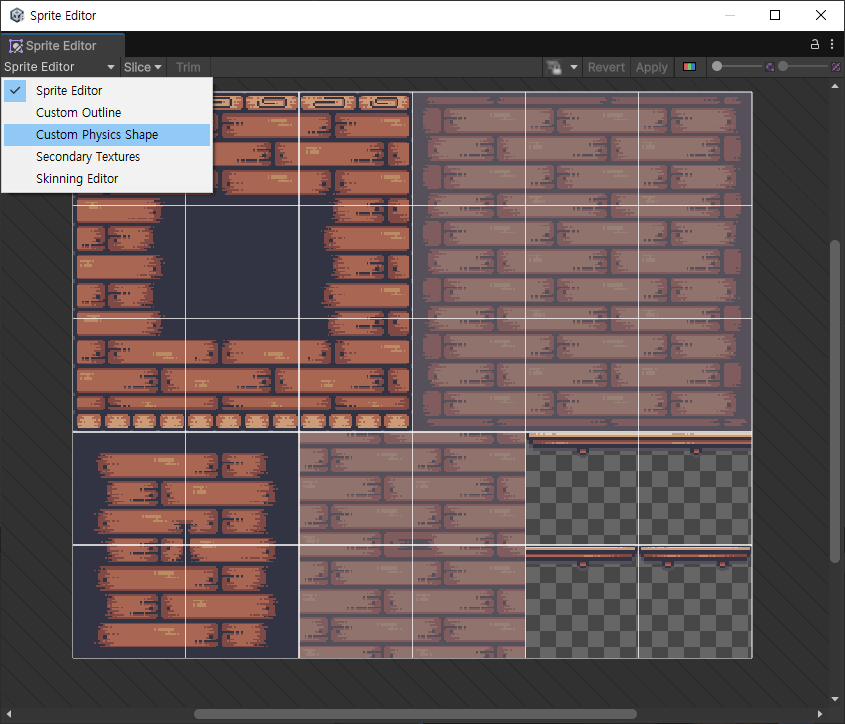
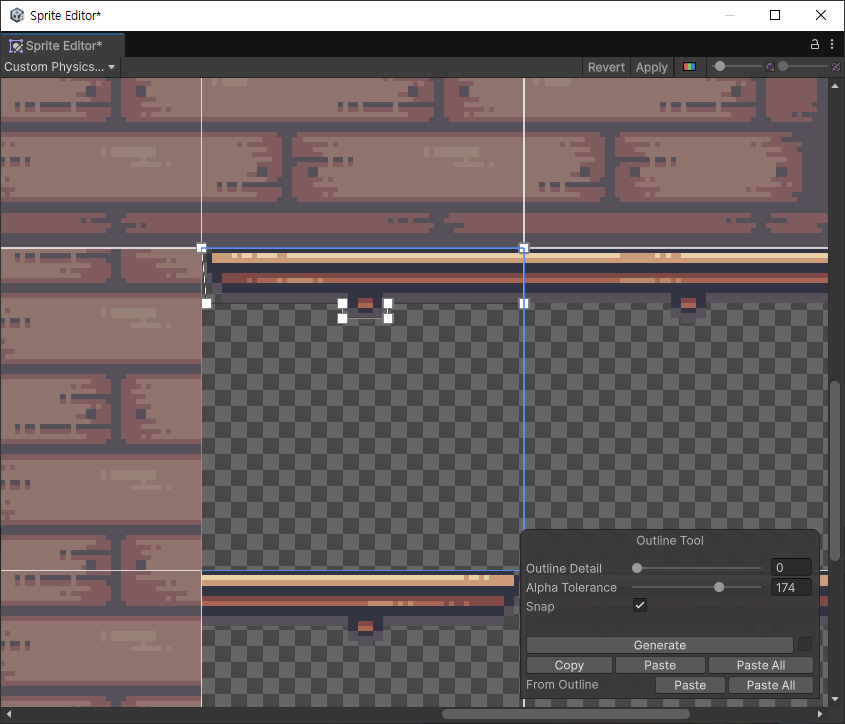
원하는 Physics Shape 설정을 위해 Sprite에서 Open Sprite Editor 클릭 - Sprite Editor를 Custom Physics Shape으로 바꾼다


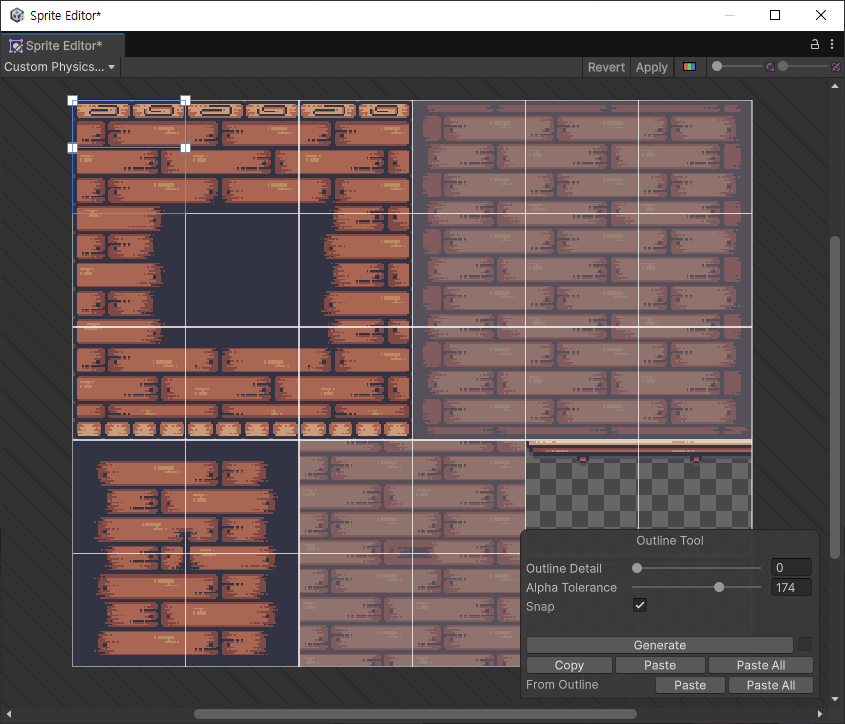
아래 Outline Tool에서 Generate 클릭. (아니면 원하는 Tile에서 클릭&드래그로 Physics Shape을 만들 수 있다)


원하는 형태로 shape을 변경한다. shape은 여러 개 만들 수 있다. 여기서 만드는 Physics Shape은 그림자 뿐만 아니라 충돌 처리를 위한 경계로도 사용된다.


위 그림처럼 필요에 맞게 변경한다.


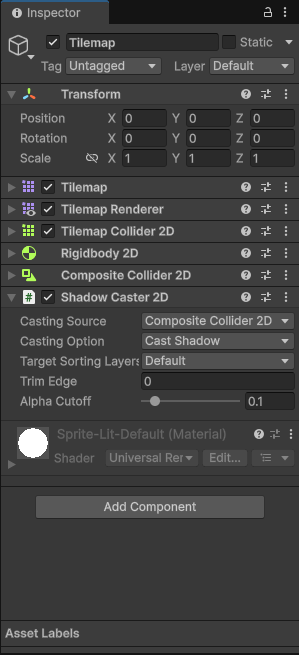
타일맵은 Tilemap Collider 2D를 추가하고 Composite Operation을 Merge로 바꾼다. Composite Collider 2D를 추가하고, 같이 추가되는 Rigidbody 2D에서 Body Type을 Static으로 바꾼다. (Body Type이 Dynamic으로 되어 있으면 게임 실행 시 밑으로 떨어진다)


Shadow Caster 2D를 추가하고 Casting Source를 Composite Collider 2D로 바꾼다. (Composite Collider 2D 관련 과정은 충돌 계산 및 그림자 효과를 효율적으로 만들기 위한 것이다. 그냥 Tilemap Collider 2D와 Shadow Caster 2D만 추가해서 Shadow Caster 2D의 Casting Source를 Tilemap Collider 2D로 바꾸고 사용해도 문제는 없다)


만약 위 과정을 진행 하고나서 나중에 Sprite의 Physics Shape을 바꾸면 이미 만들어져 있는 Tilemap에서는 바뀐 Physics Shape이 바로 적용되지 않는다. 이때는 Tilemap Collider 2D를 Reset한다. (그러면 Composite Operation을 다시 Merge로 바꿔줘야 한다)


반응형
Posted by J-sean
:
반응형

기본적인 2D 캐릭터 컨트롤러. 2D 테스트에 활용 할 수 있다.

빈 오브젝트에 스프라이트 렌더러 정도만 추가하고 사용하면된다.


1
2
3
4
5
6
7
8
9
10
11
12
13
14
15
16
17
18
19
20
21
22
23
24
25
26
27
28
29
30
31
32
33
34
35
36
37
38
39
40
41
42
43
44
45
46
47
48
49
50
51
52
53
54
55
56
57
58
59
60
61
62
63
64
65
66
67
68
69
70
71
72
73
74
75
76
77
78
79
80
81
82
83
84
85
86
87
88
89
90
91
92
93
94
95
96
97
98
99
100
101
102
103
104
105
106
107
108
109
110
111
112
113
114
115
116
117
118
119
120
121
122
123
124
125
126
127
128
129
130
131
132
133
134
135
136
137
138
using UnityEngine;
 
[RequireComponent(typeof(Rigidbody2D))]
[RequireComponent(typeof(CapsuleCollider2D))]
[RequireComponent(typeof(PlatformEffector2D))]
 
public class CharacterController2D : MonoBehaviour
{
    public float maxSpeed = 3.0f;
    public float jumpHeight = 6.0f;
    public float gravityScale = 1.5f;
 
    float moveDirection = 0.0f;
    float collisionCheckRadius = 0.0f;
    bool facingRight = true;
    bool isGrounded = false;
    bool isJumping = false;
 
    Rigidbody2D rigidBody;
    CapsuleCollider2D mainCollider;
    PlatformEffector2D platformEffector;
 
    Vector3 cameraPos;
    public Camera mainCamera;
 
    void Start()
    {
        rigidBody = GetComponent<Rigidbody2D>();
        mainCollider = GetComponent<CapsuleCollider2D>();
        platformEffector = GetComponent<PlatformEffector2D>();
 
        rigidBody.freezeRotation = true;
        // Freeze rotation: Prevents the Rigidbody2D from rotating due to collisions or physics forces.
        rigidBody.collisionDetectionMode = CollisionDetectionMode2D.Continuous;
        // Collision Detection Mode: Continuous - Rigidbody2D will use continuous collision detection
        // to prevent fast-moving objects from passing through colliders.
        rigidBody.gravityScale = gravityScale;
 
        mainCollider.usedByEffector = true;
        platformEffector.useOneWay = false;
        platformEffector.useSideFriction = false;
        // PlatformEffector없이 Collider만 사용하면 캐릭터가 점프 후 벽에 붙는 효과가 발생한다. 마찰력 때문이다.
        // platformEffector.useSideFriction을 false로 설정하면 벽에 붙는 효과를 제거할 수 있다.
 
        facingRight = transform.localScale.x > 0.0f;
        collisionCheckRadius = mainCollider.size.x * 0.6f * Mathf.Abs(transform.localScale.x);
 
        if (mainCamera)
        {
            cameraPos = mainCamera.transform.position;
        }
    }
 
    void Update()
    {
        //if ((Input.GetKey(KeyCode.A) || Input.GetKey(KeyCode.D)) && (isGrounded || Mathf.Abs(rigidBody.linearVelocity.x) > 0.01f))        
        if (Input.GetKey(KeyCode.A) || Input.GetKey(KeyCode.D)) // 위 조건문으로 변경하면, 점프만 했을때 좌우로 움직이지 않게 된다.
        {
            moveDirection = Input.GetKey(KeyCode.A) ? -1 : 1;
        }
        else if (isGrounded || rigidBody.linearVelocity.magnitude < 0.01f)
        {
            moveDirection = 0.0f;
        }
 
        // Jumping logic. 키 입력 확인이 FixedUpdate()에서 처리되면 제대로 감지되지 않을때가 있다.
        if (Input.GetKeyDown(KeyCode.W) && isGrounded)
        {
            isJumping = true;
        }
 
        // Change facing direction
        if (moveDirection != 0)
        {
            if (moveDirection > 0 && !facingRight)
            {
                facingRight = true;
                transform.localScale = new Vector3(Mathf.Abs(transform.localScale.x), transform.localScale.y, transform.localScale.z);
            }
            else if (moveDirection < 0 && facingRight)
            {
                facingRight = false;
                transform.localScale = new Vector3(-Mathf.Abs(transform.localScale.x), transform.localScale.y, transform.localScale.z);
            }
        }
    }
 
    void FixedUpdate()
    {
        Vector3 groundCheckPos = mainCollider.bounds.min + new Vector3(mainCollider.size.x * 0.5f, mainCollider.size.x * 0.5f, 0.0f);
 
        // Check if player is grounded. OverlapCircleAll(): Get a list of all Colliders that fall within a circular area.
        Collider2D[] colliders = Physics2D.OverlapCircleAll(groundCheckPos, collisionCheckRadius);
 
        isGrounded = false;
 
        // 플레이어 콜라이더가 아니면 벽 또는 바닥 콜라이더라 가정하고 점프 할 수 있도록 충돌체크한다.
        // 벽을 타고 멀티 점프가 가능하다.
        if (colliders.Length > 0)
        {
            for (int i = 0; i < colliders.Length; i++)
            {
                if (colliders[i] != mainCollider)
                {
                    isGrounded = true;
                    break;
                }
            }
        }
 
        if (isJumping)
        {
            // Apply jump force            
            rigidBody.linearVelocity = new Vector2(rigidBody.linearVelocity.x, jumpHeight);
            //rigidBody.AddForce(new Vector2(0.0f, jumpHeight * rigidBody.mass), ForceMode2D.Impulse);
            isJumping = false;
        }
        else
        {
            // Apply movement velocity
            rigidBody.linearVelocity = new Vector2(moveDirection * maxSpeed, rigidBody.linearVelocity.y);
        }
 
        // OverlapCircleAll() 이 커버하는 범위를 시각적으로 표시하기 위해 디버그 라인 그리기.
        Debug.DrawLine(groundCheckPos, groundCheckPos - new Vector3(0.0f, collisionCheckRadius, 0.0f), isGrounded ? Color.green : Color.red);
        Debug.DrawLine(groundCheckPos, groundCheckPos + new Vector3(collisionCheckRadius * (facingRight ? 1 : -1), 0.0f, 0.0f), isGrounded ? Color.green : Color.red);
    }
 
    private void LateUpdate()
    {
        // Ensure the camera follows the player smoothly
        if (mainCamera)
        {
            // 카메라의 y, z 좌표는 고정하고, x 좌표만 플레이어의 x 좌표로 설정.
            mainCamera.transform.position = new Vector3(transform.position.x, cameraPos.y, cameraPos.z);
        }
    }
}


반응형
Posted by J-sean
:
반응형

스크립트 작성 시 SerializeField와 Range 어트리뷰트를 함께 사용할 수 있다.


스크립트를 작성한다. 두 가지 방법으로 작성 할 수 있다.


a, b 멤버 변수를 Range에 정해진 범위 내에서 조절 가능하다.


반응형
Posted by J-sean
: