


[C#] Asynchronously Write DateTime and Value Text File 시간, 값 데이터 텍스트 파일 비동기 쓰기
C# 2026. 7. 20. 16:44 |반응형
시간과 임의의 값을 비동기적으로 텍스트 파일로 저장하고 확인해 보자.
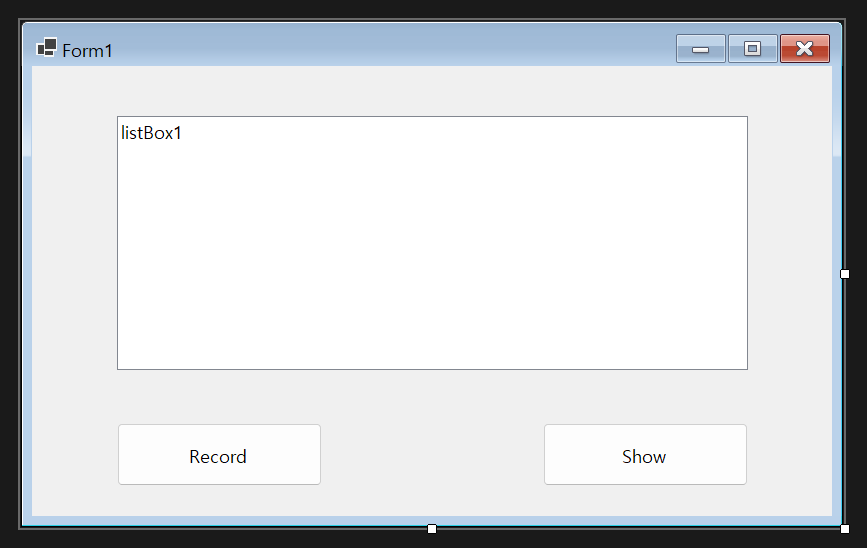
namespace DateTimeValue
{
    public partial class Form1 : Form
    {
        private readonly string filePath = "output.txt";
        readonly Random random = new Random();

        public Form1()
        {
            InitializeComponent();

            button1.Click += Button1_Click;
            button2.Click += Button2_Click;
        }

        // 비동기적으로 파일에 현재 시간과 랜덤 값을 기록하는 버튼 클릭 이벤트 핸들러
        // 비동기 메서드는 Task를 반환하는게 좋지만 이벤트 핸들러는 void를 반환해야 하므로 어쩔 수 없이 async void를 사용
        private async void Button1_Click(object? sender, EventArgs e)
        {
            try
            {
                // 버튼 클릭 시 버튼을 비활성화하여 중복 클릭 방지
                button1.Enabled = false; // 버튼 비활성화

                FileStream fileStream = new FileStream (
                    filePath,
                    FileMode.Append,  // 파일이 없으면 새로 생성하고, 있으면 이어쓰기
                    FileAccess.Write, // 쓰기 전용
                    FileShare.Read); // 다른 프로세스가 파일을 읽을 수 있도록 허용, 내가 쓰는 동안 다른 프로세스는 읽기 가능

                using (StreamWriter writer = new StreamWriter(fileStream, System.Text.Encoding.UTF8))
                {
                    for (int i = 0; i < 5; i++)
                    {
                        await writer.WriteLineAsync(DateTime.Now.ToString("yyyyMMdd-HHmmss") + " " + random.Next());
                        // 비동기적으로 파일에 기록
                        await writer.FlushAsync();
                        // 비동기적으로 버퍼를 파일에 기록

                        // 비동기적으로 1초 대기
                        await Task.Delay(1000);
                    }
                }
            }
            catch (Exception ex)
            {
                MessageBox.Show($"오류 발생: {ex.Message}");
            }
            finally
            {
                button1.Enabled = true; // 버튼 활성화
            }
        }

        private async void Button2_Click(object? sender, EventArgs e)
        {
            listBox1.Items.Clear(); // 기존 항목 제거
            try
            {
                FileStream fileStream = new FileStream(
                    filePath,
                    FileMode.Open, // 파일이 없으면 예외 발생
                    FileAccess.Read, // 읽기 전용
                    FileShare.ReadWrite); // 다른 프로세스가 파일을 읽을 수 있도록 허용, 내가 읽는 동안 다른 프로세스도 읽기/쓰기 가능

                using (StreamReader reader = new StreamReader(fileStream, System.Text.Encoding.UTF8))
                {
                    string? line;
                    while ((line = await reader.ReadLineAsync()) != null)
                    {
                        //listBox1.Items.Add(line);

                        // 공백 문자를 기준으로 분리
                        string[] parts = line.Split(' ');
                        if (parts.Length == 2)
                        {
                            listBox1.Items.Add("시간: " + DateTime.ParseExact(parts[0], "yyyyMMdd-HHmmss", null) + "\t값: " + parts[1]);
                            // ParseExact() 세번째 인자를 null로 주면 현재 문화권의 형식으로 해석, InvariantCulture를 주면 문화권에 상관없이 해석
                        }
                        else
                        {
                            listBox1.Items.Add("Error");
                        }
                    }
                }
            }
            catch (FileNotFoundException)
            {
                MessageBox.Show($"{filePath} 파일이 존재하지 않습니다.");
            }
            catch (Exception ex)
            {
                MessageBox.Show($"오류 발생: {ex.Message}");
            }
        }
    }
}
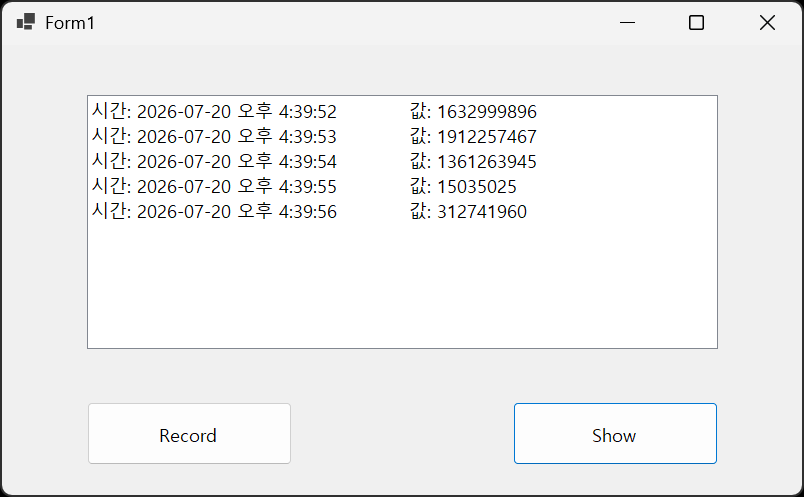
그래프를 추가해 보자.

using System.Diagnostics;

namespace DateTimeValue
{
    public partial class Form1 : Form
    {
        internal string filePath = string.Empty; // Form2에서 접근할 수 있도록 internal로 선언
        readonly Random random = new Random();

        public Form1()
        {
            InitializeComponent();

            button1.Click += Button1_Click;
            button2.Click += Button2_Click;
            button3.Click += Button3_Click;
        }

        // 비동기적으로 파일에 현재 시간과 랜덤 값을 기록하는 버튼 클릭 이벤트 핸들러
        // 비동기 메서드는 Task를 반환하는게 좋지만 이벤트 핸들러는 void를 반환해야 하므로 어쩔 수 없이 async void를 사용
        private async void Button1_Click(object? sender, EventArgs e)
        {
            try
            {
                // 버튼 클릭 시 버튼을 비활성화하여 중복 클릭 방지
                button1.Enabled = false; // 버튼 비활성화

                int count = 120; // 테스트를 위해 120회(120초)만 기록
                string mm = string.Empty;
                string now = string.Empty;
                bool needNewFile = false; // 새로운 파일 생성 여부를 나타내는 플래그

                while (true)
                {
                    filePath = DateTime.Now.ToString("yyyyMMdd-HHmmss") + ".txt"; // 파일 이름을 현재 시간으로 설정
                    mm = Path.GetFileName(filePath).Substring(11, 2); // 파일 이름에서 '분'만 추출

                    FileStream fileStream = new FileStream(
                        filePath,
                        FileMode.Append,  // 파일이 없으면 새로 생성하고, 있으면 이어쓰기
                        FileAccess.Write, // 쓰기 전용
                        FileShare.Read); // 다른 프로세스가 파일을 읽을 수 있도록 허용, 내가 쓰는 동안 다른 프로세스는 읽기 가능

                    using (StreamWriter writer = new StreamWriter(fileStream, System.Text.Encoding.UTF8))
                    {
                        while (true)
                        {
                            now = DateTime.Now.ToString("yyyyMMdd-HHmmss");
                            if (now.Substring(11, 2) != mm) // 현재 '분'이 파일 이름의 '분'과 다르면
                            {
                                needNewFile = true;
                                break; // 루프 종료하여 새로운 파일 생성
                            }

                            await writer.WriteLineAsync(now + " " + random.Next(1, 11)); // 1부터 10까지의 랜덤 값을 기록
                            // 비동기적으로 파일에 기록
                            await writer.FlushAsync();
                            // 비동기적으로 버퍼를 파일에 기록

                            await Task.Delay(1000);
                            // 비동기적으로 1초 대기

                            count--;
                            if (count < 0)
                                break; // 기록 횟수가 0이 되면 루프 종료
                            Debug.WriteLine($"남은 기록 횟수: {count}");
                        }
                    }

                    // needNewFile보다 count를 먼저 확인하여 무한 루프를 방지
                    if (count < 0)
                    {
                        break; // 무한 루프 종료
                    }
                    if (needNewFile)
                    {
                        needNewFile = false; // 새로운 파일 생성 여부 플래그 초기화
                        continue; // 새로운 파일 생성 루프 시작
                    }
                }
            }
            catch (Exception ex)
            {
                MessageBox.Show($"오류 발생: {ex.Message}");
            }
            finally
            {
                button1.Enabled = true; // 버튼 활성화
            }
        }

        private async void Button2_Click(object? sender, EventArgs e)
        {
            FileDialog fileDialog = new OpenFileDialog();
            fileDialog.InitialDirectory = Application.StartupPath; // 실행 파일이 있는 폴더 경로
            fileDialog.Filter = "텍스트 파일 (*.txt)|*.txt|모든 파일 (*.*)|*.*";
            fileDialog.Title = "파일 선택";
            fileDialog.DefaultExt = "txt";

            if (fileDialog.ShowDialog() == DialogResult.OK)
                filePath = fileDialog.FileName;
            else
                return; // 파일 선택 취소 시 종료

            listBox1.Items.Clear(); // 기존 항목 제거

            try
            {
                FileStream fileStream = new FileStream(
                    filePath,
                    FileMode.Open, // 파일이 없으면 예외 발생
                    FileAccess.Read, // 읽기 전용
                    FileShare.ReadWrite); // 다른 프로세스가 파일을 읽을 수 있도록 허용, 내가 읽는 동안 다른 프로세스도 읽기/쓰기 가능

                using (StreamReader reader = new StreamReader(fileStream, System.Text.Encoding.UTF8))
                {
                    string? line;
                    while ((line = await reader.ReadLineAsync()) != null)
                    {
                        //listBox1.Items.Add(line);

                        // 공백 문자를 기준으로 문자열 분리
                        string[] parts = line.Split(' ');
                        if (parts.Length == 2)
                        {
                            listBox1.Items.Add("시간: " + DateTime.ParseExact(parts[0], "yyyyMMdd-HHmmss", null) + "\t값: " + parts[1]);
                            // ParseExact() 세번째 인자를 null로 주면 현재 문화권의 형식으로 해석, InvariantCulture를 주면 문화권에 상관없이 해석
                        }
                        else
                        {
                            listBox1.Items.Add("Error");
                        }
                    }
                }
            }
            catch (FileNotFoundException)
            {
                MessageBox.Show($"{filePath} 파일이 존재하지 않습니다.");
            }
            catch (Exception ex)
            {
                MessageBox.Show($"오류 발생: {ex.Message}");
            }
        }

        private void Button3_Click(object? sender, EventArgs e)
        {
            Form2 dlg = new Form2();
            dlg.Owner = this; // Form1을 Form2의 소유자로 설정
            // 아니면 아래 if문에서 dlg.ShowDialog(this) 명령으로 Form1을 Form2의 소유자로 설정할 수도 있다
            if (dlg.ShowDialog() == DialogResult.OK)
                ; // Form2에서 OK 버튼을 클릭하면 처리할 내용 작성

            dlg.Close();
            dlg.Dispose();
        }
    }
}
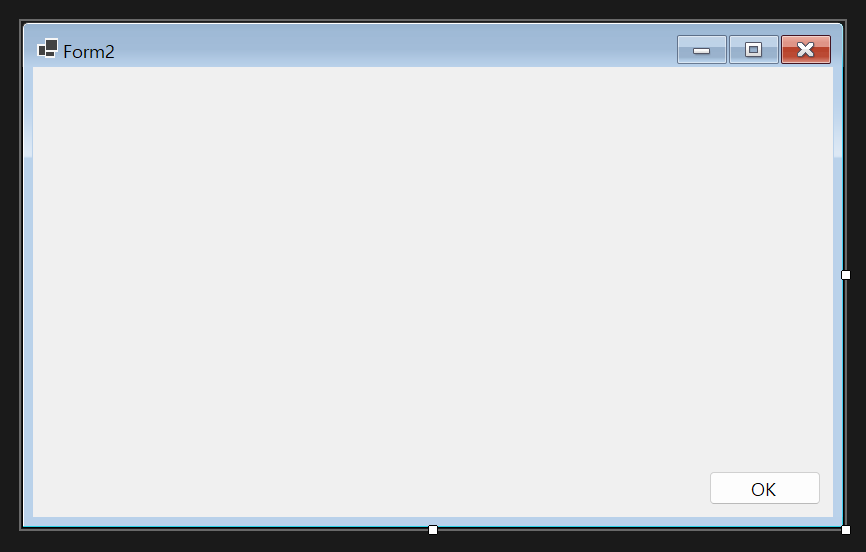
Visual Studio - Project - Add Form(Windows Forms)... 을 클릭하고 Form을 하나 추가한다.

using LiveChartsCore;
using LiveChartsCore.Defaults;
using LiveChartsCore.SkiaSharpView;
using LiveChartsCore.SkiaSharpView.WinForms;

using System.Collections.ObjectModel;
using System.Diagnostics;

namespace DateTimeValue
{
    public partial class Form2 : Form
    {
        private readonly ObservableCollection<DateTimePoint> values = new ObservableCollection<DateTimePoint>();

        public Form2()
        {
            InitializeComponent();

            button1.DialogResult = DialogResult.OK; // 버튼 클릭 시 DialogResult를 OK로 설정
            this.Load += Form2_Load; // Form2 로드 이벤트에 핸들러 추가
        }

        private async void Form2_Load(object? sender, EventArgs e)
        {
            Form1? parent = Owner as Form1; // Form1 인스턴스를 가져옴

            if (parent != null)
                if (string.IsNullOrEmpty(parent.filePath))
                {
                    // 파일 경로가 설정되지 않은 경우, 메시지 박스를 표시하고 종료
                    MessageBox.Show("파일 경로가 설정되지 않았습니다.");
                    // Form2 종료
                    Close();
                }
                else
                {
                    try
                    {
                        FileStream fileStream = new FileStream(
                            parent.filePath,
                            FileMode.Open, // 파일이 없으면 예외 발생
                            FileAccess.Read, // 읽기 전용
                            FileShare.ReadWrite); // 다른 프로세스가 파일을 읽을 수 있도록 허용, 내가 읽는 동안 다른 프로세스도 읽기/쓰기 가능

                        using (StreamReader reader = new StreamReader(fileStream, System.Text.Encoding.UTF8))
                        {
                            string? line;
                            while ((line = await reader.ReadLineAsync()) != null)
                            {
                                //listBox1.Items.Add(line);

                                // 공백 문자를 기준으로 분리
                                string[] parts = line.Split(' ');
                                if (parts.Length == 2)
                                {
                                    values.Add(new DateTimePoint(DateTime.ParseExact(parts[0], "yyyyMMdd-HHmmss", null), double.Parse(parts[1])));
                                    // ParseExact() 세번째 인자를 null로 주면 현재 문화권의 형식으로 해석, InvariantCulture를 주면 문화권에 상관없이 해석
                                }
                                else
                                {
                                    Debug.WriteLine($"잘못된 형식의 데이터: {line}");
                                }
                            }

                            ISeries[] series = new ISeries[]
                            {
                                new LineSeries<DateTimePoint>
                                {
                                    Values = values,
                                    Fill = null
                                }
                            };

                            CartesianChart cartesianChart = new CartesianChart
                            {
                                Series = series,
                                ZoomMode = LiveChartsCore.Measure.ZoomAndPanMode.X,
                                Location = new System.Drawing.Point(0, 0),
                                Size = new System.Drawing.Size(800, 300),
                                Anchor = AnchorStyles.Left | AnchorStyles.Right | AnchorStyles.Top | AnchorStyles.Bottom,
                                // X축 설정
                                XAxes = new Axis[]
                                {
                                    //new Axis
                                    //{
                                    //    Labeler = value => new DateTime((long)value).ToString("HH:mm:ss"),
                                    //    MinStep = TimeSpan.FromSeconds(1).Ticks // 1초 단위 (Ticks 단위)
                                    //    // MinStep을 설정하면 축의 최소 간격을 지정할 수 있는데 DateTimePoint 데이터를 사용하는
                                    //    // 경우에는 제대로 동작하지 않는다. 이 경우에는 DateTimeAxis를 사용하는 것이 더 적합하다.
                                    //}

                                    // 1초 단위 축 생성 및 DateTime 포맷터 지정
                                    // 위 주석 처리된 Axis를 직접 생성하는 것보다 DateTimeAxis를 사용하는 것이 더 간단하고 직관적이다
                                    new DateTimeAxis(TimeSpan.FromSeconds(1), date => date.ToString("HH:mm:ss"))
                                    //{
                                    //    Name = "Time",
                                    //    MinStep = TimeSpan.FromSeconds(2).Ticks, // 최소 2초 간격 유지를 원하는 경우
                                    //    LabelsRotation = 15 // 라벨 회전 각도
                                    //}
                                },
                                // Y축 설정
                                //YAxes = new Axis[]
                                //{
                                //    new Axis
                                //    {
                                //        Labeler = value => value.ToString("F2") // 소수점 2자리까지 표시
                                //    }
                                //}
                            };

                            Controls.Add(cartesianChart);
                        }
                    }
                    catch (FileNotFoundException)
                    {
                        MessageBox.Show($"{parent.filePath} 파일이 존재하지 않습니다.");
                    }
                    catch (Exception ex)
                    {
                        MessageBox.Show($"오류 발생: {ex.Message}");
                    }
                }
        }
    }
}
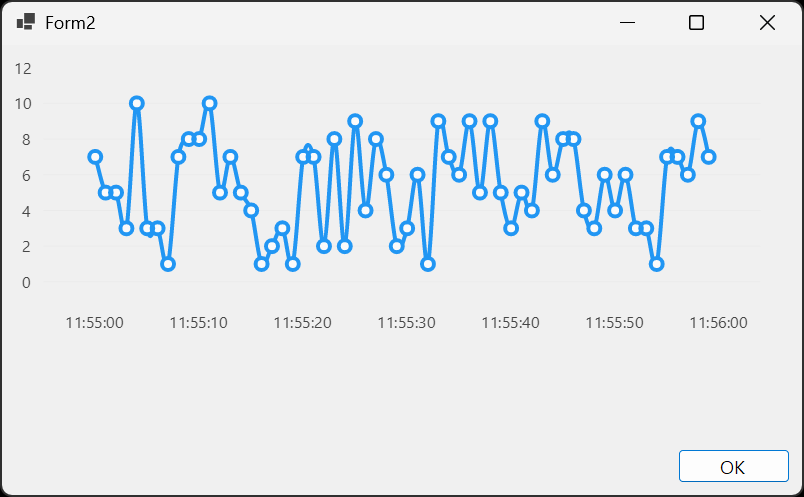
프로젝트를 빌드하고 실행한다.

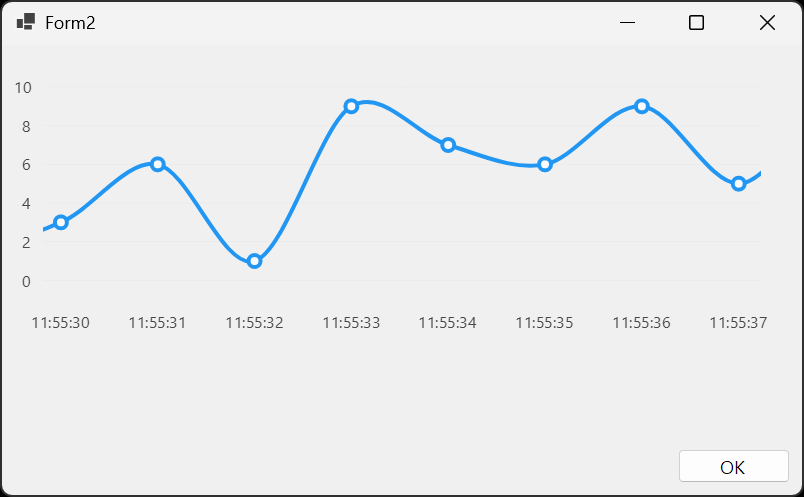
※ 참고
2026.04.20 - [C#] - [LiveCharts] 설치 및 기본 차트 그리기
반응형
'C#' 카테고리의 다른 글
| [WPF] Google's Material Design (0) | 2026.06.18 |
|---|---|
| [C#] Application Settings 애플리케이션 세팅 (0) | 2026.05.26 |
| [C#] CPU Usage 사용량 (0) | 2026.04.21 |
| [LiveCharts] NVR, VMS Playback Timeline UI (0) | 2026.04.21 |
| [LiveCharts] 설치 및 기본 차트 그리기 (0) | 2026.04.20 |