반응형

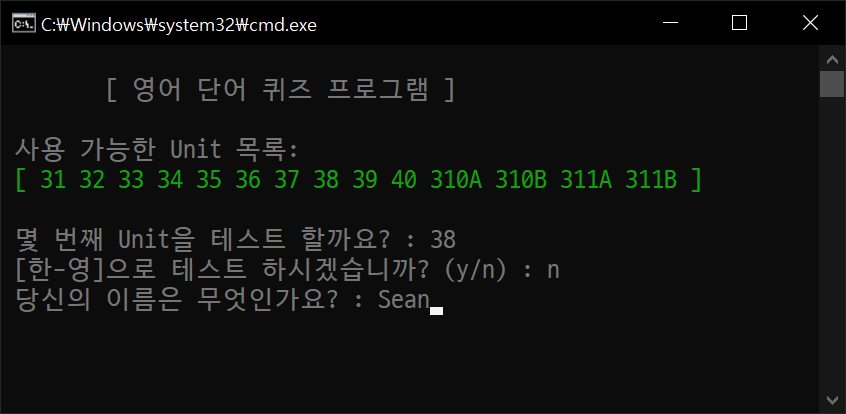
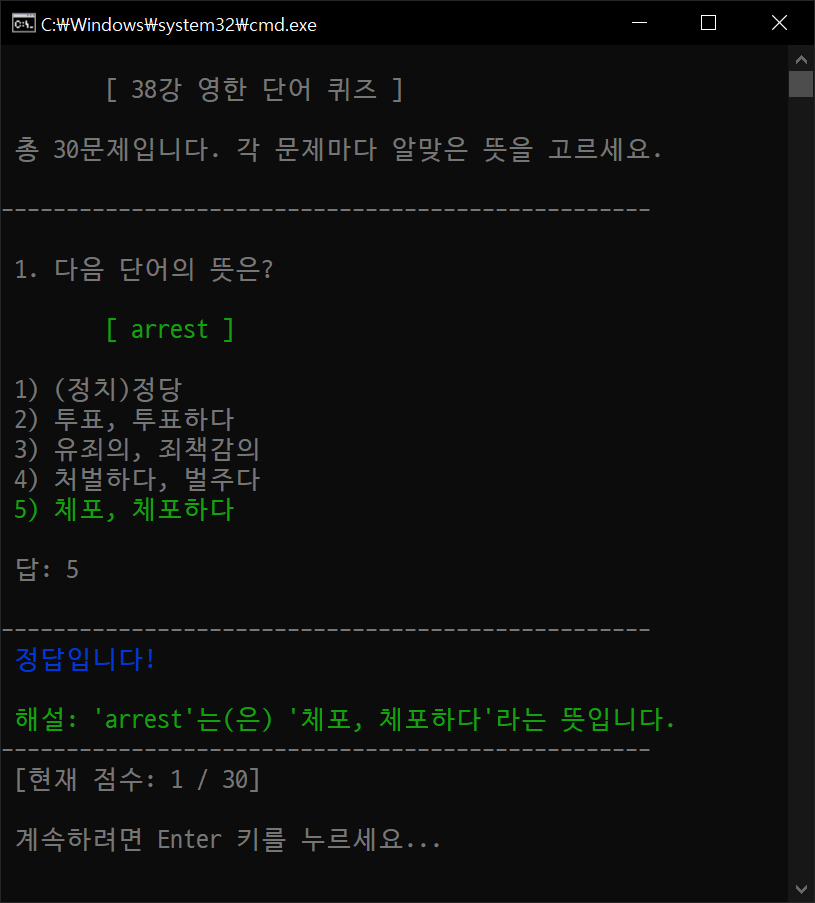
파이썬으로 간단한 영어 단어 학습기를 만들어 보자.


import glob
import random
import os
import time

# 컬러 코드 및 커서 이동 코드
code = {
    'RED': '\033[31m',
    'GREEN': '\033[32m',
    'YELLOW': '\033[33m',
    'BLUE': '\033[34m',
    'MAGENTA': '\033[35m',
    'CYAN': '\033[36m',
    'WHITE': '\033[37m',
    'RESET': '\033[0m',
    'UP': '\033[A',    
    'DOWN': '\033[B',
    'UP_FRONT': '\033[F',
    'DOWN_FRONT': '\033[E'
}

Continue = True
os.system('cls')
print(f"\n\t[ 영어 단어 퀴즈 프로그램 ]")

while Continue:
	# 데이터 파일 목록 출력
	files = glob.glob('data/Eng*.txt')
	files.sort(key=len)  # 파일 이름 길이 기준 정렬
	print("\n 사용 가능한 Unit 목록:")	
	print(f" {code['GREEN']}[", end='')
	for file in files:
		print(f" {file[8:-4]}", end='')
	print(f" ]{code['RESET']}")

	unit = input("\n 몇 번째 Unit을 테스트 할까요? : ")
	unit = unit.upper().strip()
	reverse = input(" [한-영]으로 테스트 하시겠습니까? (y/n) : ")

	# 테스트 모드 설정
	test_mode = False
	if unit is not '' and unit == '1004':
		test_mode = True
		if reverse.lower() == 'y':
			kor = ['boy', 'girl', 'house', 'car', 'tree', 'pen', 'paper']
			eng = ['소년', '소녀', '집', '자동차', '나무', '펜', '종이']
		else:
			eng = ['boy', 'girl', 'house', 'car', 'tree', 'pen', 'paper']
			kor = ['소년', '소녀', '집', '자동차', '나무', '펜', '종이']
	else:
		# 데이터 파일 불러오기
		try:			
			with open('data/Eng' + unit + '.txt', 'r', encoding='utf-8') as file:
				if reverse.lower() == 'y':
					kor = [line.strip() for line in file.readlines()]
				else:
					eng = [line.strip() for line in file.readlines()]
			with open('data/Kor' + unit + '.txt', 'r', encoding='utf-8') as file:
				if reverse.lower() == 'y':
					eng = [line.strip() for line in file.readlines()]
				else:
					kor = [line.strip() for line in file.readlines()]
		except FileNotFoundError:
			print(f"\n [Eng{unit}.txt] 또는 [Kor{unit}.txt] 파일이 존재하지 않습니다.\n 다시 선택해 주세요.")
			continue

	# 데이터 유효성 검사
	total = len(eng) if len(eng) == len(kor) else 0
	if total == 0:
		print(" 데이터 파일에 오류가 있습니다. 다시 확인해 주세요.")
		input("\n 끝내려면 Enter 키를 누르세요...")
		exit()
	
	if test_mode:
		name = "TEST MODE"
	else:
		name = input(" 당신의 이름은 무엇인가요? : ")

	total_list = list(range(total))
	random.shuffle(total_list)
	correct_answers = 0
	wrong_answers = []

	# 퀴즈 시작
	for num, i in enumerate(total_list, 1):
		os.system('cls')
		print(f"\n\t[ {unit}강 {'한영' if reverse.lower() == 'y' else '영한'} 단어 퀴즈 ]\n")
		print(f" 총 {total}문제입니다. 각 문제마다 알맞은 뜻을 고르세요.\n")
		print("-" * 50, "\n")
		
		# 보기 생성
		choices = []
		while len(choices) < 4:
			rand_index = random.randint(0, len(eng) - 1)
			if rand_index != i and kor[rand_index] not in choices:
				choices.append(kor[rand_index])
		# 정답 추가 및 섞기
		choices.append(kor[i])
		random.shuffle(choices)
		# 문제 출력
		print(f" {num}. 다음 단어의 뜻은?\n")
		print(f"\t{code['GREEN']}[ {eng[i]} ]\n{code['RESET']}")
		# 보기 출력
		for j in range(5):
			print(f" {j + 1}) {choices[j]}")

		# 답 입력 및 정답 확인
		correct_index = choices.index(kor[i]) + 1
		answer = input("\n 답: ")
		print("\n" + "-" * 50)
		# 정답 처리
		if answer == str(correct_index):
			print(f"{code['UP'] * (4 + 6 - correct_index)}", end='')
			print(f" {code['GREEN']}{correct_index}) {choices[correct_index-1]}{code['RESET']}", end='')
			print(f"{code['DOWN_FRONT'] * (4 + 6 - correct_index)}", end='')

			print(f" {code['BLUE']}정답입니다!{code['RESET']}\n")
			print(f" {code['GREEN']}해설: '{eng[i]}'는(은) '{kor[i]}'라는 뜻입니다.{code['RESET']}")
			correct_answers += 1
		# 오답 처리
		else:
			print(f"{code['UP'] * (4 + 6 - correct_index)}", end='')
			print(f" {code['GREEN']}{correct_index}) {choices[correct_index-1]}{code['RESET']}", end='')
			print(f"{code['DOWN_FRONT'] * (4 + 6 - correct_index)}", end='')

			print(f" {code['RED']}틀렸습니다.{code['RESET']}\n")
			print(f" 정답은 {code['BLUE']}{correct_index}번 [{choices[correct_index-1]}]{code['RESET']} 입니다\n")
			print(f" {code['GREEN']}해설: '{eng[i]}'는(은) '{kor[i]}'라는 뜻입니다.{code['RESET']}")
			
			wrong_answers.append((eng[i], kor[i]))
		# 현재 점수 출력 및 계속하기 대기
		print("-" * 50)
		print(f" [현재 점수: {correct_answers} / {total}]")
		input("\n 계속하려면 Enter 키를 누르세요...")

	# 퀴즈 종료 및 결과 출력
	os.system('cls')
	print(f"\n\t[ {unit}강 {'한영' if reverse.lower() == 'y' else '영한'} 단어 퀴즈가 모두 끝났습니다!! ]\n")
	print(f" {code['GREEN']}{name}님, 총 {total}문제 중 {code['RED']}{correct_answers}{code['GREEN']}문제 맞추셨습니다.{code['RESET']}\n")
	# 틀린 문제 목록 출력
	if wrong_answers:
		print(f" {code['YELLOW']}틀린 문제 목록:{code['RESET']}\n")
		for eng_word, kor_word in wrong_answers:
			print(f" - {code['CYAN']}{eng_word}{code['RESET']} : {kor_word}")
		# 결과 파일로 저장
		try:
			result_file = f"[{time.localtime().tm_year}년 {time.localtime().tm_mon:02d}월 {time.localtime().tm_mday:02d}일 {time.localtime().tm_hour:02d}시 {time.localtime().tm_min:02d}분] {name} Unit {unit} 오답 리스트.txt"
			with open(result_file, 'w', encoding='utf-8') as file:
				file.write(f"{name}님의 {'한영' if reverse.lower() == 'y' else '영한'} 단어 퀴즈 결과\n")
				file.write(f"총 {total}문제 중 {correct_answers}문제 맞춤\n\n")
				file.write("틀린 문제 목록:\n")
				for eng_word, kor_word in wrong_answers:
					file.write(f"- {eng_word} : {kor_word}\n")
				print(f"\n {code['GREEN']}틀린 문제 목록이 [ {result_file} ] 파일로 저장되었습니다.{code['RESET']}")

			# 통계용 파일 저장
			stats_file = f"stats/{time.localtime().tm_year}{time.localtime().tm_mon:02d}{time.localtime().tm_mday:02d}{time.localtime().tm_hour:02d}{time.localtime().tm_min:02d} {name} {unit}.csv"
			with open(stats_file, 'w', encoding='utf-8') as file:
				if reverse.lower() == 'y':
					for eng_word, kor_word in wrong_answers:
						file.write(f"{kor_word};{eng_word}\n")
				else:
					for eng_word, kor_word in wrong_answers:
						file.write(f"{eng_word};{kor_word}\n")

		except Exception as e:
					print(f"\n {code['RED']}결과 파일 저장 중 오류가 발생했습니다: {e}{code['RESET']}")
	else:
		print(f" {code['GREEN']}모든 문제를 맞추셨습니다! 정말 대단해요!{code['RESET']}")

	# 다시 할지 여부 묻기
	while True:
		ans = input("\n 다시 하려면 y, 종료 하려면 n을 입력하세요(y/n) : ")
		if ans.lower() == 'y':
			break
		elif ans.lower() == 'n':
			Continue = False
			input("\n 끝내려면 Enter 키를 누르세요...")
			break
		else:
			print(" 올바른 입력이 아닙니다. 다시 입력해 주세요.")


단어 목록은 아래 데이터 파일과 같은 형태로 만들면 된다.

data.zip
0.02MB

데이터 파일


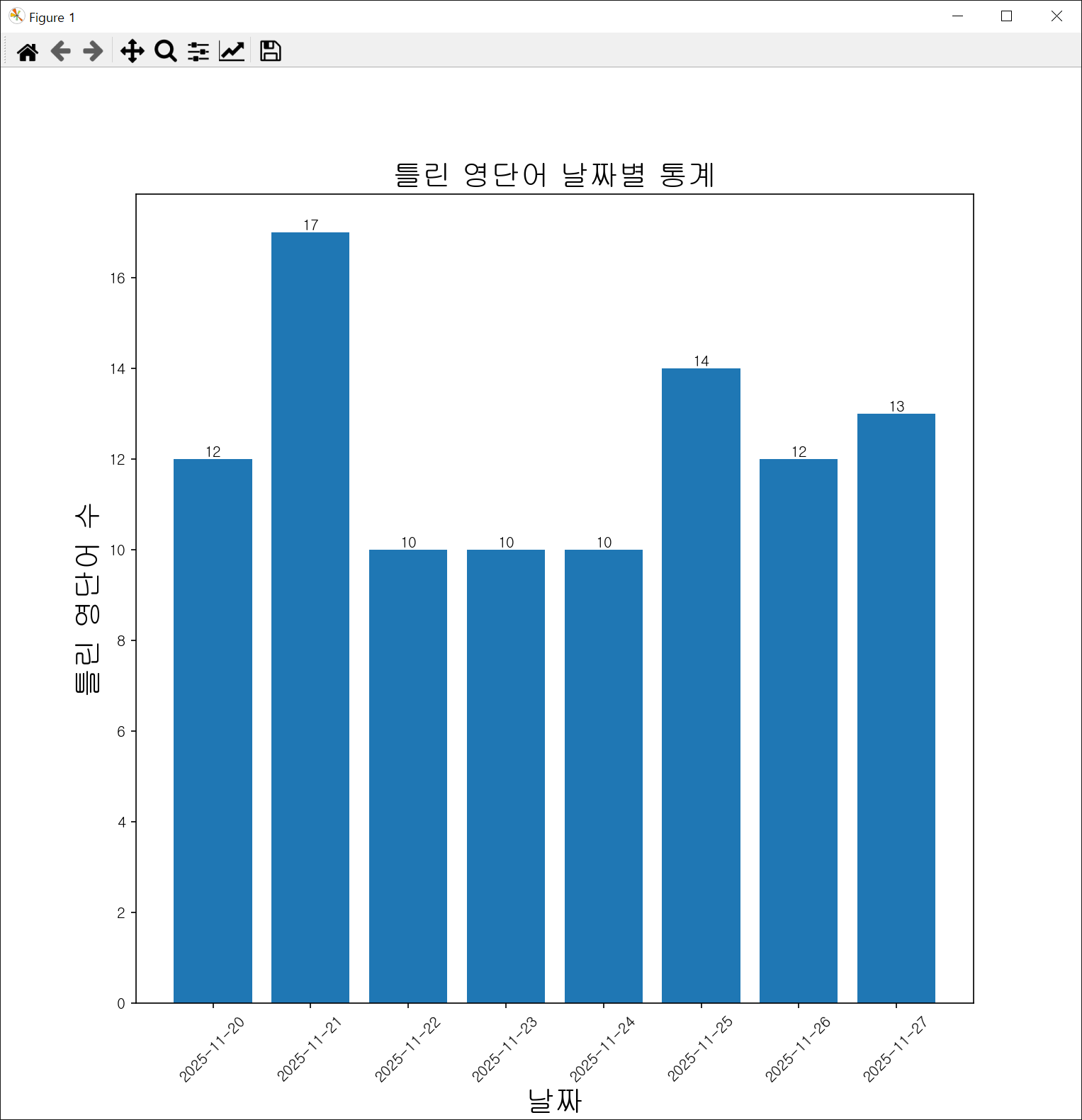
영어 퀴즈를 풀며 생성된 데이터를 분석하는 통계 프로그램을 만들어 보자.


import glob
import pandas as pd
import os
import matplotlib.pyplot as plt

# 컬러 코드 및 커서 이동 코드
code = {
    'RED': '\033[31m',
    'GREEN': '\033[32m',
    'YELLOW': '\033[33m',
    'BLUE': '\033[34m',
    'MAGENTA': '\033[35m',
    'CYAN': '\033[36m',
    'WHITE': '\033[37m',
    'RESET': '\033[0m',
    'UP': '\033[A',
    'DOWN': '\033[B',
    'UP_FRONT': '\033[F',
    'DOWN_FRONT': '\033[E'
}

os.system('cls')
# 컬러 코드 사용시 윈도우 터미널에서 작동하지 않는 경우가 있어 cls 명령어로 초기화

# 전체 통계 데이터프레임 생성
df = pd.DataFrame()
files = glob.glob('stats/*.csv')

# 데이터 불러오기 및 전처리
try:
	for file in files:	
		temp_df = pd.read_csv(file, names=['Eng', 'Kor'], sep=';')
		f = os.path.basename(file).split()	
		temp_df['Name'] = ''.join(f[1:-1])  # 파일 이름에서 사용자 이름 추출
		temp_df['Date'] = f[0]  # 파일 이름에서 날짜 추출
		temp_df['Date'] = pd.to_datetime(temp_df['Date'], format='%Y%m%d%H%M')  # Pandas 날짜형식으로 변환
		temp_df['SimpleDate'] = pd.to_datetime({'year': temp_df['Date'].dt.year, 'month': temp_df['Date'].dt.month, 'day': temp_df['Date'].dt.day})  # 시분초 제거
		df = pd.concat([df, temp_df], ignore_index=True)
except Exception as e:
	print("통계 파일을 불러오는 중 오류가 발생했습니다:", e)
	exit()

df = df.reindex(columns=['SimpleDate', 'Eng', 'Kor', 'Name', 'Date'])
#print(df)

print(f"\t{code['GREEN']}[ 가장 많이 틀린 영단어 Top 5 ]{code['RESET']}")
top = df['Eng'].value_counts().nlargest(5)  # value_counts(), nlargest()는 series 반환
for word, count in top.items():
	print(f" {code['YELLOW']}{word}{code['RESET']}: {count}회")
# for index in top.index:
# 	print(f"{index}: {top[index]}회")

# 날짜별 영어 단어 수 시각화
answer = input("\n 틀린 영단어 날짜별 통계를 시각화 하시겠습니까? (y/n): ")
if answer.lower() != 'y':
	exit()
else:
	count = df.groupby('SimpleDate')['Eng'].count()  # 날짜별로 영어 단어 수 집계

	plt.rc('font', family='gulim')
	fig, ax = plt.subplots(1, 1, figsize=(10, 10))
	
	# 날짜 데이터 타입을 그대로 사용하면 중간에 날짜(시간)들이 추가된다. 문자열로 변환하여 x축에 표시
	ax.bar(count.index.astype(str), count.values)
	plt.xticks(rotation=45)
	plt.bar_label(ax.containers[0])  # 막대 위에 값 표시, bar 그래프를 생성한 후에 사용해야 함
	ax.yaxis.set_major_locator(plt.MaxNLocator(integer=True))  # y축을 정수로 설정
	ax.set_title('틀린 영단어 날짜별 통계', fontsize=20)
	ax.set_xlabel('날짜', fontsize=20)
	ax.set_ylabel('틀린 영단어 수', fontsize=20)

	plt.show()



영어퀴즈.zip
0.03MB

전체 프로그램


※ 참고

여러가지 데이터가 섞인 CSV 파일을 DataFrame에 로드하기


import csv
import pandas as pd

# 파일 내용 (file.csv)
#
# ---점수---
# 92,89,75
# ---등급---
# A,B,C
# ---석차---
# 2,4,7

data = []

with open('file.csv', mode='r', encoding='utf-8') as f:
	reader = csv.reader(f)
	for row in reader:
		if not row[0].startswith('-'):
			data.append(row)

print(data)

df = pd.DataFrame(data, columns=('영어', '수학', '과학'))
print(df)
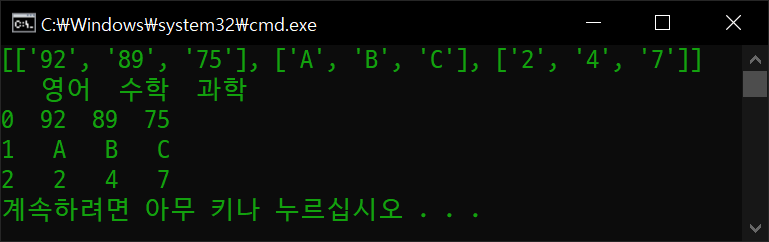


아래 코드는 데이터가 comma(,)가 아닌 semicolon(;)으로 구분된 경우이다.

import pandas as pd

# 파일 내용 (file.csv)
#
# ---점수---
# 92;89;75
# ---등급---
# A;B;C
# ---석차---
# 2;4;7

data = []

with open('file.csv', mode='r', encoding='utf-8') as f:
	lines = f.read().splitlines()  # 파일의 각 줄을 리스트로 변환
	data = [line for line in lines if not line.startswith('-')]

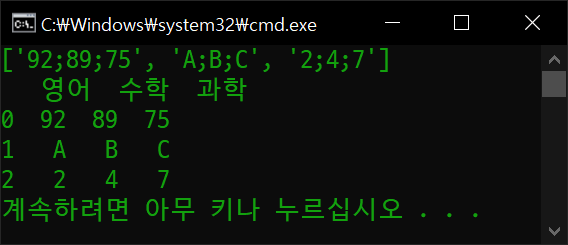
print(data)

split_data = [line.split(';') for line in data]
df = pd.DataFrame(split_data, columns=('영어', '수학', '과학'))

print(df)


import pandas as pd
import csv

# 파일 내용 (file.csv)
#
# ---점수---
# 92;89;75
# ---등급---
# A;B;C
# ---석차---
# 2;4;7

data = []

with open('file.csv', mode='r', encoding='utf-8') as f:
	reader = csv.reader(f, delimiter=';')  # 구분자 설정하고 csv.reader 사용
	data = [row for row in reader if not row[0].startswith('-')]

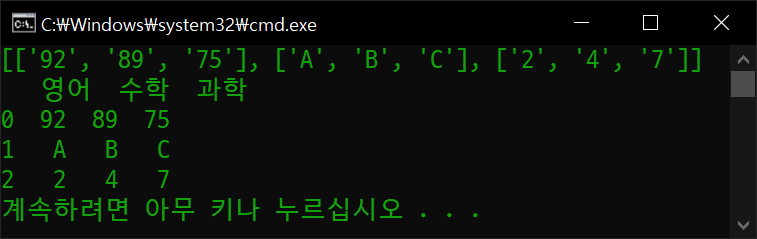
print(data)

df = pd.DataFrame(data, columns=('영어', '수학', '과학'))

print(df)


import pandas as pd

# 파일 내용 (file.csv)
#
# ---점수---
# 92;89;75
# ---등급---
# A;B;C
# ---석차---
# 2;4;7

with open('file.csv', mode='r', encoding='utf-8') as f:
	lines = f.readlines()
	skip = [idx for idx, line in enumerate(lines) if line.startswith('-')]	

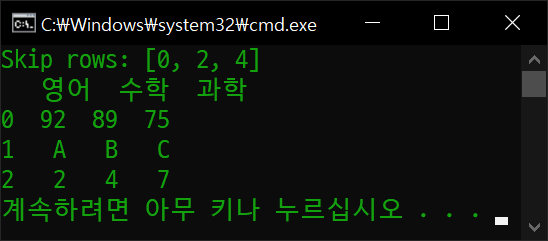
print(f"Skip rows: {skip}")

df = pd.read_csv('file.csv', sep=';', skiprows=skip, names=('영어', '수학', '과학'))

print(df)


반응형
Posted by J-sean
:
반응형

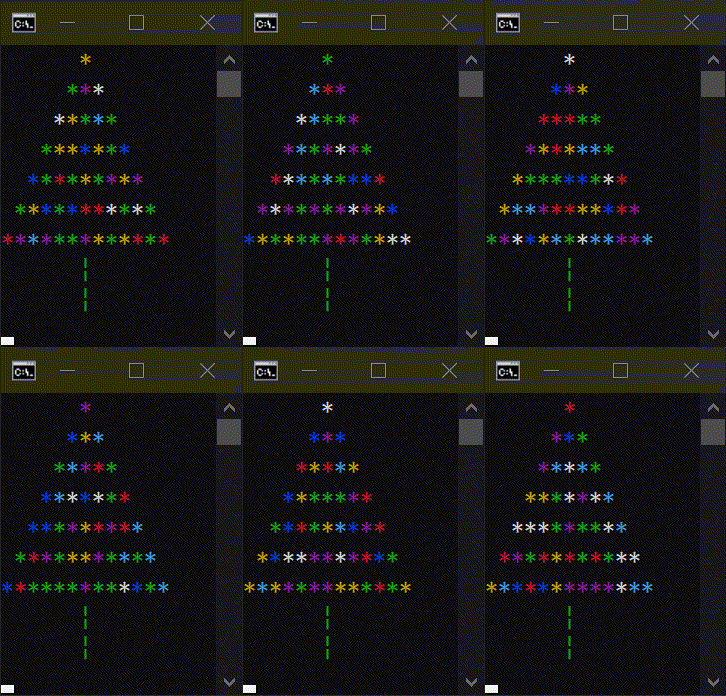
파이썬 콘솔 환경에서 예쁘게 빛나는 크리스마스 트리를 만들어 보자.


import time
import random
import os

# Clear the console based on the operating system
os.system('cls' if os.name == 'nt' else 'clear')

# Define color codes
# '\033[0m': text and background colors reset
color_format = ['\033[31m', '\033[32m', '\033[33m','\033[34m', '\033[35m','\033[36m', '\033[37m', '\033[0m']

tree = [
    "      *      ",
    "     ***     ",
    "    *****    ",
    "   *******   ",
    "  *********  ",
    " *********** ",
    "*************",
    "      |      ",
    "      |      "
]

while True:
    time.sleep(0.5)    
    for line in tree:
        colored_line = ''.join(f"{random.choice(color_format)}{char}" if char == '*' \
                               else f"{color_format[-1]}{char}" for char in line)
        print(colored_line)
    print("\033[F" * 9, end='')  # Move cursor up nine lines


컬러 포멧으로 딕셔너리를 사용한 예는 아래 더보기를 클릭하자.

더보기

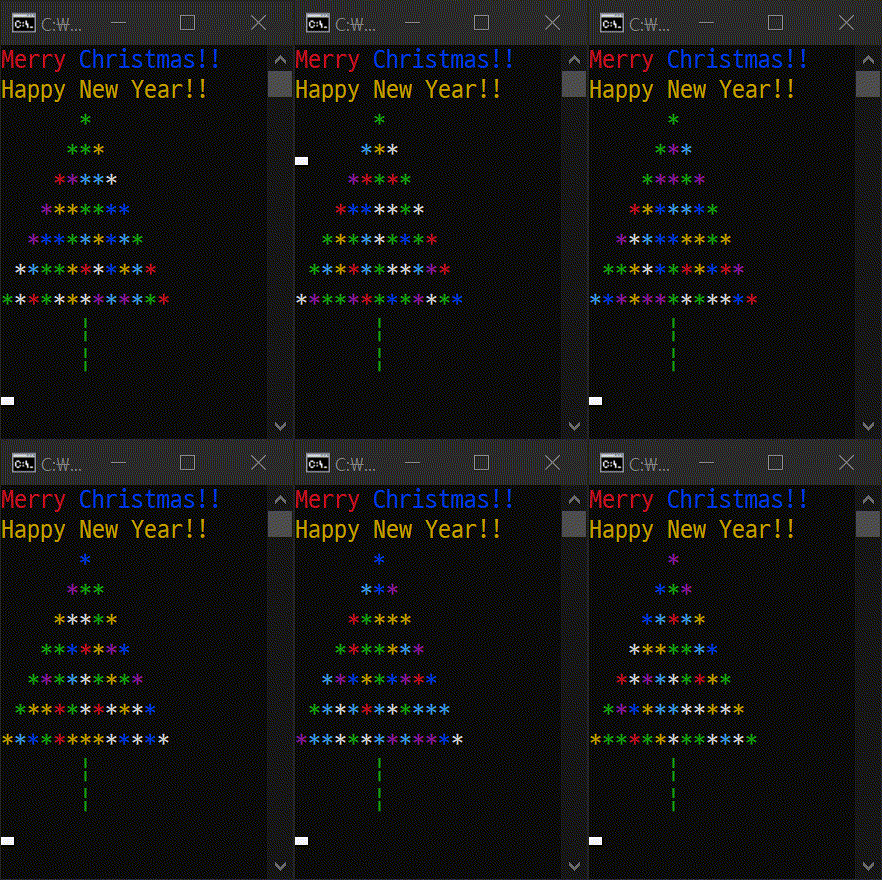
아래 코드도 같은 결과를 보여준다.


import time
import random
import os

# Clear the console based on the operating system
os.system('cls' if os.name == 'nt' else 'clear')

# Define color codes
color_format = {
    'RED': '\033[31m',
    'GREEN': '\033[32m',
    'YELLOW': '\033[33m',
    'BLUE': '\033[34m',
    'MAGENTA': '\033[35m',
    'CYAN': '\033[36m',
    'WHITE': '\033[37m',
    'RESET': '\033[0m'
}

tree = [
    "      *      ",
    "     ***     ",
    "    *****    ",
    "   *******   ",
    "  *********  ",
    " *********** ",
    "*************",
    "      |      ",
    "      |      "
]

print('{RED}Merry {BLUE}Christmas!!'.format(**color_format))
print(f"{color_format[random.choice(list(color_format.keys()))]}Happy New Year!!{color_format['RESET']}")

while True:
    time.sleep(0.5)
    for line in tree:
        colored_line = ''.join(f"{random.choice(list(color_format.values()))}{char}" if char == '*' \
                               else f"{color_format['RESET']}{char}" for char in line)
        print(colored_line)
    print("\033[F" * 9, end='')  # Move cursor up nine lines


반응형
Posted by J-sean
:
반응형

바이너리 파일을 읽고 유니코드 문자열을 찾아 수정해 보자.


Procmon64.exe
2.04MB

이 파일의 내용을 읽고 수정해 보자.


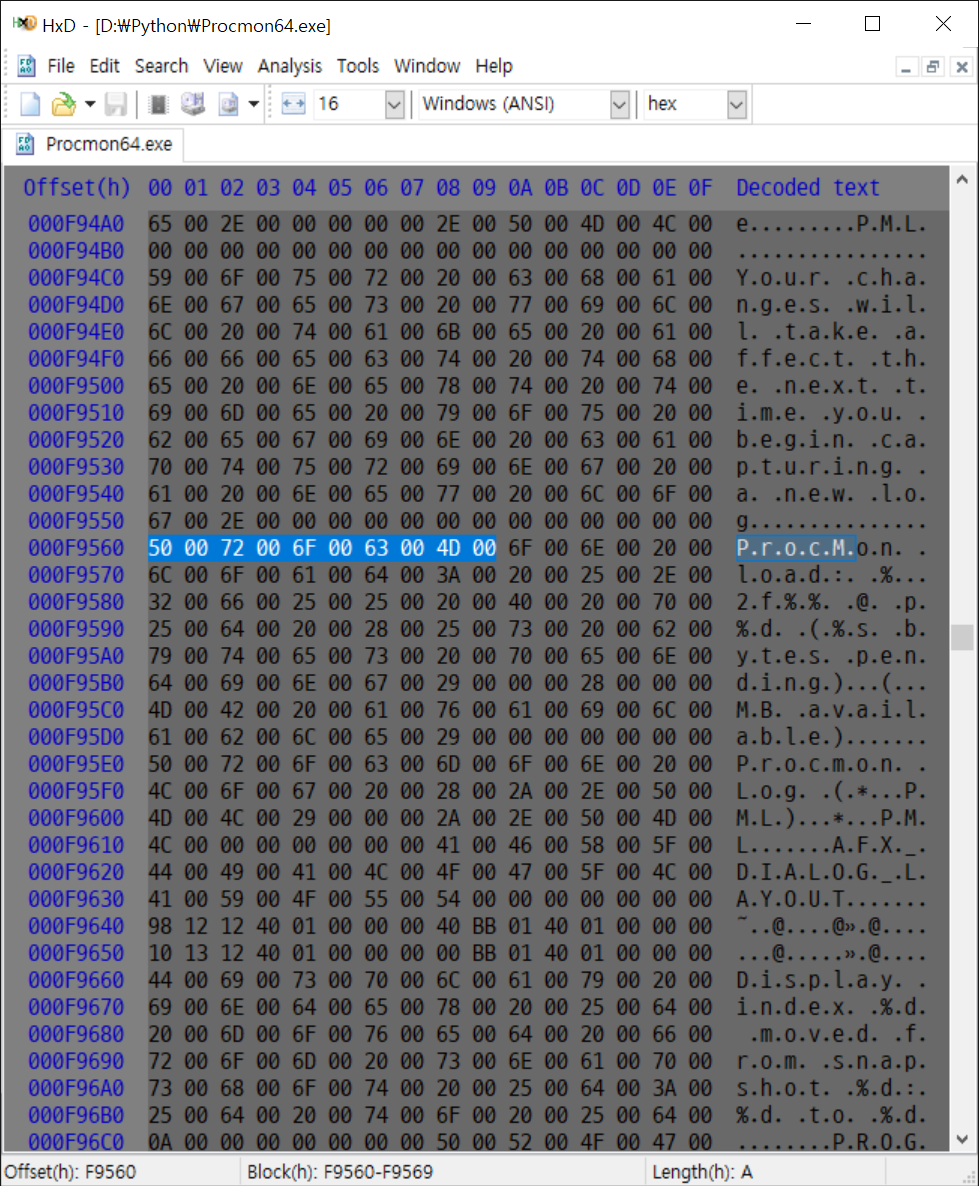
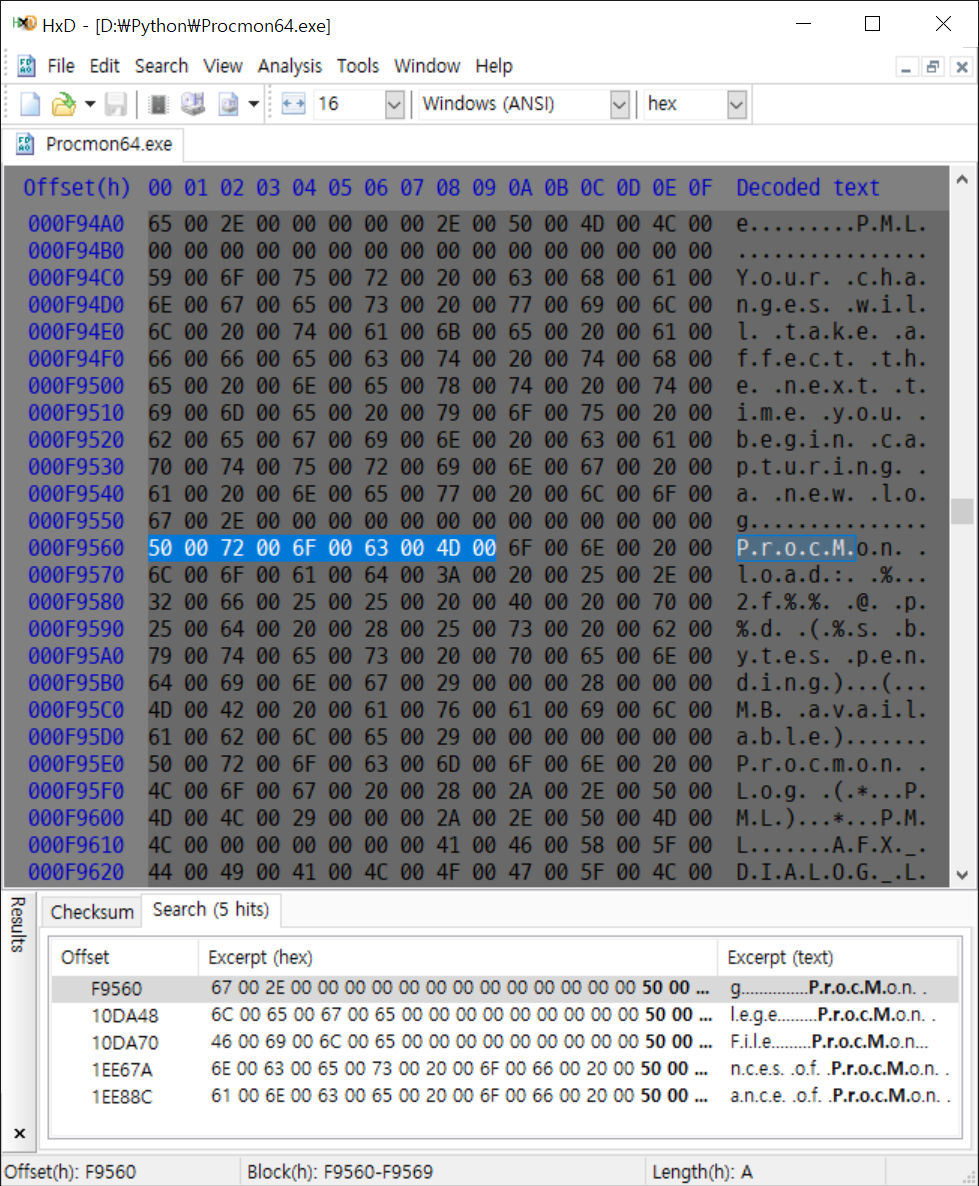
Procmon64.exe 파일의 0xF9560 위치에 'ProcM' 이라는 유니코드(UTF-16) 문자열이 있다.


import binascii

with open("Procmon64.exe", "rb") as f:
	f.seek(0xf9560) # 파일 포인터 이동
	data = f.read(10)
	print(f"Bytes: {data}")
	print(f"Hex: {binascii.b2a_hex(data).decode().upper()}")
	print(f"Unicode: {binascii.unhexlify(binascii.b2a_hex(data)).decode(encoding='utf-16', errors='ignore')}")
	print("File Pointer Position: " + hex(f.tell()).upper())  # 현재 파일 포인터 위치 출력


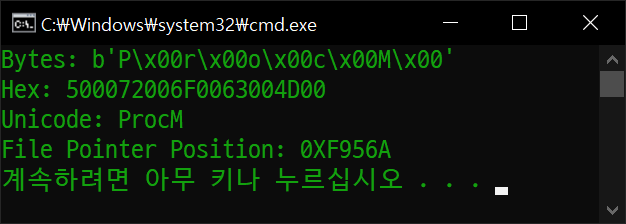
0xF9560위치에서 10바이트를 읽고 출력해 보자.


'ProcM' 문자열이 읽혀진다.


import binascii

with open("Procmon64.exe", "r+b") as f:
    f.seek(0xf9560) # 파일 포인터 이동
    pattern = "QrocM".encode(encoding="utf-16le").hex()
    f.write(bytes.fromhex(pattern))	

    f.seek(-10, 1)  # 현재 위치(1)에서 10바이트 앞으로 이동
    data = f.read(10)
    print(f"Bytes: {data}")
    print(f"Hex: {binascii.b2a_hex(data).decode().upper()}")
    print(f"Unicode: {binascii.unhexlify(binascii.b2a_hex(data)).decode(encoding='utf-16', errors='ignore')}")


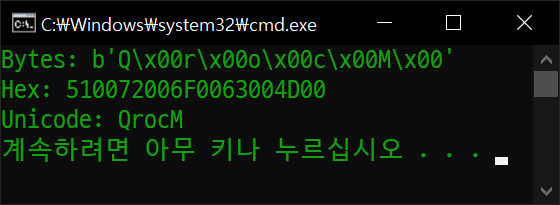
'ProcM'을 'QrocM'으로 바꿔보자.


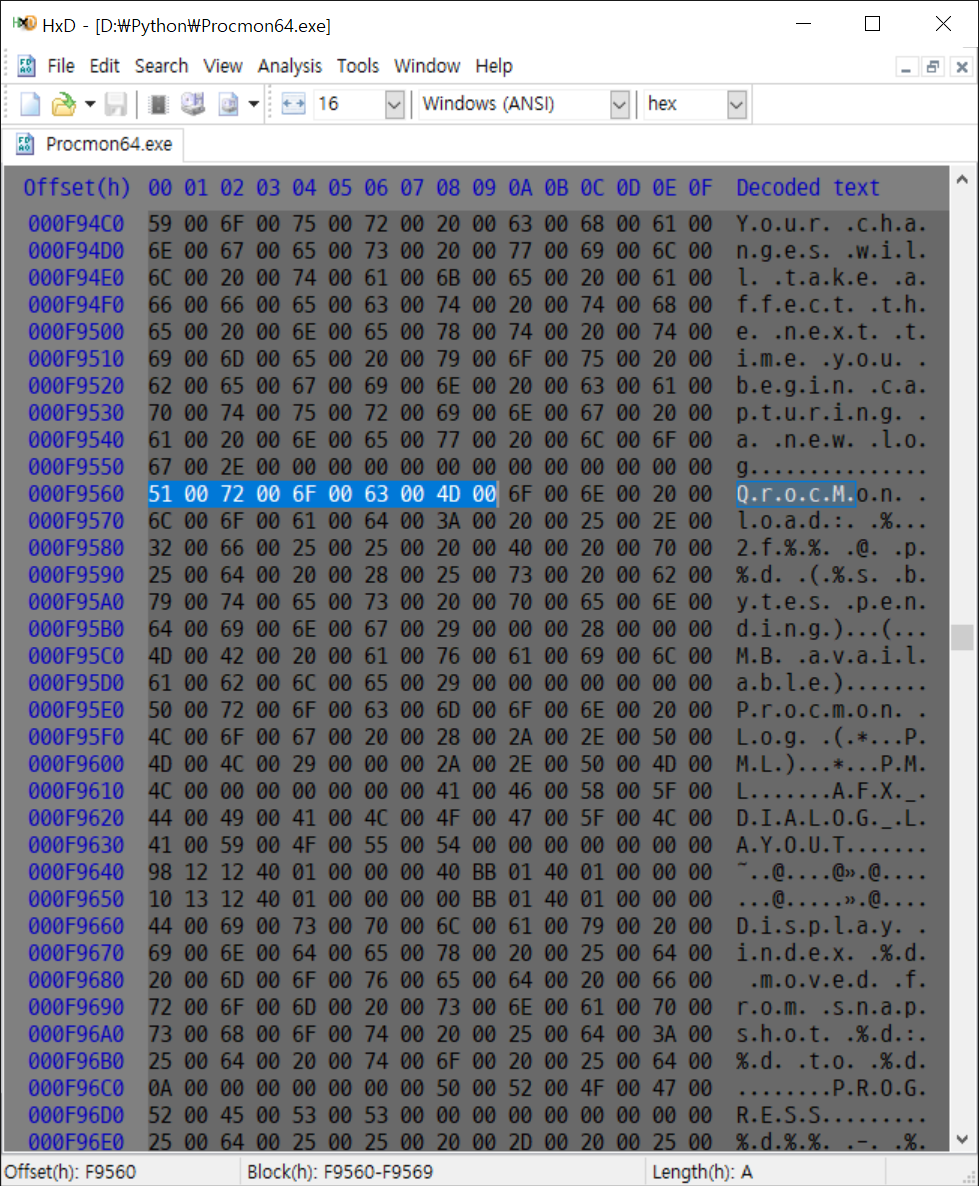
문자열이 'QrocM'으로 바뀌었다.


파일을 직접 확인해 보자.


import binascii

file_name = "Procmon64.exe"
pattern = "ProcM"
byte_sequence = pattern.encode(encoding="utf-16le")

def find_all_bytes(file_name, byte_sequence):
    with open(file_name, 'rb') as f:
        file_content = f.read()  # 파일 전체를 바이트열로 읽어옵니다.

    occurrences = []
    start_index = 0
    while True:
        try:
            # find() 메서드는 일치하는 위치의 인덱스를 반환합니다.
            index = file_content.find(byte_sequence, start_index)
            if index == -1:
                break  # 더 이상 일치하는 패턴이 없으면 루프를 종료합니다.
            occurrences.append(hex(index).upper())
            start_index = index + len(byte_sequence)  # 다음 검색 시작 위치를 갱신합니다.
        except ValueError:
            break

    return occurrences

positions = find_all_bytes(file_name, byte_sequence)

print(f"문자열 {pattern}({byte_sequence.hex().upper()})이(가) 발견된 위치:")
for idx, pos in enumerate(positions):
    print(f"{idx+1}. 오프셋 [{pos}]에서 발견됨.")


파일 전체에서 'ProcM' 문자열을 찾아보자.


5개의 'ProcM' 문자열이 발견되었다.


직접 확인해 보자. 5개의 같은 결과가 나온다.


import re

text = "The rain in Spain stays mainly in the plain.".encode(encoding="utf-16le")
print(f"UTF-16 Text: {text}")

matches = re.findall("ain".encode(encoding="utf-16le"), text)  # 대소문자 구분
print(matches)

matches = re.findall("Ain".encode(encoding="utf-16le"), text, re.IGNORECASE)  # 대소문자 무시
print(matches)


'PROCM', 'procm', 'Procm' 등 대소문자 구분없이 모든 문자열을 찾기 위해 파이썬 정규식 표현을 살펴보자.


코드 마지막에서 'Ain' 문자열을 대소문자 구분 없이 모두 찾았다.


import re

text = "The rain in Spain stays mainly in the plain.".encode(encoding="utf-16le")
pattern = "Ain".encode(encoding="utf-16le")
print(f"UTF-16 Text: {text}")
print(f"UTF-16 Pattern: {pattern}")

for idx, match in enumerate(re.finditer(pattern, text, re.IGNORECASE)):
    print(f"{idx+1}. {match.group()} found at byte offset: {match.start()}")


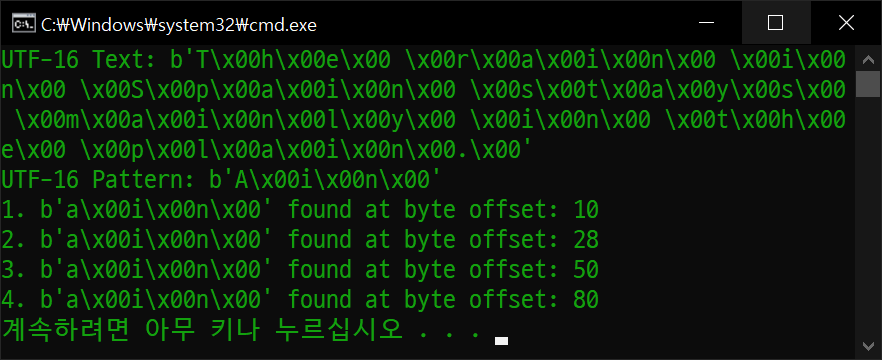
이번엔 finditer()로 문자열의 위치까지 정확히 찾아보자.


찾은 문자열의 위치가 표시된다. (문자 하나는 2바이트)


import binascii
import re

file_name = "Procmon64.exe"
pattern = "ProcM"
byte_sequence = pattern.encode(encoding="utf-16le")

with open(file_name, 'rb') as f:
    file_content = f.read()
    print(f"Searching for pattern: {pattern}")

    # Find all occurrences of the byte sequence in the file content
    for idx, match in enumerate(re.finditer(byte_sequence, file_content, re.IGNORECASE)):
        print(f"{idx+1:2}. {binascii.unhexlify(binascii.b2a_hex(match.group())).decode(encoding='utf-16', errors='ignore')} \
        found at byte offset: {hex(match.start()).upper()}")


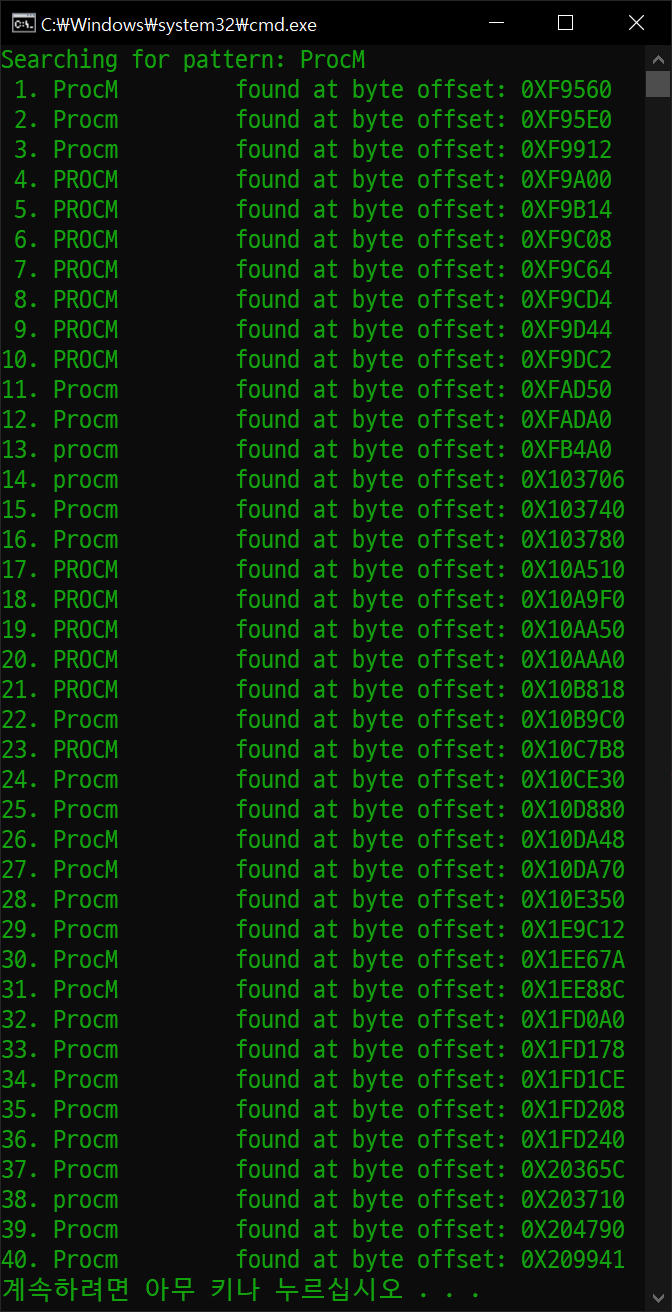
위 결과를 바탕으로 'ProcM' 문자열을 대소문자 구분 없이 찾아보자.


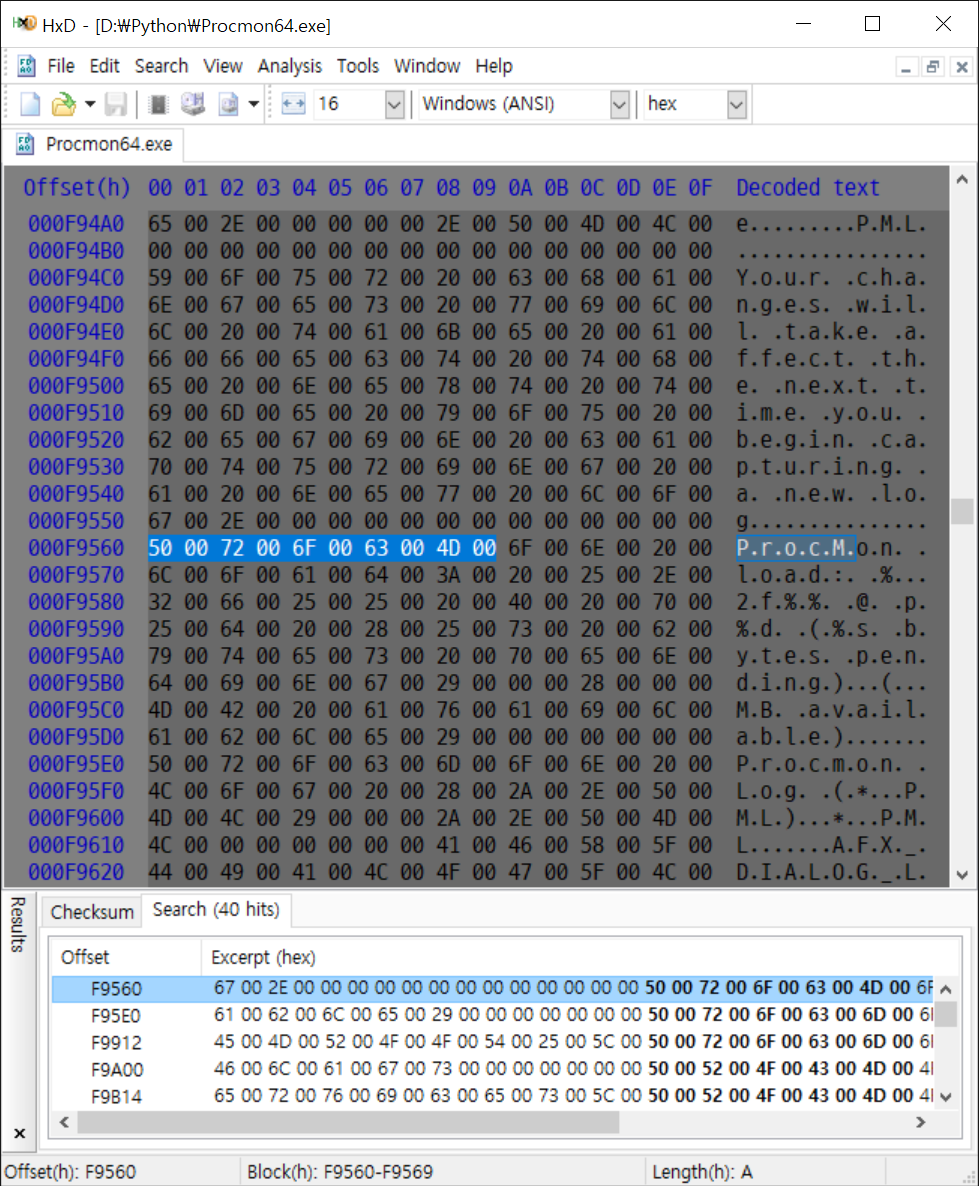
'ProcM' 문자열이 대소문자 구분없이 모두 찾아졌다.


직접 확인해 봐도 40개의 결과가 표시된다.


import binascii
import re

def replace_pattern_in_file(file_name, pattern, replacement):
    byte_sequence = pattern.encode(encoding="utf-16le")
    with open(file_name, 'r+b') as f:
        file_content = f.read()
        print(f"Searching for pattern: {pattern}")

        # Find all occurrences of the byte sequence in the file content
        # Case-sensitive search
        for idx, match in enumerate(re.finditer(byte_sequence, file_content)):
            print(f"{idx+1:2}. {binascii.unhexlify(binascii.b2a_hex(match.group())).decode(encoding='utf-16', errors='ignore')} found at byte offset: {hex(match.start()).upper()}")
            
            f.seek(match.start())
            f.write(replacement.encode(encoding="utf-16le"))
            print(f"   => Replaced with: {replacement} at byte offset: {hex(match.start()).upper()}")

file_name = "Procmon64.exe"
pattern = "ProcM"

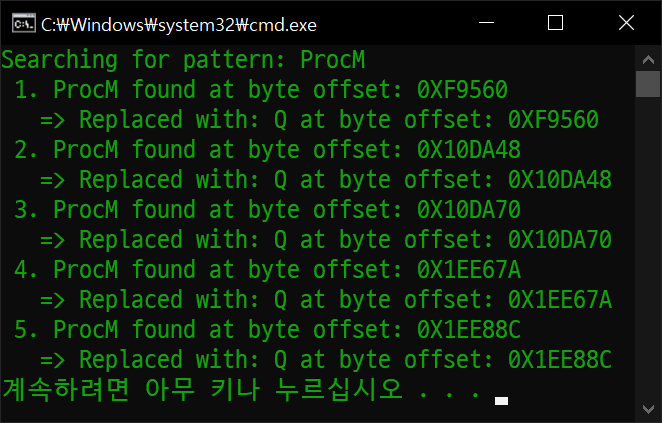
replace_pattern_in_file(file_name, pattern, "Q")


파일에서 대소문자를 구분해 문자열을 모두 찾아 바꾸는 함수를 작성했다.

함수에 파일 이름, 찾을 문자열, 바꿀 문자열을 인자로 주고 실행한다.


모든 'ProcM'이 'QrocM'으로 바뀌었다.


반응형
Posted by J-sean
:

Windows Mutex for Python

Python 2025. 2. 26. 11:28 |
반응형

파이썬에서 윈도우 뮤텍스를 사용해 보자.


아래 링크에서 namedmutex.py를 다운받고 파이썬 프로젝트에 포함시킨다.

namedmutex

namedmutex.py
0.00MB


1
2
3
4
5
6
7
8
9
10
11
12
13
14
15
16
17
18
19
20
21
22
import namedmutex
#from time import sleep
 
# with namedmutex.NamedMutex('MyMutex'):
#     while True:
#         sleep(1)
#         print("Running")
 
mutex = namedmutex.NamedMutex('MyMutex')
if not mutex:
    print("Mutex not created.")
    exit(-1)
 
if not mutex.acquire(2):
    print("Mutex not acquired.")
    mutex.close()
    exit(-1)
 
input("Waiting...")
 
mutex.release()
mutex.close()


1
2
3
4
5
6
7
8
9
10
11
12
13
14
15
16
17
18
19
20
21
22
using System;
using System.Threading;
 
public class Program
{
    public static void Main()
    {
        Mutex mutex = new Mutex(false"MyMutex");
        if (!mutex.WaitOne(2000))
        {
            Console.WriteLine("Signal not received.");
            mutex.Close();
            return;
        }
 
        Console.WriteLine("Waiting...");
        Console.ReadLine();
 
        mutex.ReleaseMutex();
        mutex.Close();
    }
}


위 파이썬 프로그램, C# 프로그램 중 중복을 포함하여 아무거나 두 개(두 번) 실행시켜 보면 MyMutex의 상황에 따라 실행 가능 여부를 확인 할 수 있다.


이번엔 뮤텍스를 사용해 프로그램의 중복 실행을 방지하는 코드를 살펴보자.


1
2
3
4
5
6
7
8
9
10
11
12
13
14
15
16
import namedmutex
 
mutex = namedmutex.NamedMutex('MyMutex')
if not mutex:
    print("Mutex not created.")
    exit(-1)
 
if not mutex.acquire(0):
    print("Program is running already.")
    mutex.close()
    exit(-1)
 
input("Waiting...")
 
mutex.release()
mutex.close()


위 프로그램을 실행한 상태에서 또  실행하면 두 번째 실행한 프로그램은 메세지가 출력되고 종료된다.


반응형
Posted by J-sean
:
반응형

기본 정렬 알고리즘 세 가지(퀵, 머지, 힙)를 파이게임으로 시각화 해 보자.


1
2
3
4
5
6
7
8
9
10
11
12
13
14
15
16
17
18
19
20
21
22
23
24
25
26
27
28
29
30
31
32
33
34
35
36
37
38
39
40
41
42
43
44
45
46
47
48
49
50
51
52
53
54
55
56
57
58
59
60
61
62
63
64
65
66
67
68
69
70
71
72
73
74
75
76
77
78
79
80
81
82
83
84
85
86
87
88
89
90
91
92
93
94
95
96
97
98
99
100
101
102
103
104
105
106
107
108
109
110
111
112
113
114
115
116
117
118
119
120
121
122
123
124
125
126
127
128
129
130
131
132
133
134
135
136
137
138
139
140
141
142
143
144
145
146
147
148
149
150
151
152
153
154
155
156
157
158
159
160
161
162
163
164
165
166
167
168
169
170
171
172
173
174
175
176
177
178
179
180
181
182
183
184
185
186
187
188
189
190
191
192
193
194
195
196
197
198
199
200
201
202
203
204
205
206
207
208
209
210
211
212
213
214
215
216
217
218
219
220
import os
import random
os.environ['PYGAME_HIDE_SUPPORT_PROMPT'= '1'
import pygame
from math import ceil, floor
 
pygame.init()
pygame.display.set_caption("Sorting Visualization")
screensize = (640580)
screen = pygame.display.set_mode(screensize)
clock = pygame.time.Clock()
framerate = 10
running = True
 
font = pygame.font.Font(None30)
text = font.render("Sorting Visualization\n\n" +
                   "*q: Quick Sorting [ O(nlogn) ]\n" +
                   "*m: Merge Sorting [ O(nlogn) ]\n" +
                   "*h: Heap Sorting [ O(nlogn) ]\n" +
                   "\n*g: Random Data Generation"True"gray")
text_pos = text.get_rect()
text_pos.center = (screen.get_width()/2, text_pos.height/2)
 
data_size = 64
data = list()
data_color = list()
 
def DataGenerator():
    global data
    global data_color
    
    data = [random.randint(10400for i in range(data_size)]
    data_color = [(random.randint(0255), random.randint(0255), random.randint(0255))
                  for i in range(data_size)]
    
DataGenerator()
 
def Visualize():
    screen.fill("black")
    screen.blit(text, text_pos)
    for i in range(data_size):
        pygame.draw.rect(screen, data_color[i], (i*10, screensize[1]-data[i], 10, data[i]))
    pygame.display.flip()
    clock.tick(framerate)
 
def Finalize():
    screen.fill("white")
    pygame.display.flip()
    clock.tick(framerate)
 
def EventHandler():
    for event in pygame.event.get():
        if event.type == pygame.KEYDOWN and event.key == pygame.K_ESCAPE:
            return -1
        elif event.type == pygame.QUIT:
            exit()
 
def QuickSort(start, end):
    if start >= end:
        return
    pivot = start
    left = start + 1
    right = end
    
    while left <= right:
        if EventHandler() == -1:
            return
        
        while left <= end and data[left] <= data[pivot]:
            left += 1
        while right > start and data[right] >= data[pivot]:
            right -= 1            
        if left > right:
            data[right], data[pivot] = data[pivot], data[right]
            data_color[right], data_color[pivot] = data_color[pivot], data_color[right]
        else:
            data[left], data[right] = data[right], data[left]
            data_color[left], data_color[right] = data_color[right], data_color[left]
            
        Visualize()
            
    QuickSort(start, right-1)
    QuickSort(right+1, end)
 
def MergeSort_1(data_list, color_list):
    if len(data_list) < 2:        
        return data_list, color_list
    
    mid = len(data_list) // 2
    low_data_list, low_color_list = MergeSort_1(data_list[:mid], color_list[:mid])
    high_data_list, high_color_list = MergeSort_1(data_list[mid:], color_list[mid:])
    
    merged_data_list = list()
    merged_color_list = list()
    l = h = 0
    while l < len(low_data_list) and h < len(high_data_list):
        if low_data_list[l] < high_data_list[h]:
            merged_data_list.append(low_data_list[l])
            merged_color_list.append(low_color_list[l])
            l += 1
        else:
            merged_data_list.append(high_data_list[h])
            merged_color_list.append(high_color_list[h])
            h += 1
            
    merged_data_list += low_data_list[l:]
    merged_color_list += low_color_list[l:]
    
    merged_data_list += high_data_list[h:]
    merged_color_list += high_color_list[h:]
    
    return merged_data_list, merged_color_list
 
def MergeSort_2():
    def sort(low, high):
        if EventHandler() == -1:
            return
        
        if high - low < 2:
            return
        
        mid = (low + high) // 2
        sort(low, mid)
        sort(mid, high)
        merge(low, mid, high)
 
    def merge(low, mid, high):
        data_temp = list()
        color_temp = list()
        l, h = low, mid
        
        while l < mid and h < high:
            if data[l] < data[h]:
                data_temp.append(data[l])
                color_temp.append(data_color[l])
                l += 1
            else:
                data_temp.append(data[h])
                color_temp.append(data_color[h])
                h += 1
                
        while l < mid:
            data_temp.append(data[l])
            color_temp.append(data_color[l])
            l += 1
            
        while h < high:
            data_temp.append(data[h])
            color_temp.append(data_color[h])
            h += 1
            
        for i in range(low, high):
            data[i] = data_temp[i - low]
            data_color[i] = color_temp[i - low]
            
            Visualize()            
 
    sort(0, data_size)
 
def HeapSort():
    for i in range(len(data)):
        par = ceil(i/2- 1
        while par >= 0 and data[par] < data[i]:
            data[par], data[i] = data[i], data[par]
            data_color[par], data_color[i] = data_color[i], data_color[par]
            i = par
            par = floor((i-1)/2)
 
    for i in range(len(data)-10-1):
        data[0], data[i] = data[i], data[0]
        data_color[0], data_color[i] = data_color[i], data_color[0]
 
        cur = 0
        lch = 1
        rch = 2
        
        while True:
            if EventHandler() == -1:
                return
        
            if rch < i and data[lch] < data[rch]:
                lch = rch
                
            if lch < i and data[lch] > data[cur]:
                data[lch], data[cur] = data[cur], data[lch]
                data_color[lch], data_color[cur] = data_color[cur], data_color[lch]
                
                Visualize()
                
                cur = lch
                lch = cur * 2 + 1
                rch = cur * 2 + 2
            else:
                lch = i # break와 같은 효과
                
            if not lch < i:
                break
            
while running:
    for event in pygame.event.get():
        if event.type == pygame.QUIT:
            running = False
        elif event.type == pygame.KEYDOWN and event.key == pygame.K_ESCAPE:
            running = False
        elif event.type == pygame.KEYDOWN and event.key == pygame.K_q:
            QuickSort(0, data_size - 1)
            Finalize()
        elif event.type == pygame.KEYDOWN and event.key == pygame.K_m:
            MergeSort_2()
            Finalize()
        elif event.type == pygame.KEYDOWN and event.key == pygame.K_n:
            data, data_color = MergeSort_1(data, data_color)
            Finalize()
        elif event.type == pygame.KEYDOWN and event.key == pygame.K_h:
            HeapSort()
            Finalize()
        elif event.type == pygame.KEYDOWN and event.key == pygame.K_g:
            DataGenerator()
            
   Visualize()


코드를 작성하고 실행한다.


※ 참고

2024.03.09 - [Python] - [Pygame] Sorting Algorithms in Python 파이썬 정렬 알고리즘 1


알고리즘_05_강의록.pdf
3.91MB
알고리즘_04_강의록.pdf
1.86MB


반응형
Posted by J-sean
:
반응형

기본 정렬 알고리즘 네 가지(선택, 버블, 삽입, 셸)를 파이게임으로 시각화 해 보자.


1
2
3
4
5
6
7
8
9
10
11
12
13
14
15
16
17
18
19
20
21
22
23
24
25
26
27
28
29
30
31
32
33
34
35
36
37
38
39
40
41
42
43
44
45
46
47
48
49
50
51
52
53
54
55
56
57
58
59
60
61
62
63
64
65
66
67
68
69
70
71
72
73
74
75
76
77
78
79
80
81
82
83
84
85
86
87
88
89
90
91
92
93
94
95
96
97
98
99
100
101
102
103
104
105
106
107
108
109
110
111
112
113
114
115
116
117
118
119
120
121
122
123
124
125
126
127
128
129
130
131
132
133
134
135
136
137
138
139
140
141
142
143
144
145
146
147
148
149
150
151
152
153
154
155
156
157
158
159
160
import os
import random
os.environ['PYGAME_HIDE_SUPPORT_PROMPT'= '1'
import pygame
 
pygame.init()
pygame.display.set_caption("Sorting Visualization")
screensize = (640580)
screen = pygame.display.set_mode(screensize)
clock = pygame.time.Clock()
framerate = 10
running = True
 
font = pygame.font.Font(None30)
text = font.render("Sorting Visualization\n\n" +
                   "*s: Selection Sorting [ O(n^2) ]\n" +
                   "*b: Bubble Sorting [ O(n^2) ]\n" +
                   "*i: Insertion Sorting [ O(n^2) ]\n" +
                   "*h: Shell Sorting [ O(n^2) ]\n" +
                   "\n*g: Random Data Generation"True"gray")
text_pos = text.get_rect()
text_pos.center = (screen.get_width()/2, text_pos.height/2)
 
data_size = 64
data = list()
data_color = list()
 
def DataGenerator():
    global data
    global data_color
    
    data = [random.randint(10400for i in range(data_size)]
    data_color = [(random.randint(0255), random.randint(0255), random.randint(0255))
                  for i in range(data_size)]
    
DataGenerator()
 
def Visualize():
    screen.fill("black")
    screen.blit(text, text_pos)
    for i in range(data_size):
        pygame.draw.rect(screen, data_color[i], (i*10, screensize[1]-data[i], 10, data[i]))
    pygame.display.flip()
    clock.tick(framerate)
 
def Finalize():
    screen.fill("white")
    pygame.display.flip()
    clock.tick(framerate)
 
def EventHandler():
    # 이벤트 처리하는 코드가 없으면 정렬시 프로그램이 freeze된다.
    for event in pygame.event.get():            
        if event.type == pygame.KEYDOWN and event.key == pygame.K_ESCAPE:
            return -1 # 정렬 중지.
        elif event.type == pygame.QUIT:
            exit() # 프로그램 종료.
 
def SelectSort():
    for i in range(data_size-1):        
        if EventHandler() == -1:
            return
        
        min = i
        for j in range(i+1, data_size, 1):
            if data[min] > data[j]:
                min = j
        data[i], data[min] = data[min], data[i]        
        data_color[i], data_color[min] = data_color[min], data_color[i]
 
        Visualize()
    Finalize()
 
def BubbleSort(): 
    for i in range(data_size-1):
        if EventHandler() == -1:
            return
        
        sorted = True
        for j in range(data_size-1-i):
            if data[j] > data[j+1]:
                data[j], data[j+1= data[j+1], data[j]
                data_color[j], data_color[j+1= data_color[j+1], data_color[j]
                sorted = False
        if sorted == True:
            break
        
        Visualize()
    Finalize()
 
def InsertSort(): 
    for i in range(1, data_size, 1):
        if EventHandler() == -1:
            return
        
        val = data[i]
        colval = data_color[i]
        for j in range(i, 0-1):
            if data[j-1> val:
                data[j] = data[j-1]
                data_color[j] = data_color[j-1]
                j = j-1
            else:
                break
        data[j] = val
        data_color[j] = colval
        
        Visualize()
    Finalize()
    
def ShellSort():
    # 점화식 리스트 만들기
    recurrence = [1]
    while(True):
        next = recurrence[-1]*3+1
        if next < data_size:
            recurrence.append(next)
        else:
            recurrence.reverse()
            break
        
    for D in recurrence:
        for i in range(D, data_size, 1):
            if EventHandler() == -1:
                return
 
            val = data[i]
            colval = data_color[i]
            j = i
            while True:
                if j>=and data[j-D]>val:
                    data[j] = data[j-D]
                    data_color[j] = data_color[j-D]
                    j = j-D
                else:
                    break
            data[j] = val
            data_color[j] = colval
 
            Visualize()
    Finalize()
                
while running:
    for event in pygame.event.get():
        if event.type == pygame.QUIT:
            running = False
        elif event.type == pygame.KEYDOWN and event.key == pygame.K_ESCAPE:
            running = False
        elif event.type == pygame.KEYDOWN and event.key == pygame.K_s:
            SelectSort()
        elif event.type == pygame.KEYDOWN and event.key == pygame.K_b:
            BubbleSort()
        elif event.type == pygame.KEYDOWN and event.key == pygame.K_i:
            InsertSort()
        elif event.type == pygame.KEYDOWN and event.key == pygame.K_h:
            ShellSort()
        elif event.type == pygame.KEYDOWN and event.key == pygame.K_g:
            DataGenerator()
            
   Visualize()


코드를 작성하고 실행한다.


※ 참고

2024.03.22 - [Python] - [Pygame] Sorting Algorithms in Python 파이썬 정렬 알고리즘 2


알고리즘_03_강의록.pdf
1.02MB
알고리즘_04_강의록.pdf
1.86MB


반응형
Posted by J-sean
:
반응형

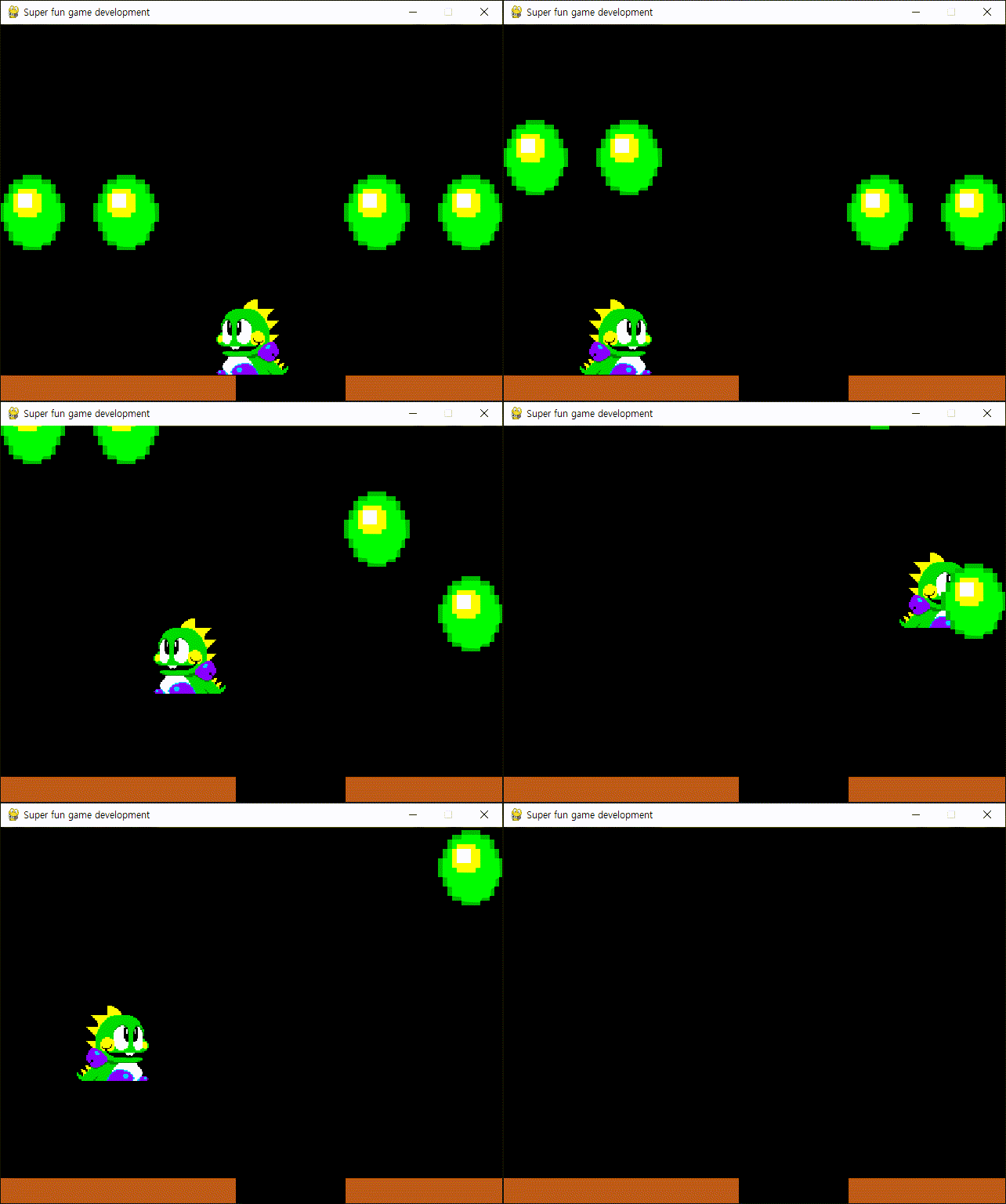
중력이 적용된 캐릭터를 만들어 보자.


1
2
3
4
5
6
7
8
9
10
11
12
13
14
15
16
17
18
19
20
21
22
23
24
25
26
27
28
29
30
31
32
33
34
35
36
37
38
39
40
41
42
43
44
45
46
47
48
49
50
51
52
53
54
55
56
57
58
59
60
61
62
63
64
65
66
67
68
69
70
71
72
73
74
75
76
77
78
79
80
81
82
83
84
85
86
87
88
89
90
91
92
93
94
95
96
97
98
99
100
101
102
103
104
105
106
107
108
109
110
111
112
113
114
115
116
117
118
119
120
121
122
123
124
125
126
127
128
129
130
131
132
133
134
135
136
137
138
139
140
141
142
143
144
145
146
import pygame
 
pygame.init()
pygame.display.set_caption("Super fun game development")
screen = pygame.display.set_mode((640480), vsync=1)
clock = pygame.time.Clock()
FPS = 60
running = True
 
# 플레이어 클래스 with Gravity
class Player(pygame.sprite.Sprite):
    def __init__(self, position):
        pygame.sprite.Sprite.__init__(self)
 
        self.direction = -1
        self.speed = 4
        self.image = pygame.image.load("player.png").convert()
        self.image.set_colorkey(self.image.get_at((00)))
        self.size = (self.image.get_width()*1.5self.image.get_height()*1.5)
        self.image = pygame.transform.scale(self.image, self.size)
        self.rect = self.image.get_rect(center=position)
        self.isGround = False
        self.jumpForce = 0.0
        self.gravity = 5.0
 
    def flip_image(self):
        self.image = pygame.transform.flip(self.image, TrueFalse)
 
    def update(self):
        global running
 
        for event in pygame.event.get():
            if event.type == pygame.QUIT:
                running = False
            elif event.type == pygame.KEYDOWN and event.key == pygame.K_ESCAPE:
                running = False
 
        keys = pygame.key.get_pressed()
        if keys[pygame.K_LEFT]:
            if self.direction > 0:
                self.flip_image()
                self.direction = -1
            self.rect.move_ip(-self.speed, 0)
        if keys[pygame.K_RIGHT]:
            if self.direction < 0:
                self.flip_image()
                self.direction = 1
            self.rect.move_ip(self.speed, 0)
        if keys[pygame.K_UP]:
            if self.isGround:
                self.jumpForce = -17
 
        if not self.isGround:
            self.rect.centery += self.gravity + self.jumpForce
            self.gravity += 0.3
        else:
            self.rect.centery += self.jumpForce
            self.gravity = 5.0
 
        if self.jumpForce < 0:
            self.jumpForce += 0.10
        elif self.jumpForce >= 0:
            self.jumpForce = 0.0
 
# 버블 클래스
class Bubble(pygame.sprite.Sprite):
    def __init__(self, position):
        pygame.sprite.Sprite.__init__(self)
 
        self.image = pygame.image.load("bubble.png").convert()
        self.image.set_colorkey(self.image.get_at((00)))
        self.size = (self.image.get_width()*6self.image.get_height()*6)
        self.image = pygame.transform.scale(self.image, self.size)
        self.rect = self.image.get_rect(center=position)
        self.collided = False
 
    def update(self):
        if self.collided == True:
            self.rect.top -= 1
 
# 그라운드 클래스
class Ground(pygame.sprite.Sprite):
    def __init__(self, position):
        pygame.sprite.Sprite.__init__(self)
 
        self.image = pygame.image.load("ground.png").convert()
        self.rect = self.image.get_rect(bottomleft=position)
         
    def update(self):
        pass
 
def main():
    player = Player((screen.get_width()/2, screen.get_height()/2))
    player_sprite = pygame.sprite.Group(player)
    # 플레이어 스프라이트 그룹
 
    bubbles = [
        Bubble((40, screen.get_height()/2)),
        Bubble((160, screen.get_height()/2)),
        Bubble((480, screen.get_height()/2)),
        Bubble((600, screen.get_height()/2))]
    bubble_sprites = pygame.sprite.Group(bubbles)
    # 버블 스프라이트 그룹
 
    grounds = [
        Ground((0480)),
        Ground((440480))]
    ground_sprites = pygame.sprite.Group(grounds)
 
    all_sprites = pygame.sprite.Group()
    all_sprites.add(player_sprite)
    all_sprites.add(bubble_sprites)
    all_sprites.add(ground_sprites)
 
    while running:
 
        #player_sprite.update()
        #bubble_sprites.update()
        all_sprites.update()
 
        collision = pygame.sprite.spritecollide(player, bubble_sprites, False)
        for bubble in collision:
            bubble.collided = True
        # 플레이어와 버블의 충돌을 감지하고 충돌한 버블의 collided 값을 True로 바꾼다.
 
        collision = pygame.sprite.spritecollide(player, ground_sprites, False)
        if len(collision) != 0:
            player.isGround = True
            player.jumpForce = 0.0
            player.rect.bottom = collision[0].rect.top
        else:
            player.isGround = False
 
        screen.fill("black")
        #player_sprite.draw(screen)
        #bubble_sprites.draw(screen)
        #ground_sprites.draw(screen)
        all_sprites.draw(screen)
 
        pygame.display.flip()
        clock.tick(FPS)
 
    pygame.quit()
 
if __name__ == '__main__':
  main()


코드를 입력하고 실행한다.


캐릭터에 중력이 적용되어 움직인다.


반응형
Posted by J-sean
:
반응형

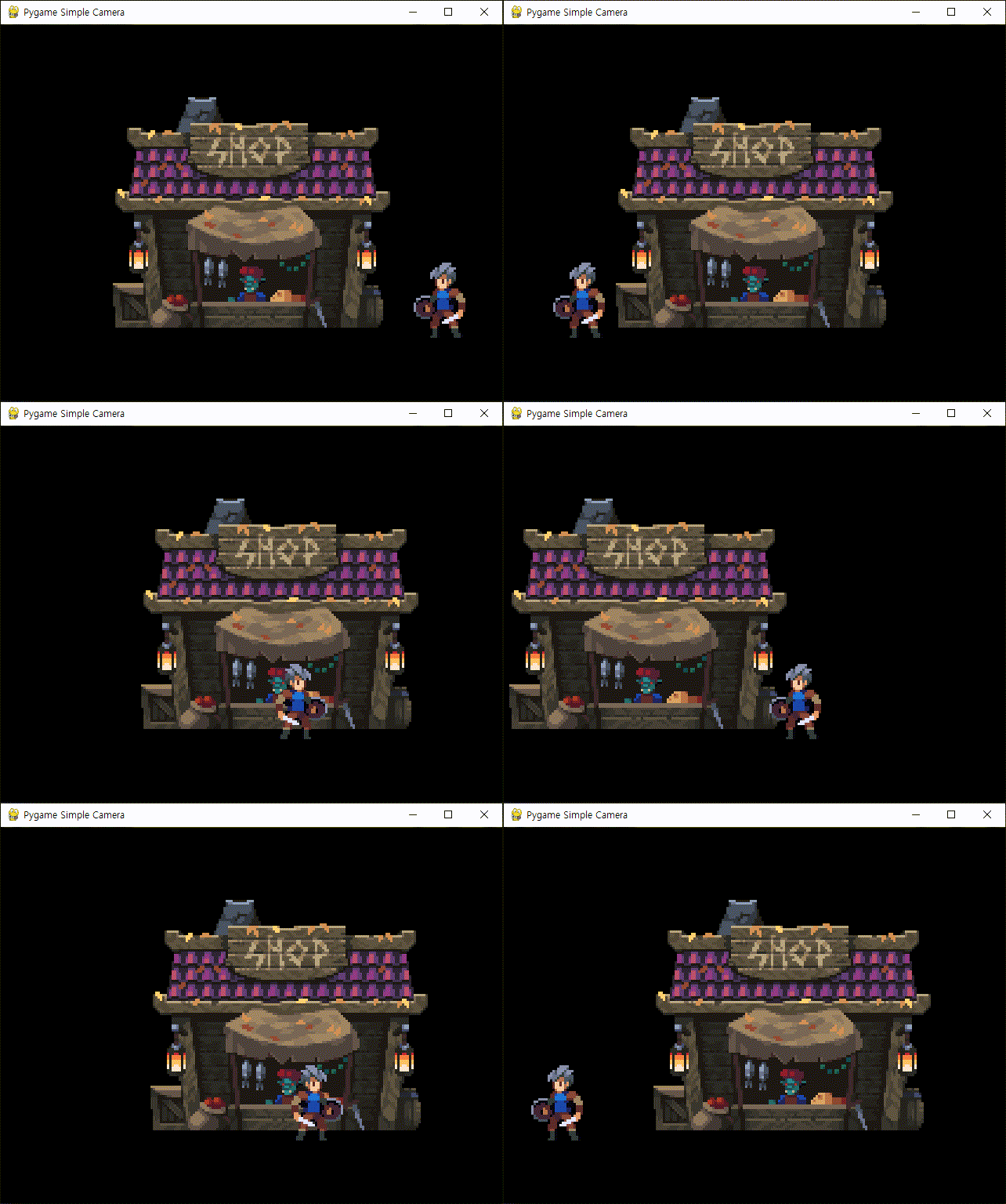
파이게임에 간단한 카메라를 만들어 보자.


1
2
3
4
5
6
7
8
9
10
11
12
13
14
15
16
17
18
19
20
21
22
23
24
25
26
27
28
29
30
31
32
33
34
35
36
37
38
39
40
41
42
43
44
45
46
47
48
49
50
51
52
53
54
55
56
57
58
59
60
61
62
63
64
65
66
67
68
69
70
71
72
73
74
75
76
77
78
79
80
81
82
83
84
85
86
87
88
89
90
91
92
93
94
95
96
97
98
99
100
101
102
103
104
105
106
107
108
109
110
111
112
113
114
115
116
117
118
119
120
121
122
123
124
125
126
127
import pygame
 
pygame.init()
pygame.display.set_caption("Pygame Simple Camera")
screen = pygame.display.set_mode((640480), flags=pygame.RESIZABLE, vsync=1)
clock = pygame.time.Clock()
 
class Camera():
    def __init__(self):
        self.offset = pygame.math.Vector2(00)
        self.speed = 4
        
camera = Camera()
 
def LoadImage(path, scale=None, colorkey=None):
    image = pygame.image.load(path).convert()
 
    if scale is not None:
        image = pygame.transform.scale(image, (image.get_width()*scale, image.get_height()*scale))
 
    if colorkey is not None:
        if colorkey == -1:
            colorkey = image.get_at((00))
        image.set_colorkey(colorkey)
 
    return image
 
class Sprite(pygame.sprite.Sprite):
    def __init__(self, spriteName, position, frames):
        pygame.sprite.Sprite.__init__(self)
 
        self.elapsedTime = 0
        self.limitTime = 1000/frames
        # 1초에 한 사이클. 스프라이트가 8프레임이라면 frames에 8을 대입한다.
        
        self.direction = 1
        self.speed = 4
        self.index = 0
        self.images = [ LoadImage(spriteName, 3-1) ]
        self.image = self.images[self.index]
        self.rect = self.image.get_rect(center=position)
 
    def flip_image(self):
        self.images = [pygame.transform.flip(image, TrueFalsefor image in self.images]
        self.image = self.images[self.index]
 
    def update(self):
        if (camera.offset.x != 0 or camera.offset.y != 0):
                self.rect.move_ip(camera.offset.x, camera.offset.y)
        
        # 1초에 frame번 image 업데이트.
        # self.elapsedTime += clock.get_time()
        # if self.elapsedTime < self.limitTime:
        #     pass
        # else:
        #     self.elapsedTime = 0
        #     self.index += 1
        #     if self.index >= len(self.images):
        #         self.index = 0
        #     self.image = self.images[self.index]
            
def main():
    player = Sprite("character.bmp", (screen.get_width()/2, screen.get_height()/2), 1)
    shop = Sprite("shop.bmp", (screen.get_width()/2, screen.get_height()/2), 1)
    all_sprites = pygame.sprite.Group()
    all_sprites.add(shop)
    all_sprites.add(player)
    
    running = True
    
    while running:
        for event in pygame.event.get():
            if event.type == pygame.QUIT:
                running = False
            elif event.type == pygame.KEYDOWN and event.key == pygame.K_ESCAPE:
                running = False
 
        keys = pygame.key.get_pressed()
        if keys[pygame.K_LEFT]:
            if player.direction > 0:
                player.flip_image()
                player.direction = -1
            player.rect.move_ip(-player.speed, 0)            
            
        if keys[pygame.K_RIGHT]:
            if player.direction < 0:
                player.flip_image()
                player.direction = 1
            player.rect.move_ip(player.speed, 0)
        
        if keys[pygame.K_UP]:
            if player.direction < 0:
                player.flip_image()
                player.direction = 1
            player.rect.move_ip(0-player.speed)
        
        if keys[pygame.K_DOWN]:
            if player.direction < 0:
                player.flip_image()
                player.direction = 1
            player.rect.move_ip(0, player.speed)
        
        # 카메라 이동
        if keys[pygame.K_a]:
            camera.offset.x = camera.speed
        if keys[pygame.K_d]:
            camera.offset.x = -camera.speed
        if keys[pygame.K_w]:
            camera.offset.y = camera.speed
        if keys[pygame.K_s]:
            camera.offset.y = -camera.speed
 
        all_sprites.update()
        
        # 스프라이트 업데이트 후 카메라 오프셋 초기화
        camera.offset.x = camera.offset.y = 0        
        
        screen.fill("black")        
        all_sprites.draw(screen)
        pygame.display.flip()
 
        clock.tick(60)
 
    pygame.quit()
 
if __name__ == '__main__':
  main()


코드를 입력하고 실행한다. set_mode()에 vsync 파라미터를 1로 설정하지 않으면 스프라이트가 움직일때 screen tearing 현상이 일어날 수 있다.

pygame.display.set_mode(..., vsync=1)


방향키로 캐릭터를, wasd로 카메라를 움직인다.


※ 참고

Cameras in Pygame


반응형
Posted by J-sean
: