반응형

파이게임과 GUI 라이브러리를 사용해 보자.

ImGui를 사용해 보려 했는데, OpenGL을 이용해야 하고 pygame.Surface.fill()을 사용할 수 없는 등 마음에 들지 않아 Pygame GUI를 사용하기로 했다.
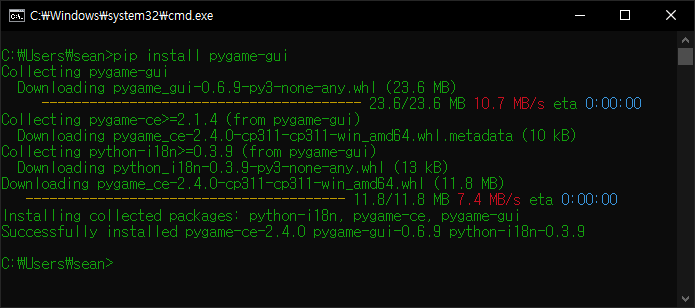
 

pygame-gui를 설치한다.


1
2
3
4
5
6
7
8
9
10
11
12
13
14
15
16
17
18
19
20
21
22
23
24
25
26
27
28
29
30
31
32
33
34
35
36
37
38
39
40
41
42
43
44
import pygame
import pygame_gui
 
pygame.init()
pygame.display.set_caption("Super fun game development")
screenSize = (640480)
screen = pygame.display.set_mode(screenSize, pygame.DOUBLEBUF | pygame.RESIZABLE)
clock = pygame.time.Clock()
 
manager = pygame_gui.UIManager(screenSize)
hello_button = pygame_gui.elements.UIButton(relative_rect=pygame.Rect((1010), (10050)),
                                            text='Say Hello', manager=manager)
 
running = True
 
while running:
    time_delta = clock.tick(60)/1000
    # As you may have noticed we also had to create a pygame Clock to track the amount of time
    # in seconds that passes between each loop of the program. We need this 'time_delta' value
    # because several of the UI elements make use of timers and this is a convenient place to
    # get it.
        
    for event in pygame.event.get():
        if event.type == pygame.QUIT:
            running = False
        elif event.type == pygame.KEYDOWN and event.key == pygame.K_ESCAPE:
            running = False
        
        if event.type == pygame_gui.UI_BUTTON_PRESSED:
              if event.ui_element == hello_button:
                  print('Hello World!')
        
        manager.process_events(event)
    
    manager.update(time_delta)
 
    screen.fill("black")
    pygame.draw.circle(screen, "gray", screen.get_rect().center, 100)
 
    manager.draw_ui(screen)
 
    pygame.display.flip()
 
pygame.quit()


코드를 입력하고 실행한다.


버튼이 표시된다.


2024.01.28 - [Python] - [Pygame] Box2D 파이게임 물리 라이브러리

위 링크의 코드를 이용해 조금 더 실용적인 예제를 만들어 보자.


1
2
3
4
5
6
7
8
9
10
11
12
13
14
15
16
17
18
19
20
21
22
23
24
25
26
27
28
29
30
31
32
33
34
35
36
37
38
39
40
41
42
43
44
45
46
47
48
49
50
51
52
53
54
55
56
57
58
59
60
61
62
63
64
65
66
import math
import pygame
import pygame_gui
from Box2D import *
 
pygame.init()
pygame.display.set_caption("Physics Test")
screen = pygame.display.set_mode((640480))
running = True
player = pygame.image.load("player.png").convert()
 
manager = pygame_gui.UIManager((640480))
again_button = pygame_gui.elements.UIButton(relative_rect=pygame.Rect((35010), (200100)),
                                            text='Play again', manager=manager)
 
world = b2World(gravity=(09.8), doSleep=True)
 
groundBody = world.CreateStaticBody(position=(0400), shapes=b2PolygonShape(box=(5000)))
 
wallBody = world.CreateStaticBody(position=(3000), shapes=b2PolygonShape(box=(0400)))
 
playerBody = world.CreateDynamicBody(position=(00), linearVelocity=(500), angularVelocity=0.2)
playerFixtureDef = playerBody.CreatePolygonFixture(box=(player.get_width()/2,
                              player.get_height()/2), density=1, friction=0.5, restitution=0.7)
 
timeStep = 1.0 / 300
vel_iters, pos_iters = 62
  
while running:
    for event in pygame.event.get():
        if event.type == pygame.QUIT:
            running = False
        elif event.type == pygame.KEYDOWN and event.key == pygame.K_SPACE:
            playerBody.transform = ((00), 0)
            playerBody.linearVelocity = (500)
            playerBody.angularVelocity = 0.2
        elif event.type == pygame.KEYDOWN and event.key == pygame.K_ESCAPE:
            running = False
            
        if event.type == pygame_gui.UI_BUTTON_PRESSED:
            if event.ui_element == again_button:
                playerBody.transform = ((00), 0)
                playerBody.linearVelocity = (500)
                playerBody.angularVelocity = 0.2
        
        manager.process_events(event)
            
    manager.update(timeStep)
    
    world.Step(timeStep, vel_iters, pos_iters)
    world.ClearForces()
     
    screen.fill("black")
    pygame.draw.rect(screen, "brown", (040060020))
    pygame.draw.rect(screen, "yellow", (300020400))
 
    rotated_player = pygame.transform.rotate(player, playerBody.angle * 180/math.pi)
    
    screen.blit(rotated_player, (playerBody.position[0- rotated_player.get_width()/2,
                                 playerBody.position[1- rotated_player.get_height()/2))
 
    manager.draw_ui(screen)
    
    pygame.display.flip()
    
pygame.quit()


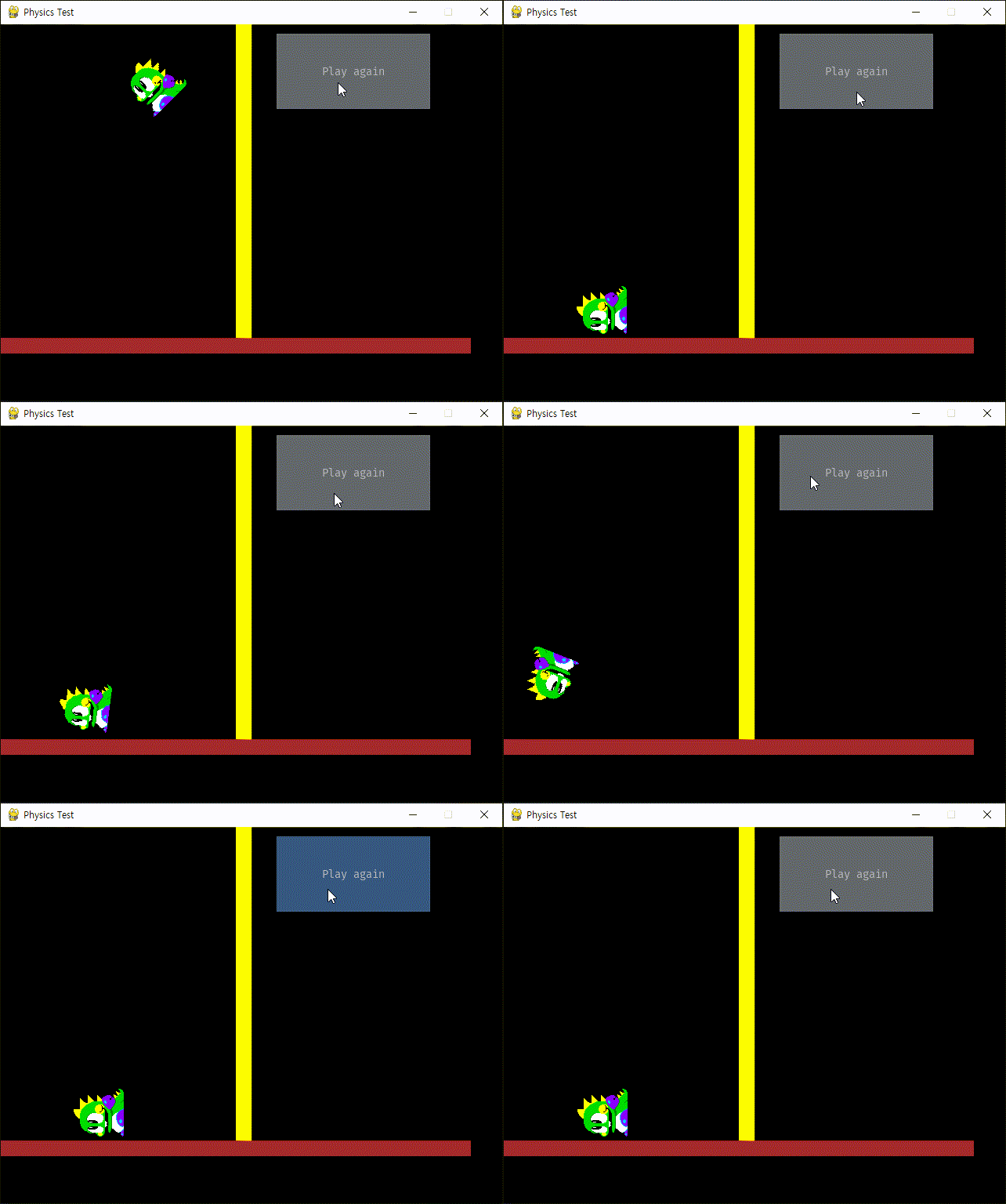
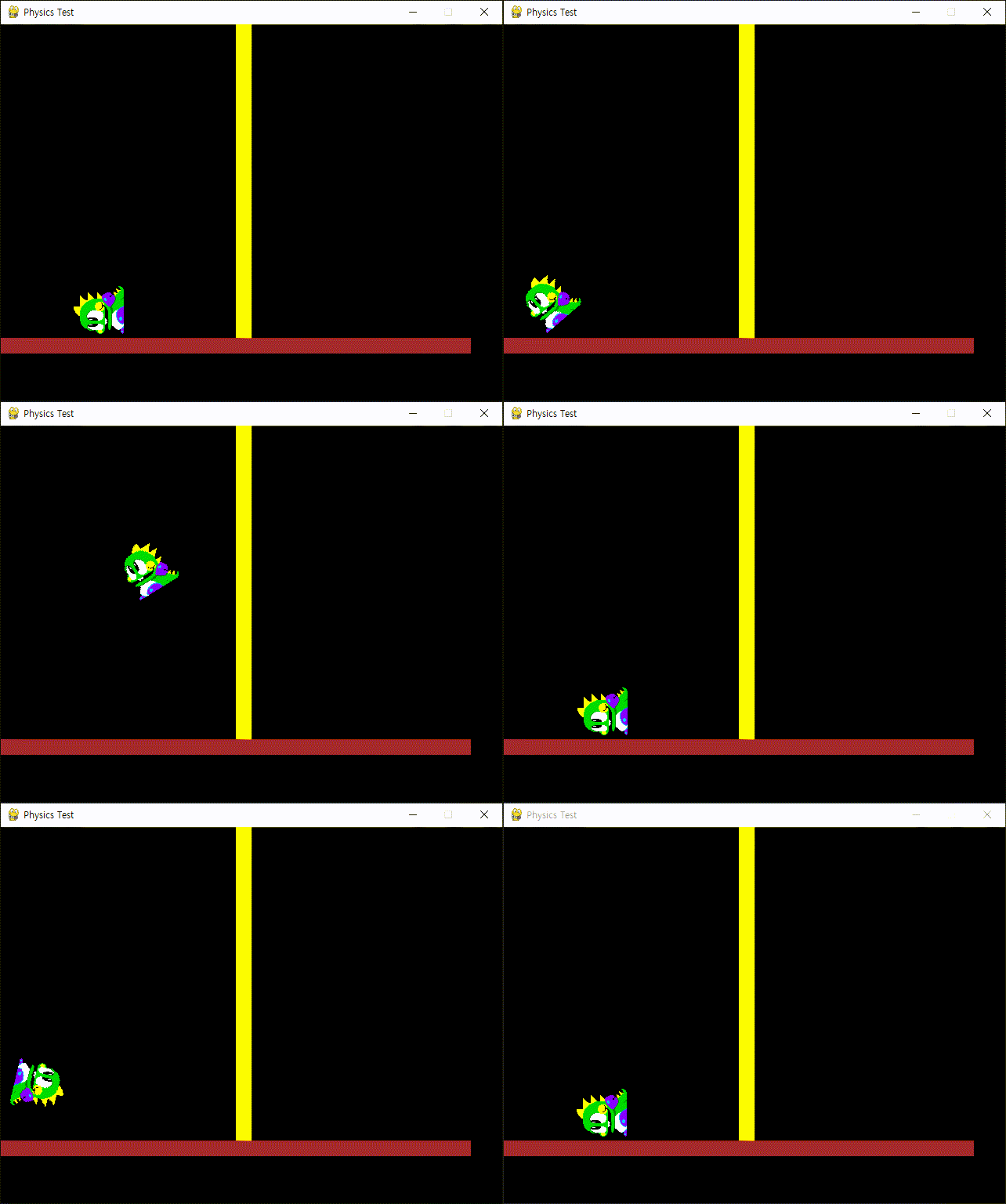
코드를 입력하고 실행한다.


버튼을 클릭하면 캐릭터가 다시 던져진다.


※ 참고

GUIs with pygame

Pygame GUI


반응형
Posted by J-sean
:
반응형

파이게임과 2D Rigid Body Simulation Library Box2D를 사용해 보자.


다음 명령어로 Box2D를 설치한다.

pip install box2d


설치중 에러가 발생한다면 SWIG를 설치하고 설치 디렉토리를 시스템 변수 Path에 등록한다.

SWIG


SWIG를 설치하면 에러가 발생하지 않는다.


추가로 box2d-kengz를 설치한다.


player.png
0.00MB


1
2
3
4
5
6
7
8
9
10
11
12
13
14
15
16
17
18
19
20
21
22
23
24
25
26
27
28
29
30
31
32
33
34
35
36
37
38
39
40
41
42
43
44
45
46
47
48
49
50
51
52
53
54
55
56
57
58
59
60
61
62
63
64
65
66
67
68
69
70
71
72
73
74
75
76
77
78
79
80
81
82
83
84
85
86
87
88
89
import math
import pygame
from Box2D import *
 
pygame.init()
pygame.display.set_caption("Physics Test")
screen = pygame.display.set_mode((640480))
running = True
player = pygame.image.load("player.png").convert()
 
# World 정의
world = b2World(gravity=(09.8), doSleep=True)
 
# Ground 정의
groundBodyDef = b2BodyDef()
groundBodyDef.position = (0400)
groundBody = world.CreateBody(groundBodyDef)
groundShape = b2PolygonShape()
groundShape.SetAsBox(5000)
groundBody.CreateFixture(shape=groundShape)
#groundBody = world.CreateStaticBody(position=(0, 400), shapes=b2PolygonShape(box=(500, 0)))
# 위 정의와 동일
 
# Wall 정의
wallBodyDef = b2BodyDef()
wallBodyDef.position = (3000)
wallBody = world.CreateBody(wallBodyDef)
wallShape = b2PolygonShape()
wallShape.SetAsBox(0400)
wallBody.CreateFixture(shape=wallShape)
#wallBody = world.CreateStaticBody(position=(300, 0), shapes=b2PolygonShape(box=(0, 400)))
# 위 정의와 동일
 
# Player 정의
playerBodyDef = b2BodyDef()
playerBodyDef.type = b2_dynamicBody;
playerBodyDef.position = (00)
playerBodyDef.linearVelocity = (500)
playerBodyDef.angularVelocity = 0.2
playerBody = world.CreateBody(playerBodyDef)
playerShape = b2PolygonShape()
playerShape.SetAsBox(player.get_width()/2, player.get_height()/2)
playerFixtureDef = b2FixtureDef(shape=playerShape)
playerFixtureDef.density = 1
playerFixtureDef.friction = 0.5
playerFixtureDef.restitution = 0.7
playerBody.CreateFixture(playerFixtureDef)
#playerBody = world.CreateDynamicBody(position=(0, 0), linearVelocity=(50, 0),
#                                     angularVelocity=0.2)
#playerFixtureDef = playerBody.CreatePolygonFixture(box=(player.get_width()/2,
#                          player.get_height()/2), density=1, friction=0.5, restitution=0.7)
# 위 정의와 동일
 
timeStep = 1.0 / 300
vel_iters, pos_iters = 62
  
while running:
    for event in pygame.event.get():
        if event.type == pygame.QUIT:
            running = False
        elif event.type == pygame.KEYDOWN and event.key == pygame.K_SPACE:
            playerBody.transform = ((00), 0)
            playerBody.linearVelocity = (500)
            playerBody.angularVelocity = 0.2
        elif event.type == pygame.KEYDOWN and event.key == pygame.K_ESCAPE:
            running = False
    
    # Instruct the world to perform a single step of simulation. It is
    # generally best to keep the time step and iterations fixed.
    world.Step(timeStep, vel_iters, pos_iters)
    # Clear applied body forces. We didn't apply any forces, but you
    # should know about this function.
    world.ClearForces()
     
    screen.fill("white")
    pygame.draw.rect(screen, "brown", (040060020)) # Ground 그리기
    pygame.draw.rect(screen, "black", (300020400)) # Wall 그리기
 
    rotated_player = pygame.transform.rotate(player, playerBody.angle * 180/math.pi)
    # Unless rotating by 90 degree increments, the image will be padded larger to hold
    # the new size. If the image has pixel alphas, the padded area will be transparent.
    # Otherwise pygame will pick a color that matches the Surface colorkey or the topleft
    # pixel value.
    screen.blit(rotated_player, (playerBody.position[0- rotated_player.get_width()/2,
                                 playerBody.position[1- rotated_player.get_height()/2))
 
    pygame.display.flip()
    
pygame.quit()


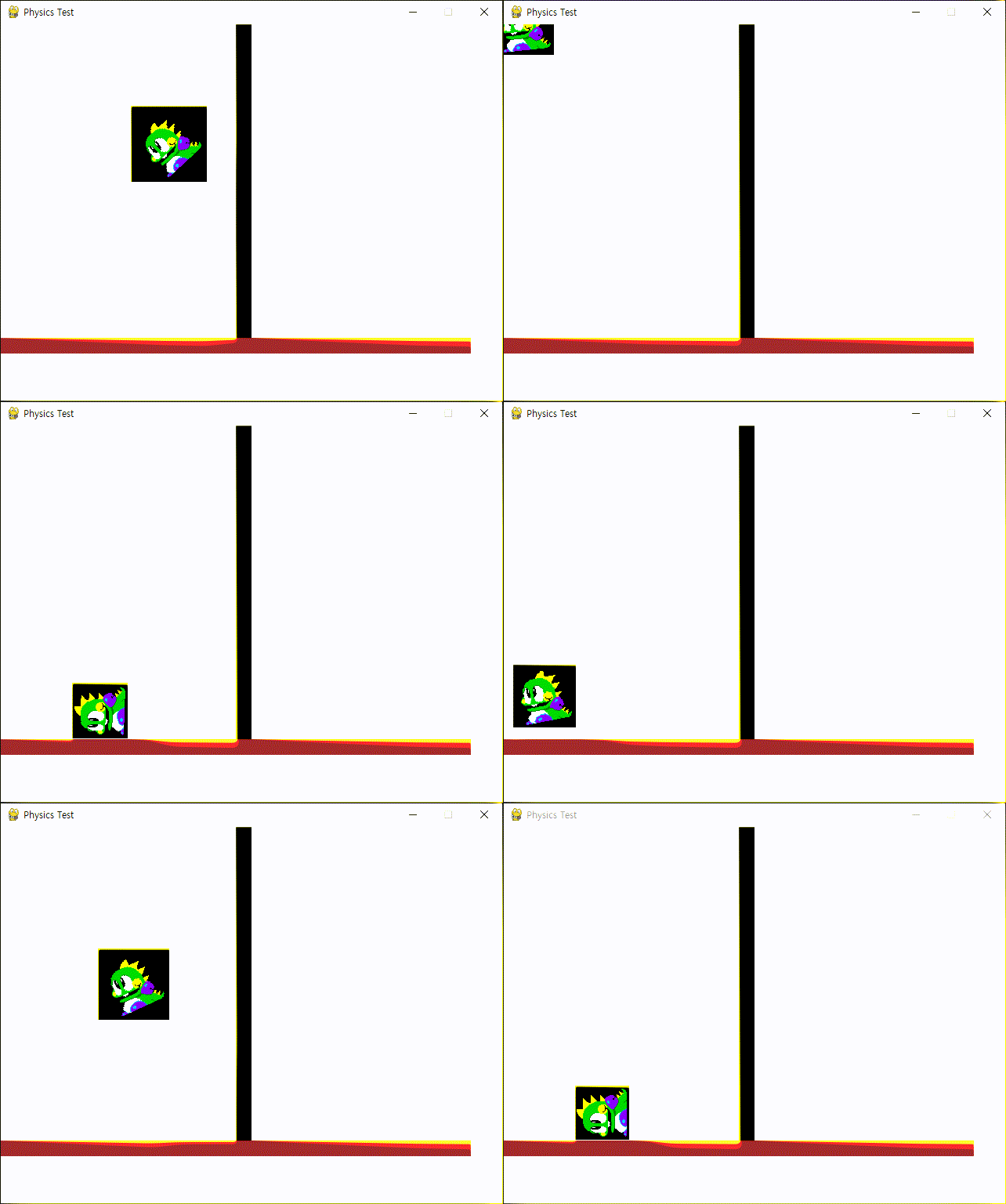
코드를 입력하고 실행한다.


GIF 캡쳐 과정에서 화질이 많이 떨어졌지만 강체들의 물리 반응을 확인할 수 있다.


pygame.transform.rotate()

rotate an image
rotate(surface, angle) -> Surface

Unfiltered counterclockwise rotation. The angle argument represents degrees and can be any floating point value. Negative angle amounts will rotate clockwise.
Unless rotating by 90 degree increments, the image will be padded larger to hold the new size. If the image has pixel alphas, the padded area will be transparent. Otherwise pygame will pick a color that matches the Surface colorkey or the topleft pixel value.


배경을 바꾸거나 Colorkey를 설정하면 캐릭터 주변 패딩을 없앨 수 있다.


아래 링크에서 GUI를 구현해 본다.

2024.01.29 - [Python] - [Pygame] Pygame GUI 파이게임 그래픽 유저 인터페이스


※ 참고

PyBox2D

PyBox2D Manual


반응형
Posted by J-sean
:
반응형

Python pypdf를 이용해 PDF 파일을 조작해 보자.


1
2
3
4
5
6
7
8
9
10
11
12
13
14
15
16
17
18
19
20
21
22
23
24
import os
from tkinter import filedialog
from pypdf import PdfWriter, PdfReader
 
filename = filedialog.askopenfilename(
    filetypes = (("PDF 파일""*.pdf"), ("모든 파일""*.*")),
    initialdir = os.getcwd())
 
reader = PdfReader(filename)
writer = PdfWriter()
 
newname = filename[0:-4]
ext = ".pdf"
 
try:
    for index in range(len(reader.pages)):
        writer.add_page(reader.pages[index])
        with open(newname+str(index+1)+ext, "wb"as pf:
            writer.write(pf)
            writer = PdfWriter() # writer 초기화.
        print(filename + "  ===>  " + newname+str(index+1)+ext)
except:
    print("Error")


여러장의 PDF 파일을 각각 한 페이지로 분리하는 코드를 작성한다.


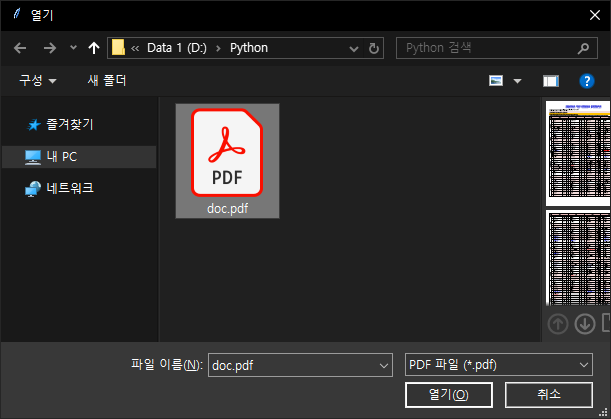
코드를 실행하고 4장으로 이루어진 PDF 파일을 선택한다.


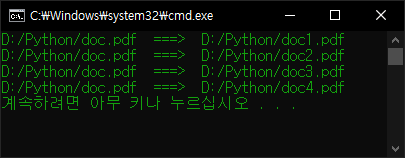
결과가 표시된다.


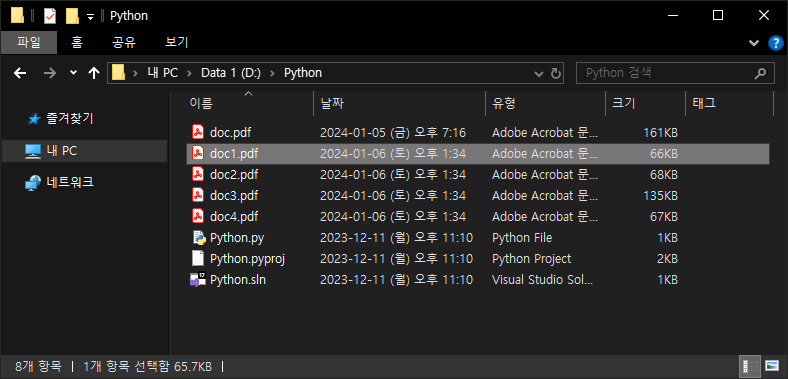
4장으로 분리 되었다.


이번엔 여러개의 PDF 파일들을 하나로 합쳐보자.


1
2
3
4
5
6
7
8
9
10
11
12
13
14
15
16
17
18
19
20
21
import os
from tkinter import filedialog
from pypdf import PdfWriter
 
filenames = filedialog.askopenfilenames(
    filetypes = (("PDF 파일""*.pdf"), ("모든 파일""*.*")),
    initialdir = os.getcwd())
 
merger = PdfWriter()
newname = filenames[0][0:-4]
ext = "_merged.pdf"
 
try:
    for pdf in filenames:
        merger.append(pdf)
    merger.write(newname+ext)
except:
    print("Error")
finally:
    print(filenames[0+ " ~ " + filenames[-1+ " merged.")
    merger.close()


코드를 작성하고 실행한다.


합치고 싶은 파일들을 선택한다.


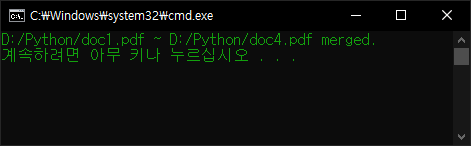
문제가 없다면 결과가 표시된다.


선택한 파일들이 모두 합쳐졌다.


※ 참고

pypdf Documentation


반응형
Posted by J-sean
:
반응형

Python Pillow 라이브러리를 이용해 PDF 변환기를 만들어 보자.


1
2
3
4
5
6
7
8
9
10
11
12
13
14
15
16
17
18
19
20
21
import os
from tkinter import filedialog
from PIL import Image
 
filename = filedialog.askopenfilename(
    filetypes = (("이미지 파일""*.jpg *.png"), ("모든 파일""*.*")),
    initialdir = os.getcwd())
# tkinter.filedialog.askopenfilename(**options)
# tkinter.filedialog.askopenfilenames(**options)
# The above two functions create an Open dialog and return the selected
# filename(s) that correspond to existing file(s).
 
newname = filename[0:-4]
ext = ".pdf"
 
try:
    with Image.open(filename) as pf:
        pf.save(newname + ext)
        print(filename + "  ===>  " + newname + ext)
except:
    print("Error")


파이썬 코드를 작성하고 실행한다.


파일 선택 다이얼로그에서 원하는 이미지 파일을 선택한다.


변환에 문제가 없다면 결과 화면이 출력된다.


PDF 파일이 생성된다.


※ 참고

Tkinter Dialogs


반응형
Posted by J-sean
:
반응형

C/C++로 만든 라이브러리(dll)를 파이썬에서 사용해 보자.


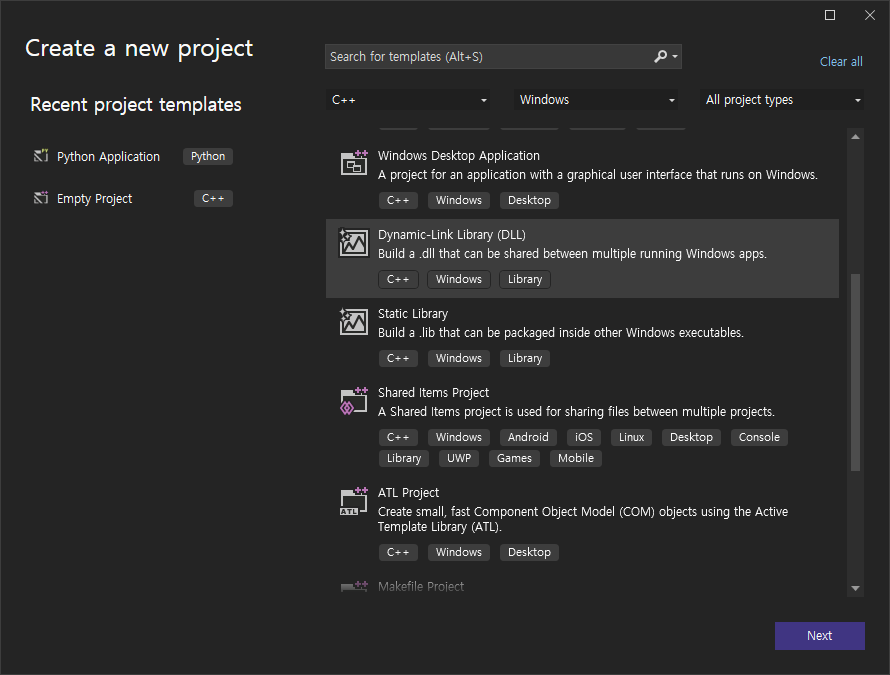
DLL 프로젝트를 생성한다.


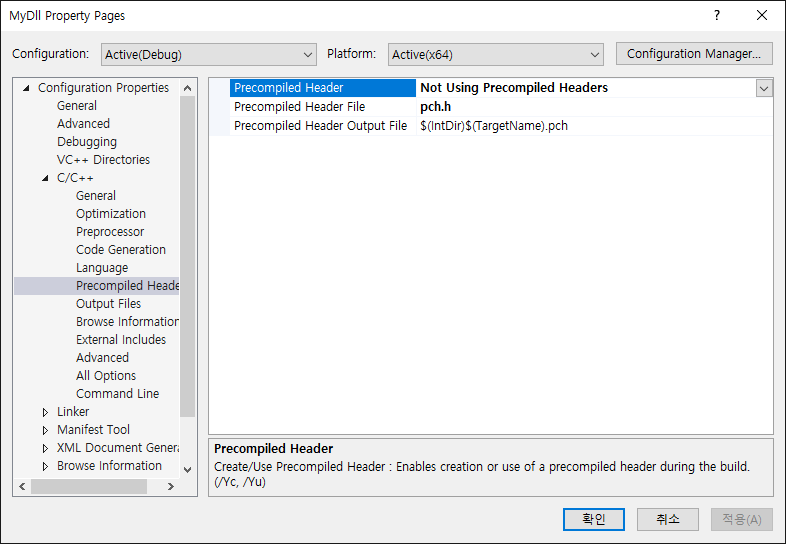
Precompiled Header는 사용하지 않는다.


1
2
3
4
extern "C" __declspec(dllexportint Add(int a, int b)
{
    return a + b;
}


간단한 더하기 함수(Add)를 작성하고 컴파일 한다. 라이브러리(MyDll.dll)가 생성된다.


1
2
3
4
5
6
7
8
9
import ctypes
 
clib = ctypes.windll.LoadLibrary(".\MyDll.dll"# 라이브러리 로드
 
add = clib.Add    # 함수 대입
add.argtypes = (ctypes.c_int, ctypes.c_int) # 인수 타입 지정
add.restype = ctypes.c_int # 반환 타입 지정
 
print("Add: %d" %add(12))


라이브러리를 사용하는 파이썬 코드를 작성한다.


파이썬 코드가 있는 폴더에 라이브러리를 복사한다.


파이썬 코드를 실행한다.


※ 참고

ctypes - A foreign function library for Python


반응형
Posted by J-sean
:
반응형

마이크를 통해 입력된 음성 데이터를 스피커로 출력해 보자.


1
2
3
4
5
6
7
8
9
10
11
12
13
14
15
import sounddevice as sd
import numpy as np
 
def callback(indata, outdata, frames, time, status):
    volume_norm = np.linalg.norm(indata)    
    print("Volume: " + '='*(int(volume_norm)) + ' '*(79-(int(volume_norm))) + '\r', end = '')
    
    # indata를 outdata에 넣으면 마이크로 넘어온 데이터가 스피커로 출력된다.
    outdata[:] = indata
 
try:
    with sd.Stream(callback=callback):
        input("Press Enter to quit.\n\n")
except KeyboardInterrupt:
    print("exit.")


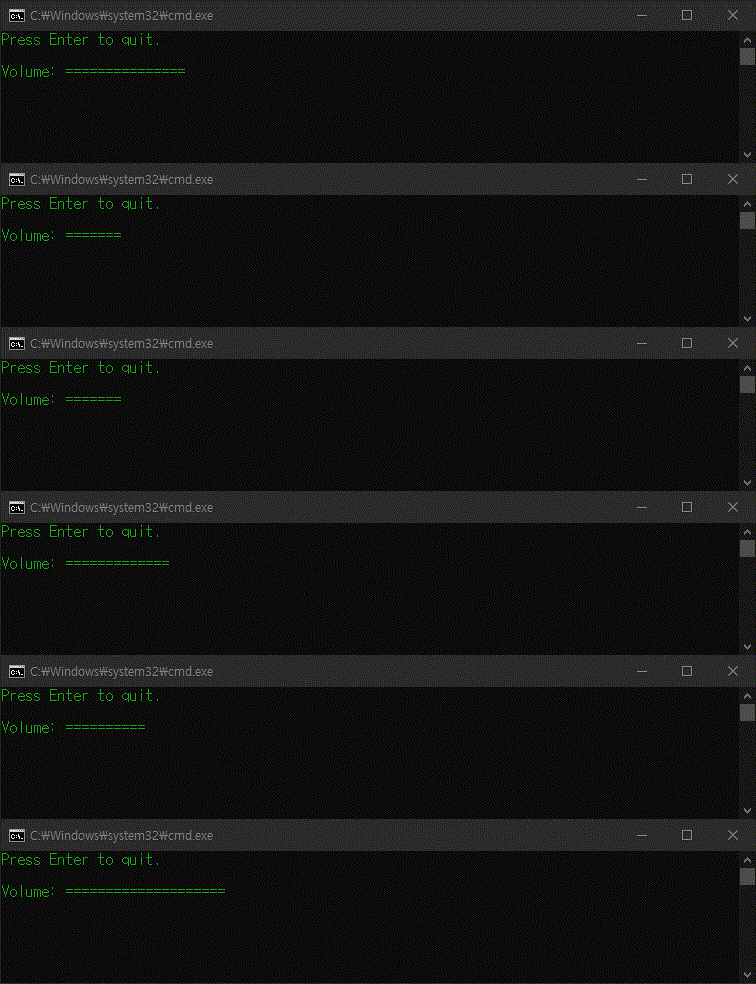
코드를 실행하면 마이크에 입력된 음성이 스피커로 출력된다.


python-sounddevice

PyAudio Examples


반응형
Posted by J-sean
:
반응형

pycaw를 이용해 시스템 오디오 볼륨을 설정해 보자.


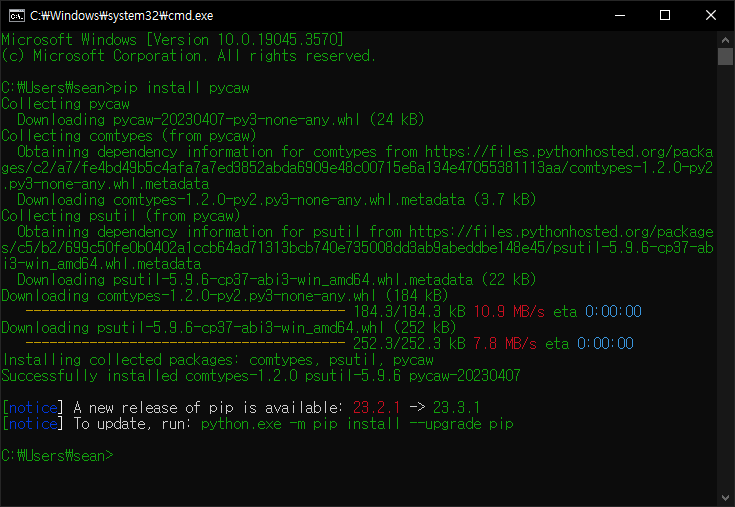
pycaw를 설치한다.


1
2
3
4
5
6
7
8
9
10
11
12
13
14
15
16
17
18
19
20
21
22
23
24
25
from ctypes import cast, POINTER
from comtypes import CLSCTX_ALL
from pycaw.pycaw import AudioUtilities, IAudioEndpointVolume
from time import sleep
 
devices = AudioUtilities.GetSpeakers()
interface = devices.Activate(IAudioEndpointVolume._iid_, CLSCTX_ALL, None)
volume = cast(interface, POINTER(IAudioEndpointVolume))
 
# Control volume
#volume.SetMasterVolumeLevel(-0.0, None) # Max(100%)
#volume.SetMasterVolumeLevel(-3.3, None) # 80%
#volume.SetMasterVolumeLevel(-10.3, None) # 50%
#volume.SetMasterVolumeLevel(-23.6, None) # 20%
#volume.SetMasterVolumeLevel(-64.0, None) # Min(0%)
 
while(True):
    current = volume.GetMasterVolumeLevel()    
    print("Current Volume:", current)
 
    if (current > -23.6):
        current -= 1
        volume.SetMasterVolumeLevel(current, None)
 
    sleep(1)


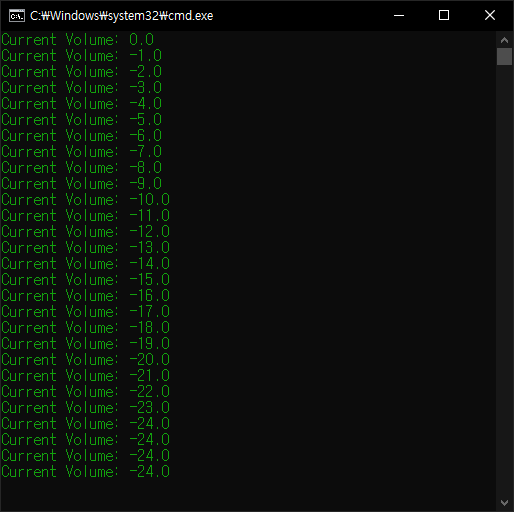
위와 같이 코드를 작성하고 실행한다.


100% 었던 볼륨이 20% 이하로 내려간다.


실행시 콘솔 화면이 뜨지 않게 하려면 파일 확장명을 .pyw로 바꾼다.


※ 참고

pycaw

2022.01.06 - [C#] - C# AudioSwitcher System Audio/Sound Volume Control - 시스템 오디오/사운드 볼륨 컨트롤 1

2022.01.07 - [C#] - C# AudioSwitcher System Audio/Sound Volume Control - 시스템 오디오/사운드 볼륨 컨트롤 2

2023.10.28 - [C#] - C# Sound Meter 사운드 미터


반응형
Posted by J-sean
:
반응형

충돌 감지 영역을 원으로 지정하고 스프라이트 충돌을 확인해 보자.


1
2
3
4
5
6
7
8
9
10
11
12
13
14
15
16
17
18
19
20
21
22
23
24
25
26
27
28
29
30
31
32
33
34
35
36
37
38
39
40
41
42
43
44
45
46
47
48
49
50
51
52
53
54
55
56
57
58
59
60
61
62
63
64
65
66
67
68
69
70
71
72
73
74
75
76
77
78
79
80
81
82
83
84
85
86
87
88
89
90
91
92
93
94
95
96
97
98
99
100
101
102
103
104
105
106
import pygame
 
pygame.init()
pygame.display.set_caption("Super fun game development")
screen = pygame.display.set_mode((640480))
clock = pygame.time.Clock()
 
class Player(pygame.sprite.Sprite):
    def __init__(self, position):
        pygame.sprite.Sprite.__init__(self)
 
        self.direction = -1
        self.speed = 4
        self.image = pygame.image.load("player.png").convert()
        self.image.set_colorkey(self.image.get_at((00)))
        self.size = (self.image.get_width()*1.5self.image.get_height()*1.5)
        self.image = pygame.transform.scale(self.image, self.size)
        self.rect = self.image.get_rect(center=position)
        # rectangle이 아닌 circle을 이용해 충돌 감지하기 위한 반지름 속성 설정.
        self.radius = 40
        # 충돌 감지 circle 표시
        pygame.draw.circle(self.image, "red"self.image.get_rect().center, self.radius, 2)
 
    def flip_image(self):
        self.image = pygame.transform.flip(self.image, TrueFalse)
        
    def update(self):
        pass
# 플레이어 클래스
 
class Bubble(pygame.sprite.Sprite):
    def __init__(self, position):
        pygame.sprite.Sprite.__init__(self)
 
        self.image = pygame.image.load("bubble.png").convert()
        self.image.set_colorkey(self.image.get_at((00)))
        self.size = (self.image.get_width()*6self.image.get_height()*6)
        self.image = pygame.transform.scale(self.image, self.size)
        self.rect = self.image.get_rect(center=position)
        self.collided = False
        # rectangle이 아닌 circle을 이용해 충돌 감지하기 위한 반지름 속성 설정.
        self.radius = 40
        # 충돌 감지 circle 표시
        pygame.draw.circle(self.image, "red"self.image.get_rect().center, self.radius, 2)
 
    def update(self):
        if self.collided == True:
            self.rect.top -= 1
# 버블 클래스
# 충돌(self.collided)을 감지하면 위치(self.rect.top)가 변한다.
 
def main():
    player = Player((screen.get_width()/2, screen.get_height()/2))
    player_sprite = pygame.sprite.Group(player)
    # 플레이어 스프라이트 그룹
 
    bubbles = [
        Bubble((40, screen.get_height()/2)),
        Bubble((160, screen.get_height()/2)),
        Bubble((480, screen.get_height()/2)),
        Bubble((600, screen.get_height()/2))]
    bubble_sprites = pygame.sprite.Group(bubbles)
    # 버블 스프라이트 그룹
 
    running = True
 
    while running:
        for event in pygame.event.get():
            if event.type == pygame.QUIT:
                running = False
            elif event.type == pygame.KEYDOWN and event.key == pygame.K_ESCAPE:
                running = False
 
        keys = pygame.key.get_pressed()
        if keys[pygame.K_LEFT]:
            if player.direction > 0:
                player.flip_image()
                player.direction = -1
            player.rect.move_ip(-player.speed, 0)
        if keys[pygame.K_RIGHT]:
            if player.direction < 0:
                player.flip_image()
                player.direction = 1
            player.rect.move_ip(player.speed, 0)
 
        # spritecollide()의 마지막 인수 collided에 collide_circle()를 대입한다.
        collision = pygame.sprite.spritecollide(player, bubble_sprites, False, pygame.sprite.collide_circle)
        for bubble in collision:
            bubble.collided = True
        # 플레이어와 버블의 충돌을 감지하고 충돌한 버블의 collided 값을 True로 바꾼다.
        
        player_sprite.update()
        bubble_sprites.update()
                 
        screen.fill("black")
         
        player_sprite.draw(screen)
        bubble_sprites.draw(screen)
    
        pygame.display.flip()
        clock.tick(60)
 
    pygame.quit()
 
if __name__ == '__main__':
  main()


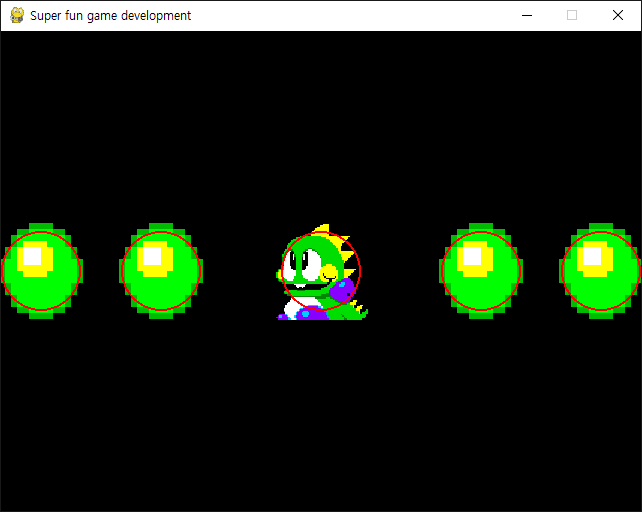
공룡과 버블의 충돌 감지 영역이 빨간 원으로 표시된다.


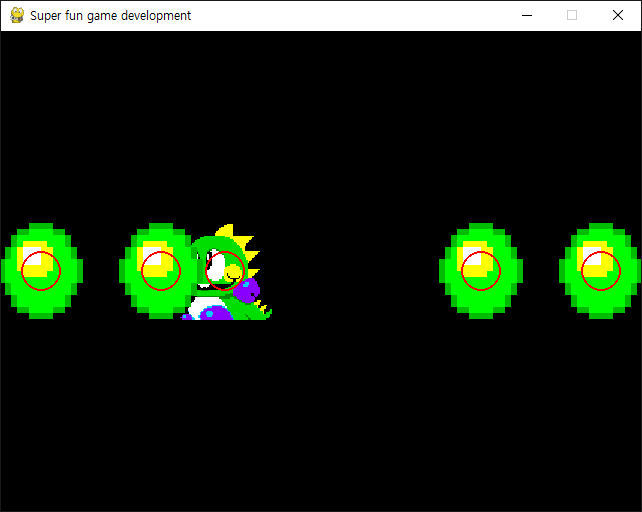
좀 더 확실한 확인을 위해 공룡과 버블의 충돌 감지 circle의 radius를 20으로 바꾸고 다시 실행해 보자.


스프라이트는 충돌 했지만 원은 충돌하지 않았기 때문에 충돌로 판정되지 않는다.


반응형
Posted by J-sean
: