반응형

OpenCV와 함께 다수의 물체를 추적해 보자.


import cv2
from ultralytics import YOLO

# Load the YOLO26 model
model = YOLO("yolo26n.pt")

# Open the webcam
# cap = cv2.VideoCapture(0)
# cap.set(cv2.CAP_PROP_FRAME_WIDTH, 640)
# cap.set(cv2.CAP_PROP_FRAME_HEIGHT, 480)
# if cap.set(cv2.CAP_PROP_FPS, 30):
# 	print("FPS set")
# else:
# 	print("FPS setting failed")

cap = cv2.VideoCapture("Cars_On_Highway.mp4")

# Loop through the video frames
while cap.isOpened():
    # Read a frame from the video
    success, frame = cap.read()

    if success:
        # Run YOLO26 tracking on the frame, persisting tracks between frames
        results = model.track(frame, persist=True, verbose=False)

        # Visualize the results on the frame
        annotated_frame = results[0].plot()

        print(f"Number of objects: {len(results[0])}")
        #print(results[0].boxes.id) # (tensor) 바운딩 박스의 track ID를 반환합니다 (사용 가능한 경우).
        #print(results[0].names) # (dict) 클래스 인덱스를 클래스 이름에 매핑하는 사전입니다.
        #print(results[0].boxes.cls) # (tensor) bounding box의 클래스 값을 반환합니다.

        # ID와 각 물체의 클래스 출력
        for id, cls in zip(results[0].boxes.id, results[0].boxes.cls):
            print(f"ID: {id.int()} Class: {results[0].names[cls.int().item()]}", end=', ')
        print()

        # Display the annotated frame
        cv2.imshow("YOLO26 Tracking", annotated_frame)

        # Break the loop if 'q' is pressed
        if cv2.waitKey(1) & 0xFF == ord("q"):
            break
    else:
        # Break the loop if the end of the video is reached
        break

# Release the video capture object and close the display window
cap.release()
cv2.destroyAllWindows()


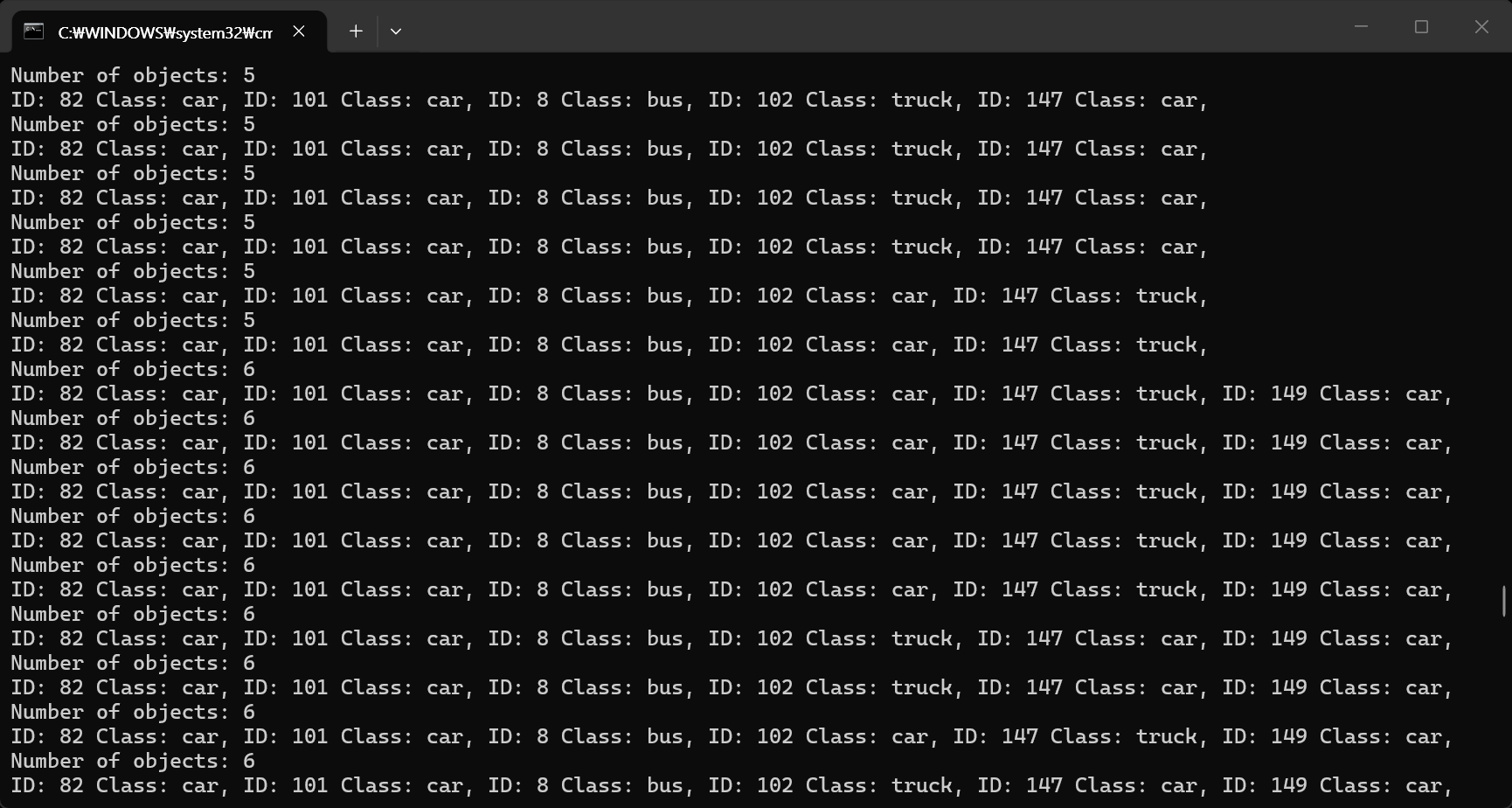
웹캠을 사용하거나 원하는 영상을 준비하고 실행한다.

video1.avi
2.41MB
video2.avi
2.15MB
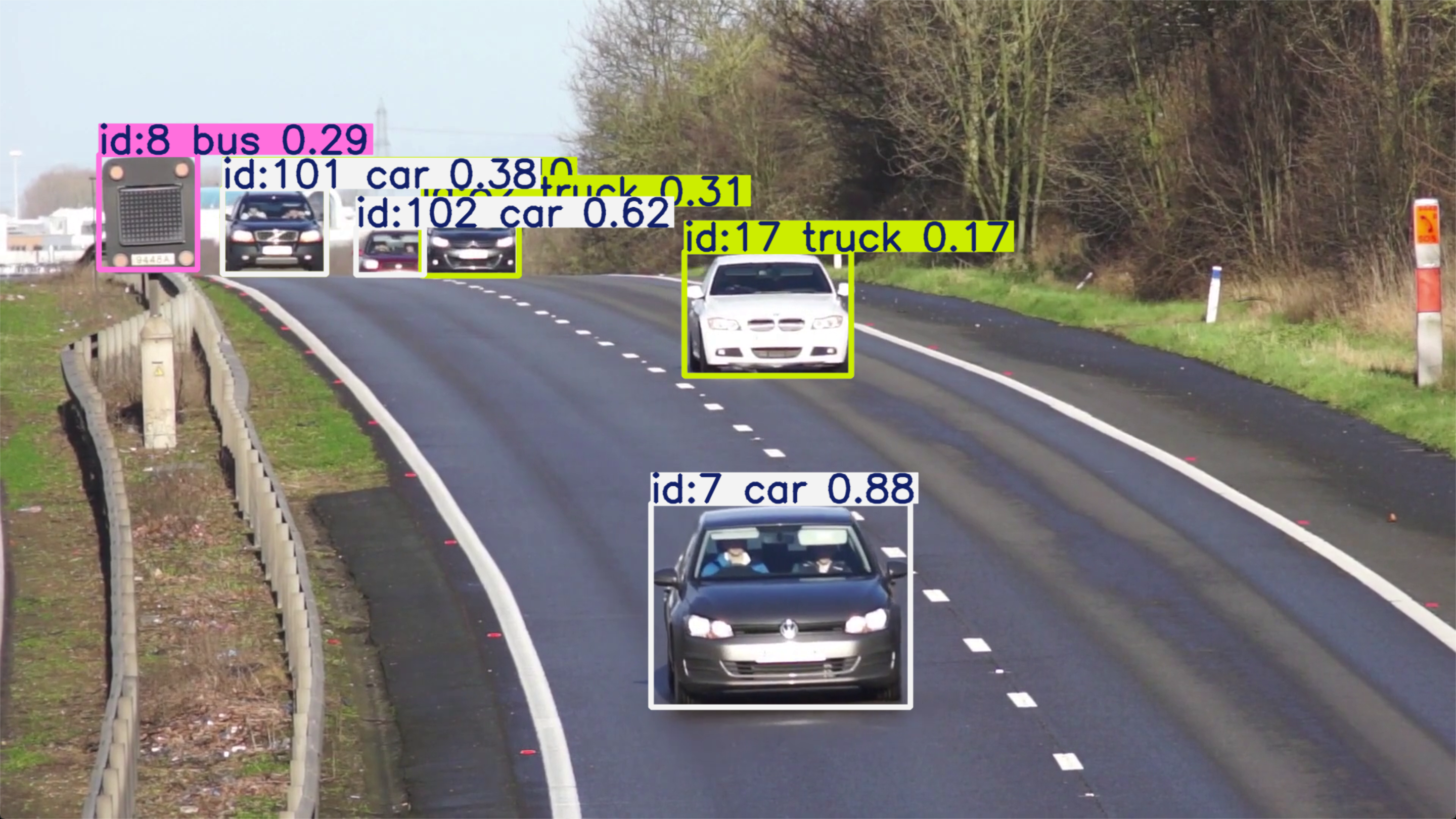


캡처하는 시간차 때문에 영상과 콘솔 화면의 출력이 일치하지는 않는다.


반응형
Posted by J-sean
:
반응형

MediaPipe를 이용해 객체를 감지해 보자.


1
2
3
4
5
6
7
8
9
10
11
12
13
14
15
16
17
18
19
20
21
22
23
24
25
26
27
28
29
30
31
32
33
34
35
36
37
38
39
40
41
42
43
44
45
46
47
48
49
50
51
52
53
54
55
56
57
58
59
60
61
import numpy as np
import cv2
import mediapipe as mp
from mediapipe.tasks import python
from mediapipe.tasks.python import vision
 
MARGIN = 10  # pixels
ROW_SIZE = 10  # pixels
FONT_SIZE = 1
FONT_THICKNESS = 1
TEXT_COLOR = (25500)  # red
 
def visualize(image, detection_result) -> np.ndarray:
  """Draws bounding boxes on the input image and return it.
  Args:
    image: The input RGB image.
    detection_result: The list of all "Detection" entities to be visualize.
  Returns:
    Image with bounding boxes.
  """
  for detection in detection_result.detections:
    # Draw bounding_box
    bbox = detection.bounding_box
    start_point = bbox.origin_x, bbox.origin_y
    end_point = bbox.origin_x + bbox.width, bbox.origin_y + bbox.height
    cv2.rectangle(image, start_point, end_point, TEXT_COLOR, 3)
 
    # Draw label and score
    category = detection.categories[0]
    category_name = category.category_name
    probability = round(category.score, 2)
    result_text = category_name + ' (' + str(probability) + ')'
    text_location = (MARGIN + bbox.origin_x, MARGIN + ROW_SIZE + bbox.origin_y)
    cv2.putText(image, result_text, text_location, cv2.FONT_HERSHEY_PLAIN,
                FONT_SIZE, TEXT_COLOR, FONT_THICKNESS)
 
  return image
 
# Create an ObjectDetector object.
base_options = python.BaseOptions(model_asset_path='efficientdet_lite2.tflite')
# https://ai.google.dev/edge/mediapipe/solutions/vision/object_detector
options = vision.ObjectDetectorOptions(base_options=base_options, score_threshold=0.5)
detector = vision.ObjectDetector.create_from_options(options)
 
# Load the input image.
image = mp.Image.create_from_file('image.jpg')
#cv_image = cv2.imread('image.jpg')
#image = mp.Image(image_format = mp.ImageFormat.SRGB,
#                 data = cv2.cvtColor(cv_image, cv2.COLOR_BGR2RGB))
# https://ai.google.dev/edge/api/mediapipe/python/mp/Image
 
# Detect objects in the input image.
detection_result = detector.detect(image)
 
# Process the detection result. In this case, visualize it.
image_copy = np.copy(image.numpy_view())
annotated_image = visualize(image_copy, detection_result)
rgb_annotated_image = cv2.cvtColor(annotated_image, cv2.COLOR_BGR2RGB)
 
cv2.imshow('sean', rgb_annotated_image)
cv2.waitKey(0)


efficientdet_lite0.tflite
4.39MB
efficientdet_lite2.tflite
7.17MB


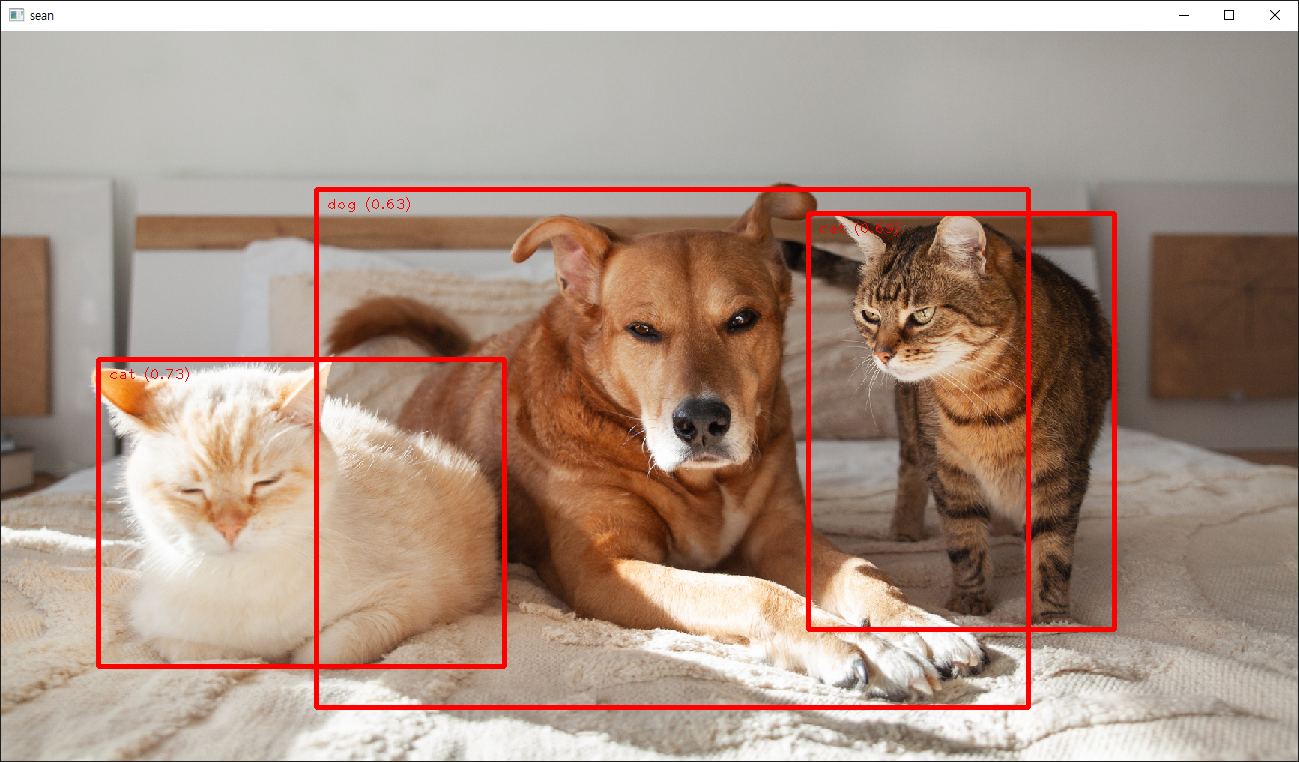
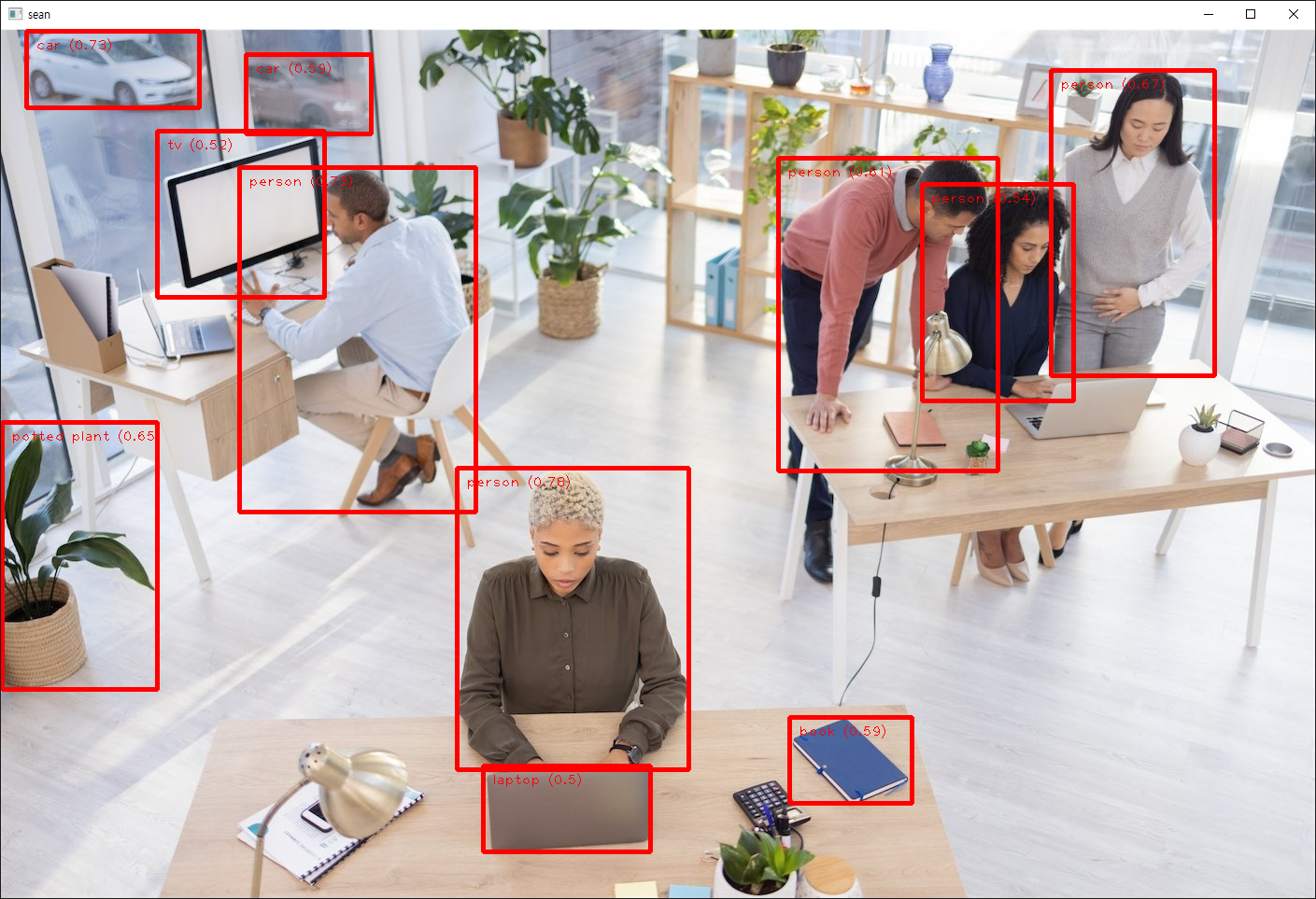
여러가지 이미지 파일을 준비해서 소스를 입력하고 실행한다.


개와 고양이를 정확히 인식했다.


사무실 주변의 사람과 다양한 물체를 감지한다.


이제 내가 감지하고 싶은 오브젝트로 감지 모델을 만들어 보자.

Object detection model customization guide

전체적으로 위 링크를 참고하면 된다. 여기서는 데이터셋을 준비하는 과정에 대해 조금 더 자세히 알아보자.


labels.json 파일은 아래와 같은 구조로 되어 있다.

{
  "categories":[
    {"id":1, "name":<cat1_name>},
    ...
  ],
  "images":[
    {"id":0, "file_name":"<img0>.<jpg/jpeg>"},
    ...
  ],
  "annotations":[
    {"id":0, "image_id":0, "category_id":1, "bbox":[x-top left, y-top left, width, height]},
    ...
  ]
}


실제 labels.json 파일에서 첫 번째(0) 이미지에 대한 내용을 살펴보자.

{
  "images": [{"id": 0, "file_name": "IMG_0525.jpg"}, ...],
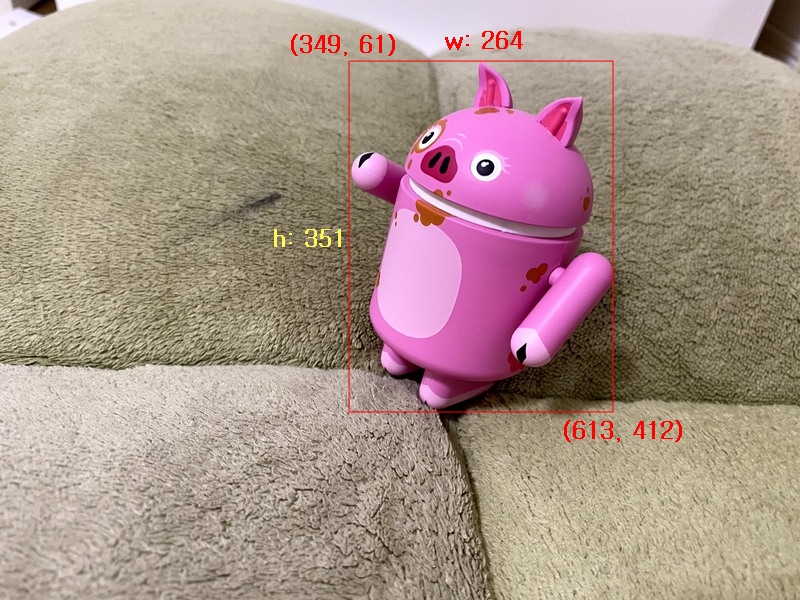
  "annotations": [{"image_id": 0, "bbox": [349, 61, 264, 351], "category_id": 2}, ...],
  "categories": [{"id": 0, "name": "background"}, {"id": 1, "name": "android"}, {"id": 2, "name": "pig_android"}]
}


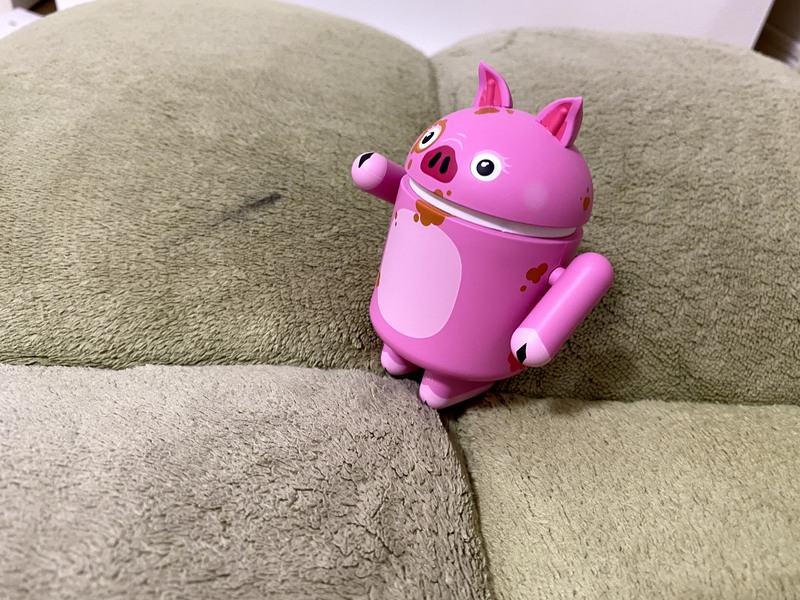
첫 번째 파일이므로 image_id는 0으로, '돼지 안드로이드' 인형이므로 category_id는 2로 세팅 되었다.

bbox는 bounding box이고 [왼쪽 x좌표, 왼쪽 y좌표, 폭, 높이]를 의미한다.

categories에서 첫 번째 0번 id는 실제 쓰이지 않더라도 무조건 background로 지정되어야 한다.


labels.json
0.01MB


IMG_0525.jpg


bbox가 표시된 IMG_0525.jpg


반응형
Posted by J-sean
:
반응형

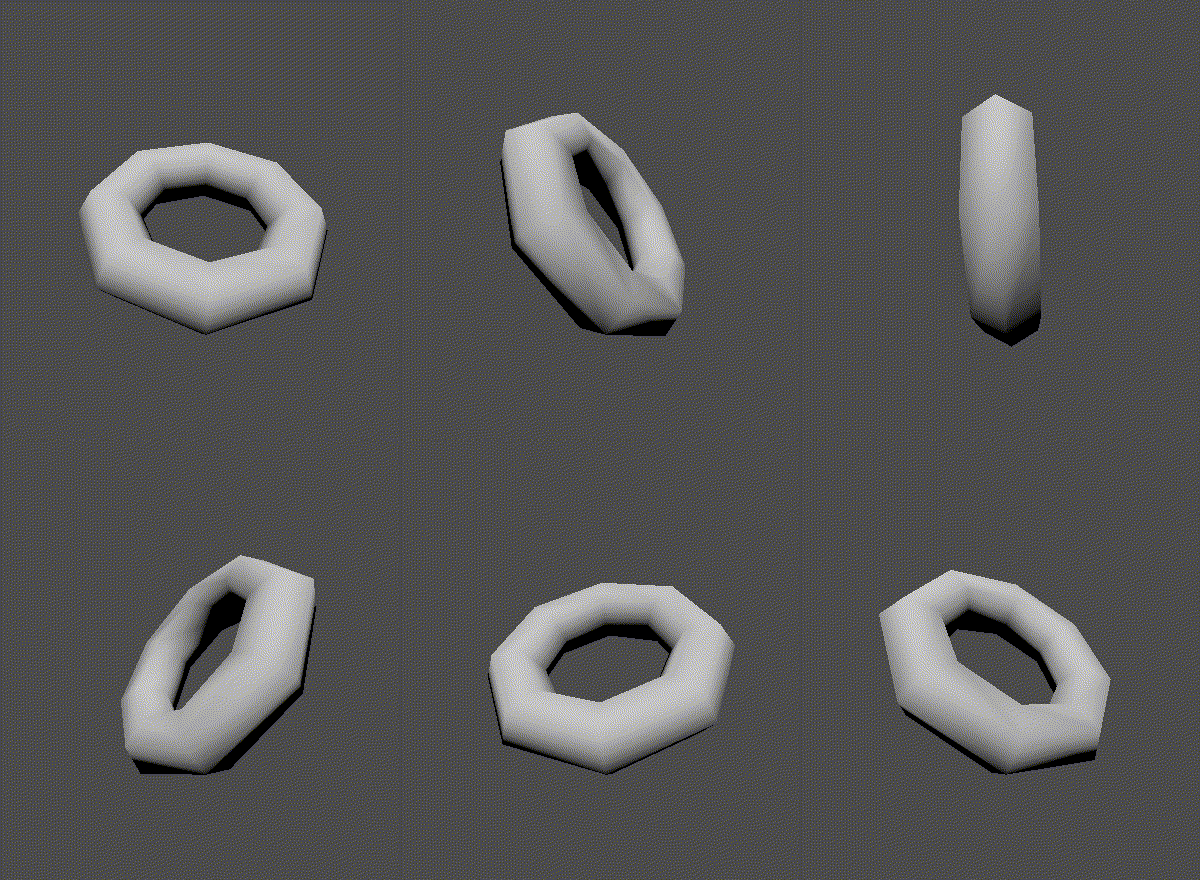
2D 씬에 3D 오브젝트를 표현해 보자.


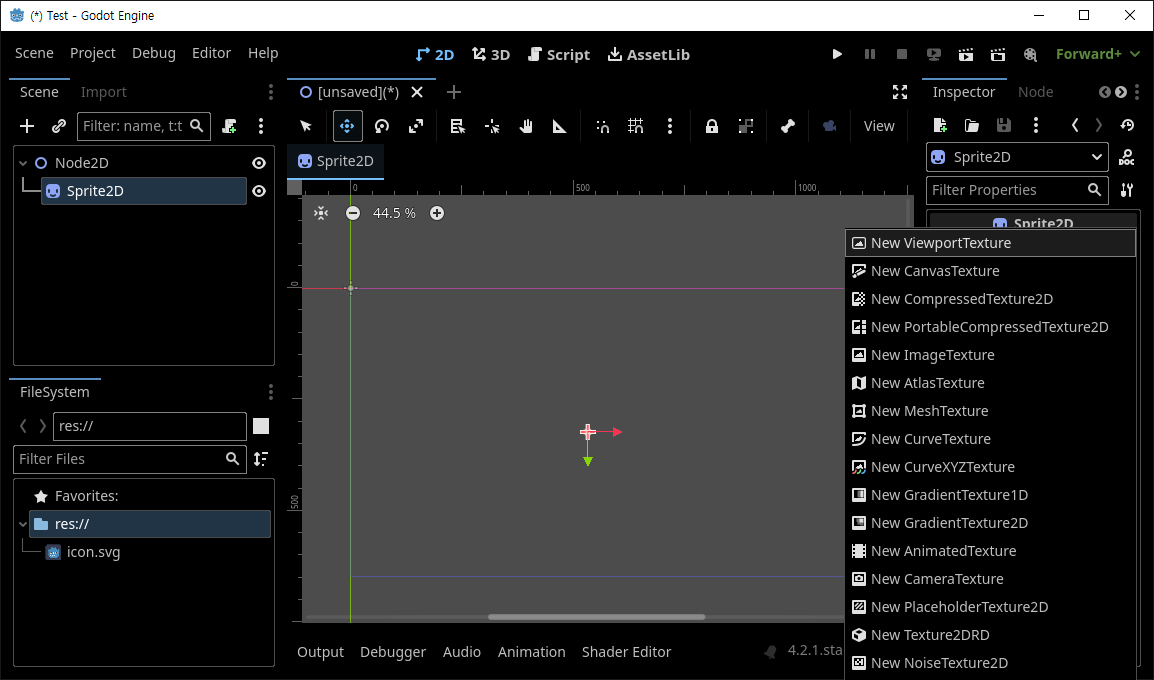
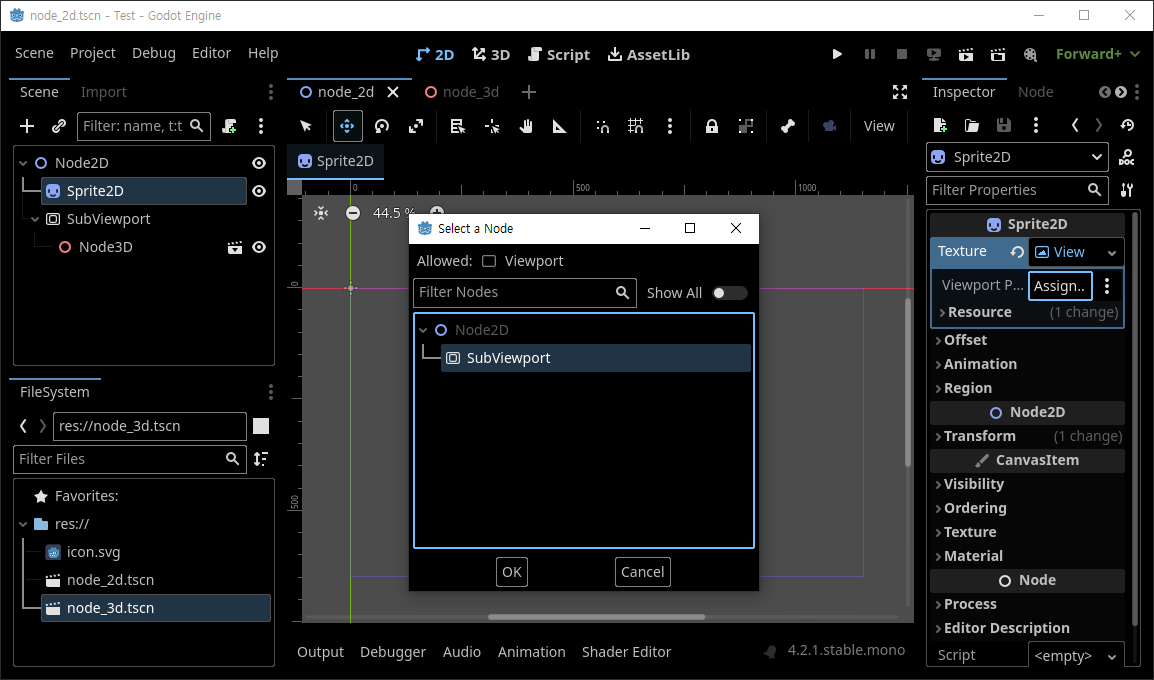
2D 씬에 스프라이트를 생성하고 Texture는 ViewportTexture를 지정한다.


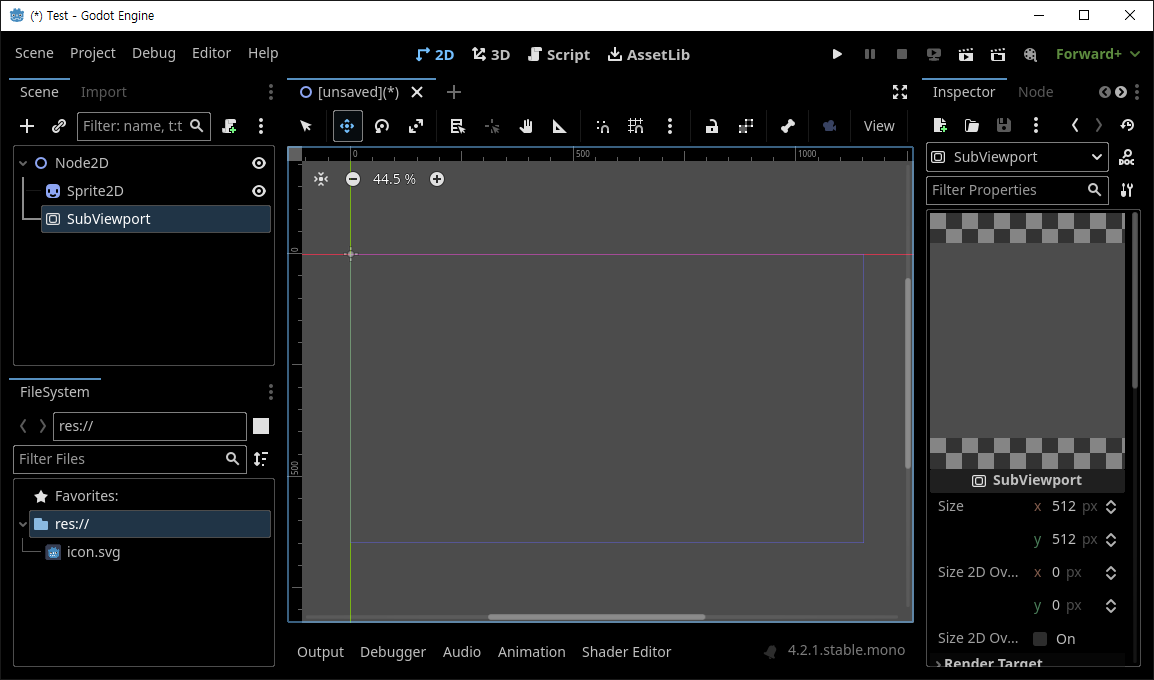
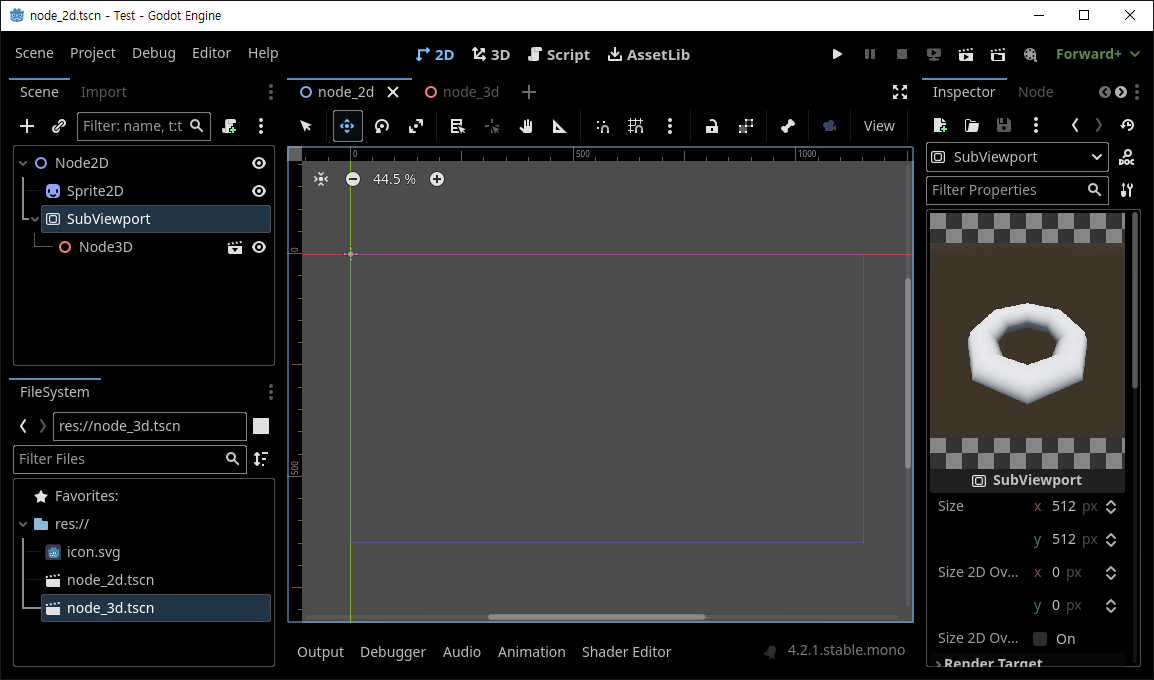
SubViewport를 생성한다.


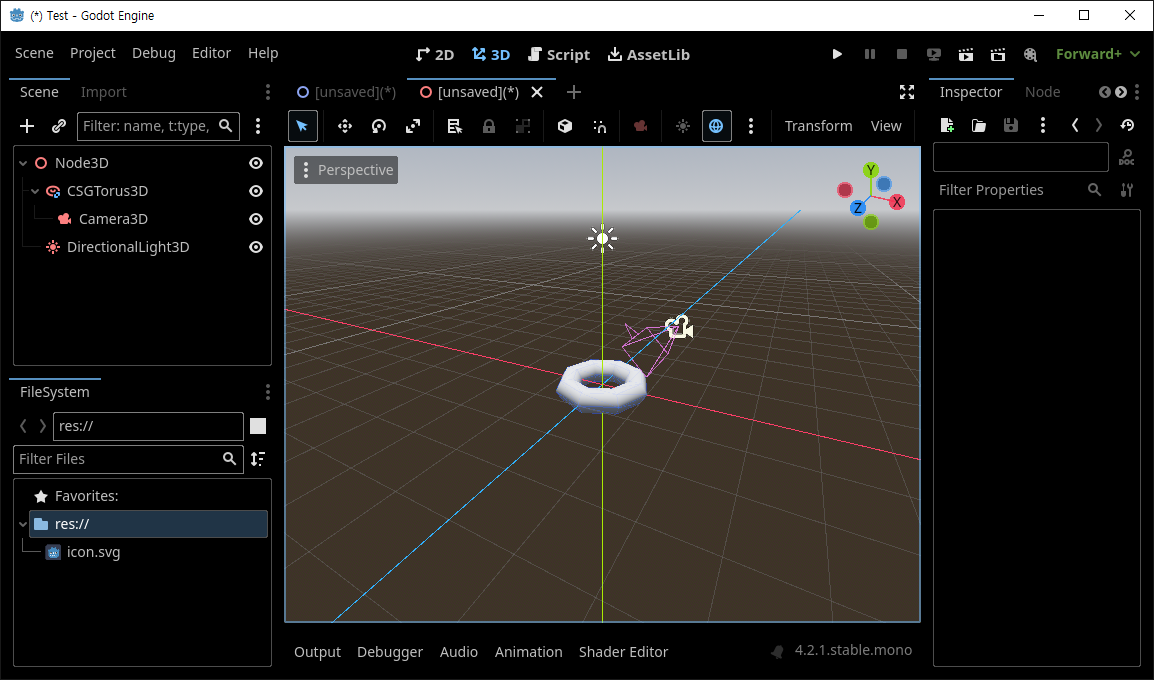
3D 씬에 Torus, Camera, Light를 생성하고 적당히 배치해 저장한다.


저장한 3D 씬을 SubViewport 자식 노드로 추가한다.


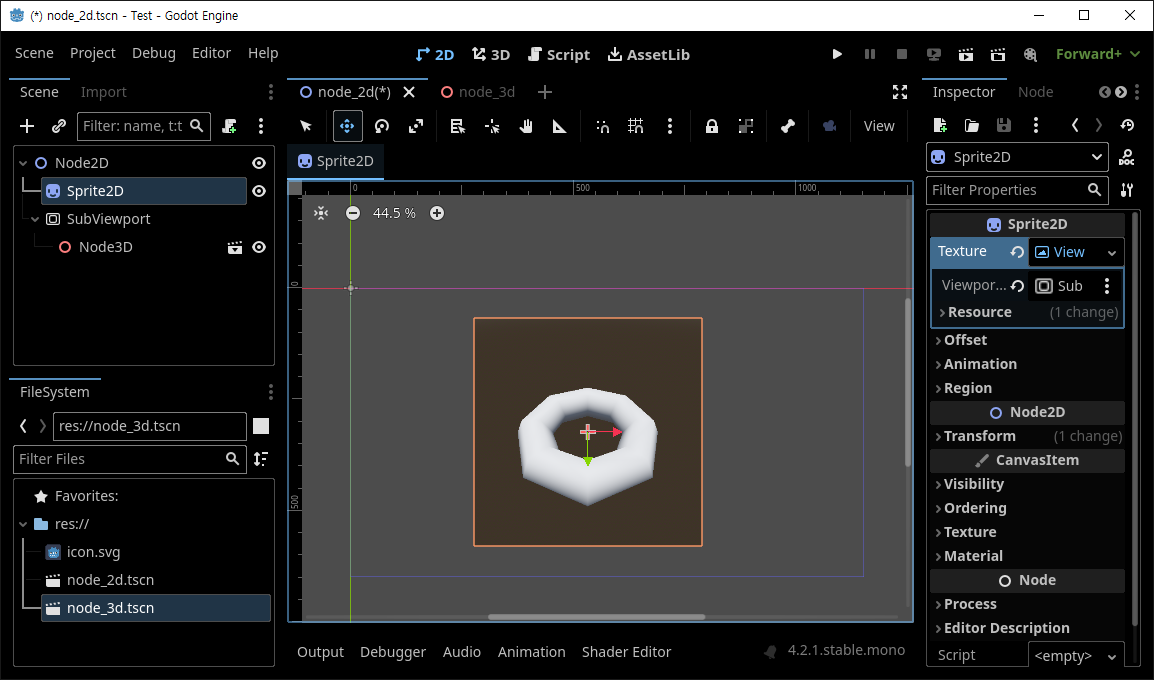
스프라이트 Texture - Viewport Path에 SubviewPort를 지정한다.


위와 같이 3D 카메라에 보이는 화면이 텍스쳐로 표현된다.


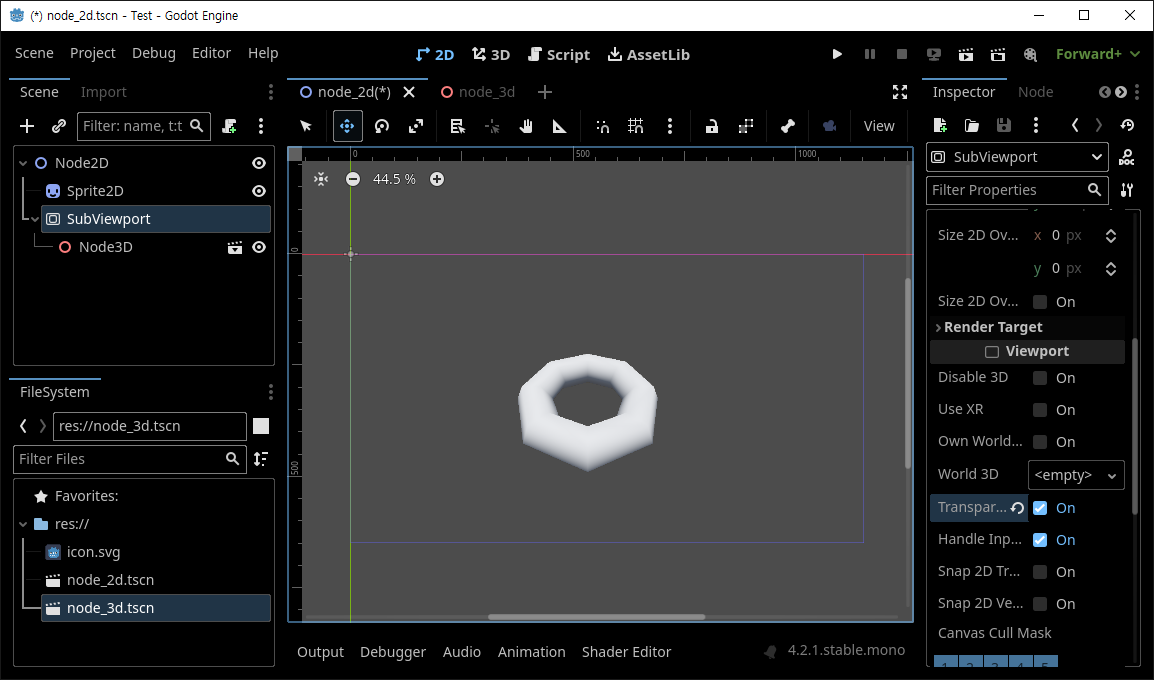
Transparent BG 옵션을 선택하면 배경이 투명해진다.


3D 오브젝트에 스크립트를 추가해 움직임을 적용하면 스프라이트에 반영된다.


반응형
Posted by J-sean
: