반응형

유니티 Input System Package 사용방법.


Workflow - Actions

대부분의 경우 권장되는 방법이다.

Responding to Actions

각 입력에 대해 반응하는 방법이다.

Method Description
InputAction.WasPerformedThisFrame() True if the InputAction.phase of the action has, at any point during the current frame, changed to Performed.
InputAction.WasCompletedThisFrame() True if the InputAction.phase of the action has, at any point during the current frame, changed away from Performed to any other phase. This can be useful for Button actions or Value actions with interactions like Press or Hold when you want to know the frame the interaction stops being performed. For actions with the default Interaction, this method will always return false for Value and Pass-Through actions (since the phase stays in Started for Value actions and stays in Performed for Pass-Through).
InputAction.IsPressed() True if the level of actuation on the action has crossed the press point and did not yet fall to or below the release threshold.
InputAction.WasPressedThisFrame() True if the level of actuation on the action has, at any point during the current frame, reached or gone above the press point.
InputAction.WasReleasedThisFrame() True if the level of actuation on the action has, at any point during the current frame, gone from being at or above the press point to at or below the release threshold.


void Update()
{
    if (isDead)
        return;

    if (jumpAction.WasPerformedThisFrame() && jumpCount < 2)
    {
        // 버튼이 눌릴때 한 번
        jumpCount++;
        playerRigidbody.linearVelocity = Vector2.zero;
        playerRigidbody.AddForce(new Vector2(0, jumpForce));
        playerAudio.Play();
    }
    else if (jumpAction.WasCompletedThisFrame() && playerRigidbody.linearVelocity.y > 0)
    {
        // 버튼이 떨어질때 한 번
        playerRigidbody.linearVelocity = playerRigidbody.linearVelocity * 0.5f;
    }

    animator.SetBool("Grounded", isGrounded);
}

예제 코드


Workflow - Actions and PlayerInput

Callback 함수를 사용하는 방법이다.

Callback 함수를 연결하는 방법은 아래를 참고한다.
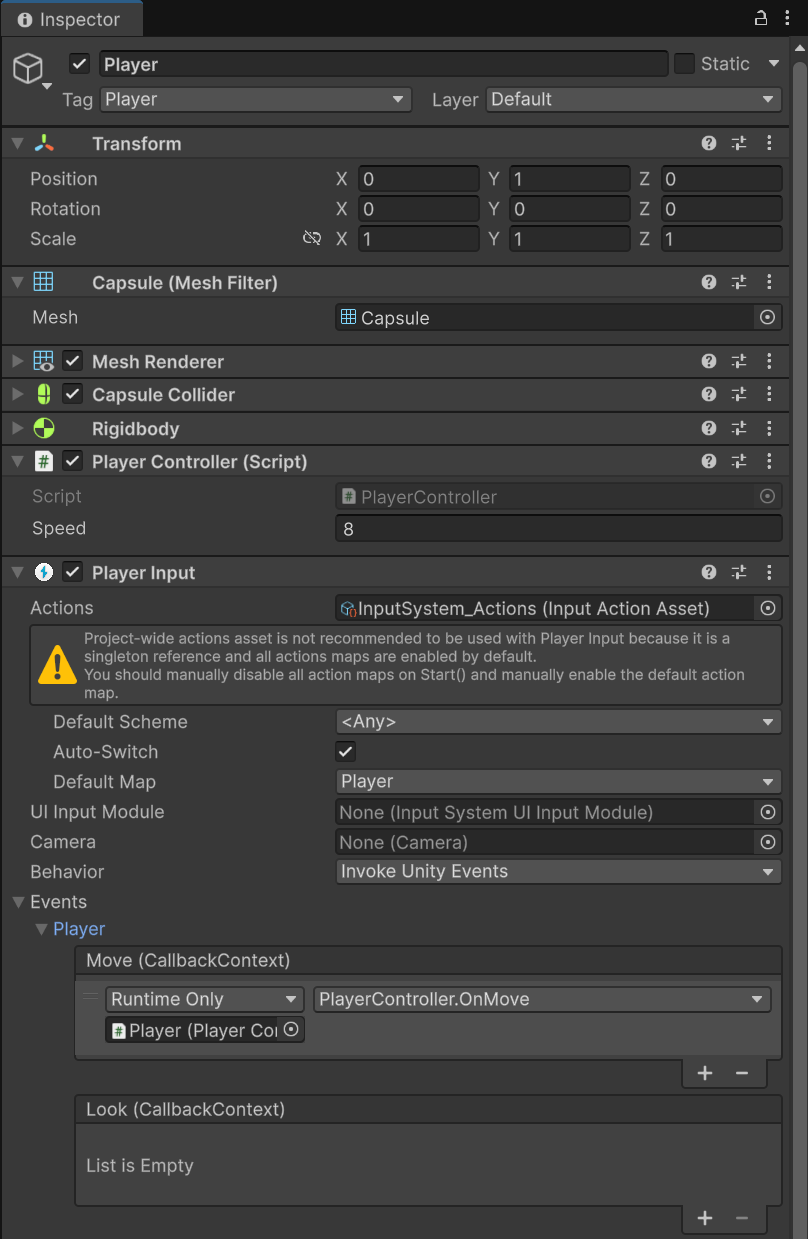
 

Player Input 컴포넌트에 Input Action Asset을 연결한다.


Project-wide Input Action을 Player Input에 사용 하는건 권장되지 않는 방법이지만 여기서는 사용 방법을 보이기 위해 그냥 사용했다. Behavior는 Invoke Unity Events로 변경하고, Events - Player - Move(CallbackContext)에 'Player' 오브젝트가 연결되어 있는데 # 아이콘이 마치 스크립트인것 같지만 실제로는 Callback 함수가 정의된 스크립트를 가지는 Player 게임 오브젝트이다.


이 Player 게임 오브젝트에 PlayerController라는 스크립트가 추가되어 있고 그 스크립트에 OnMove()가 존재한다. 오른쪽에 PlayerController.OnMove를 선택해 주었다. (이 예에선 Player 게임 오브젝트가 Player Input Asset도 가지고 있고 PlayerController 스크립트도 가지고 있는 것이다)
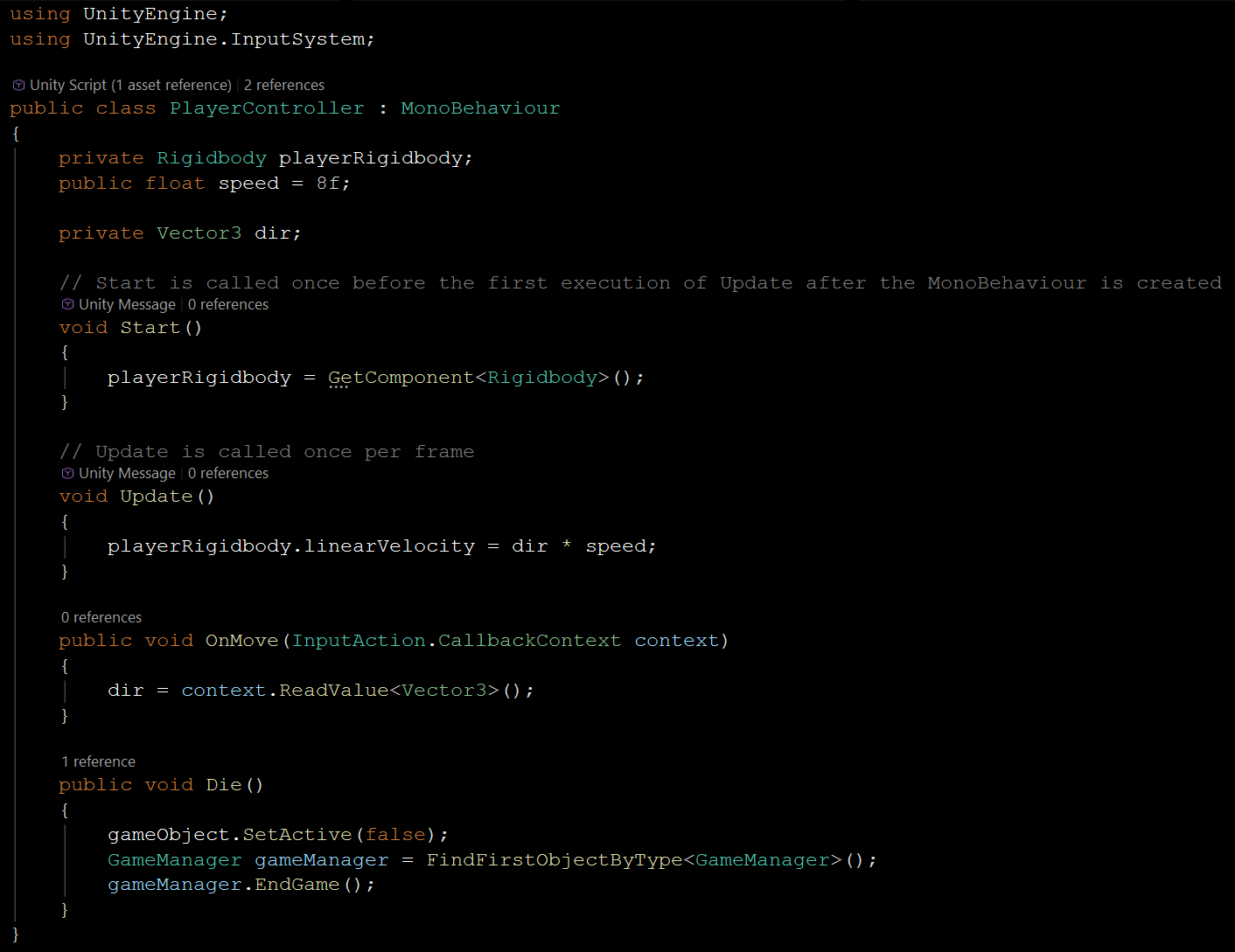
 

PlayerController 스크립트에 OnMove()가 정의 되어 있다.


반응형
Posted by J-sean
:
반응형

부모 윈도우와 자식 윈도우의 입력을 구분해 처리해 보자.


1
2
3
4
5
6
7
8
9
10
11
12
13
14
15
16
17
18
19
20
21
22
23
24
25
26
27
28
29
30
31
32
33
34
35
36
37
38
39
40
41
42
43
44
45
46
47
48
49
50
51
52
53
54
55
56
57
58
59
60
61
62
63
64
65
66
67
68
69
70
71
72
73
74
75
76
77
78
79
80
81
82
83
84
85
86
87
88
89
90
91
92
93
94
95
96
97
98
99
100
101
102
103
104
105
106
107
108
109
110
111
112
113
114
115
116
#define SDL_MAIN_USE_CALLBACKS 1
 
#include <SDL3/SDL.h>
#include <SDL3/SDL_main.h>
#include <stdio.h>
#include <Windows.h>
 
static SDL_Window* window = NULL;
static SDL_Renderer* renderer = NULL;
 
static SDL_Window* childWindow = NULL;
static SDL_Renderer* childRenderer = NULL;
 
SDL_AppResult SDL_AppInit(void** appstate, int argc, char* argv[])
{
    SDL_SetAppMetadata("Example""1.0""Sean");
 
    // Initialize SDL with video subsystem
    if (!SDL_Init(SDL_INIT_VIDEO)) {
        SDL_Log("Couldn't initialize SDL: %s", SDL_GetError());
        return SDL_APP_FAILURE;
    }
 
    // 메인 윈도우 및 렌더러 생성
    if (!SDL_CreateWindowAndRenderer("Parent Window"6404800&window, &renderer)) {
        SDL_Log("Couldn't create window/renderer: %s", SDL_GetError());
        return SDL_APP_FAILURE;
    }
 
    printf("Main window ID: %d\n", SDL_GetWindowID(window));
 
    // 자식 윈도우 및 렌더러 생성
    if (!SDL_CreateWindowAndRenderer("Child Window"6404800&childWindow, &childRenderer)) {
        SDL_Log("Couldn't create child window/renderer: %s", SDL_GetError());
        return SDL_APP_FAILURE;
    }
 
    printf("Child window ID: %d\n", SDL_GetWindowID(childWindow));
 
    // 메인 윈도우를 자식 윈도우의 부모 윈도우로 설정
    if (!SDL_SetWindowParent(childWindow, window)) {
        SDL_Log("Couldn't set child window parent: %s", SDL_GetError());
        return SDL_APP_FAILURE;
    }
 
    // 윈도우 핸들 구하기
    SDL_PropertiesID prop = SDL_GetWindowProperties(window);
    HWND hwnd = (HWND)SDL_GetPointerProperty(prop, SDL_PROP_WINDOW_WIN32_HWND_POINTER, NULL);
    if (hwnd)
        printf("Main window handle: %p\n", hwnd);
 
    prop = SDL_GetWindowProperties(childWindow);
    HWND hpwnd = (HWND)SDL_GetPointerProperty(prop, SDL_PROP_WINDOW_WIN32_HWND_POINTER, NULL);
    if (hpwnd)
        printf("Popup window handle: %p\n", hpwnd);
 
    return SDL_APP_CONTINUE;
}
 
SDL_AppResult SDL_AppEvent(void* appstate, SDL_Event* event)
{
    switch (event->type) {
    case SDL_EVENT_QUIT:
        return SDL_APP_SUCCESS;
    case SDL_EVENT_KEY_DOWN:
        printf("Key pressed window: %d, Key: %s\n", event->key.windowID, SDL_GetKeyName(event->key.key));
        if (event->key.key == SDLK_ESCAPE)
            if (event->key.windowID == SDL_GetWindowID(window))
                return SDL_APP_SUCCESS; // Exit on Escape key in main window
            else if (event->key.windowID == SDL_GetWindowID(childWindow)) {
                // 자식 윈도우에서 Escape 키를 누르면 자식 윈도우 닫음
                SDL_DestroyRenderer(childRenderer);
                childRenderer = NULL;
                SDL_DestroyWindow(childWindow);
                childWindow = NULL;
            }
        break;
    case SDL_EVENT_MOUSE_BUTTON_DOWN:
        printf("Mouse button pressed window: %d, Button index: %d\n", event->button.windowID, event->button.button);
        printf("Mouse position: (%d, %d)\n", (int)event->button.x, (int)event->button.y);
        break;
    default:
        break;
    }
 
    return SDL_APP_CONTINUE;
}
 
SDL_AppResult SDL_AppIterate(void* appstate)
{
    SDL_SetRenderDrawColor(renderer, 255255255, SDL_ALPHA_OPAQUE);
    SDL_RenderClear(renderer);
    SDL_RenderPresent(renderer);
 
    if (childRenderer)
    {
        SDL_SetRenderDrawColor(childRenderer, 00255, SDL_ALPHA_OPAQUE);
        SDL_RenderClear(childRenderer);
        SDL_RenderPresent(childRenderer);
    }
 
    return SDL_APP_CONTINUE;
}
 
void SDL_AppQuit(void* appstate, SDL_AppResult result)
{
    if (childRenderer)
        SDL_DestroyRenderer(childRenderer);
    if (childWindow)
        SDL_DestroyWindow(childWindow);
 
    SDL_DestroyRenderer(renderer);
    SDL_DestroyWindow(window);
 
    SDL_Quit();
}


자식 윈도우에서 ESC키를 누르면 자식 윈도우만 종료된다.


반응형
Posted by J-sean
:
반응형

키보드와 마우스 입력을 간단히 확인해 보자.


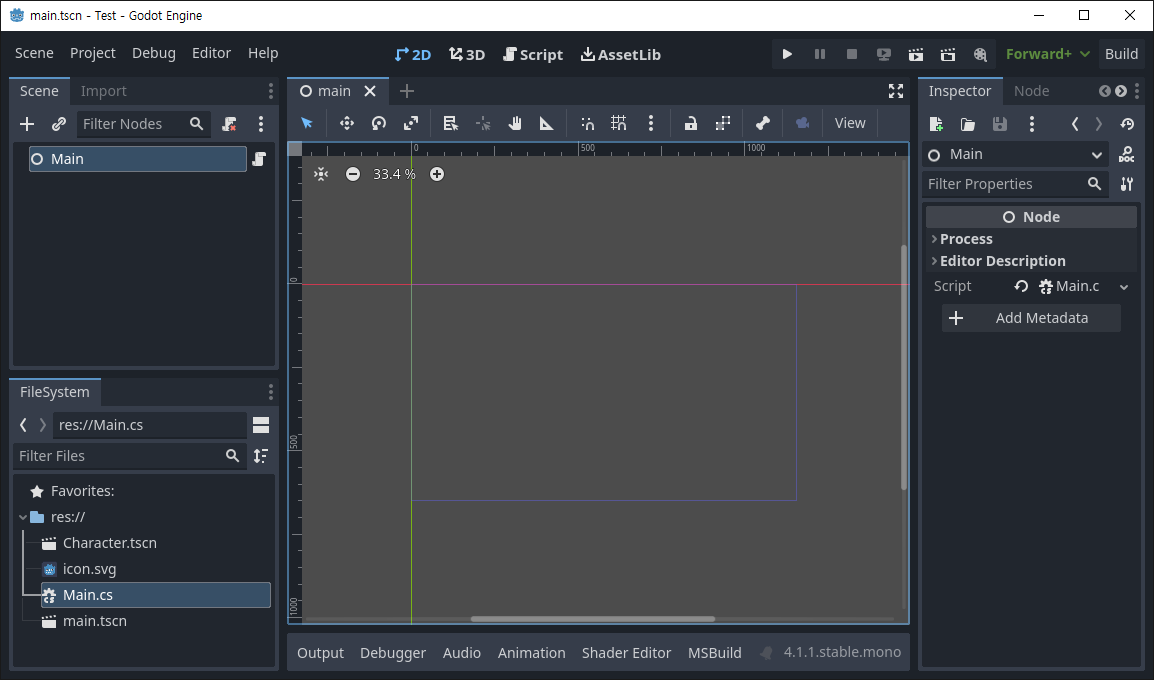
노드에 스크립트를 추가한다.


1
2
3
4
5
6
7
8
9
10
11
12
13
14
15
16
17
18
19
20
21
22
23
24
25
26
27
using Godot;
 
public partial class Main : Node
{
    // Called when the node enters the scene tree for the first time.
    public override void _Ready()
    {
    }
 
    // Called every frame. 'delta' is the elapsed time since the previous frame.
    public override void _Process(double delta)
    {
        if(Input.IsMouseButtonPressed(MouseButton.Left))
        {
            GD.Print($"Mouse Left Button: {GetViewport().GetMousePosition()}");
        }
        if(Input.IsMouseButtonPressed(MouseButton.Right))
        {
            GD.Print($"Mouse Right Button: {GetViewport().GetMousePosition()}");
        }
        if(Input.IsKeyPressed(Key.Escape))
        {
            GD.Print("Escape Key");
            //GetTree().Quit();
        }
    }
}


마우스와 키보드 입력을 감지하는 코드를 작성한다. IsMouseButtonPressed()와 IsKeyPressed()는 버튼이나 키가 눌려있는 동안 계속해서 true를 반환한다. 눌리거나 떼는 순간만 반응하고 싶다면 아래 함수를 사용한다.

Input.IsActionJustPressed()
Input.IsActionJustReleased()


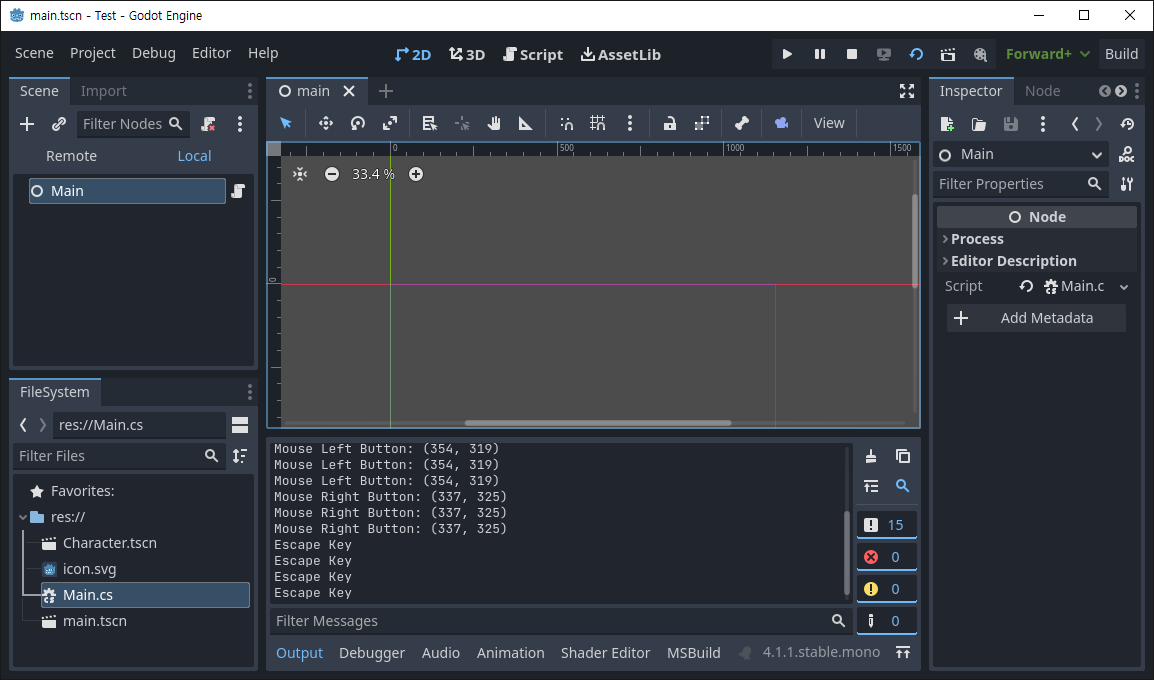
버튼이나 키가 눌리면 Output창에 표시된다.


1
2
3
4
5
6
7
8
9
10
using Godot;
 
public partial class Script : Node2D
{
    public override void _Input(InputEvent @event)
    {
        if (@event.IsActionPressed("ui_accept"))
            GD.Print(@event.AsText());
    }
}


_Input()와 InputEvent를 사용하는 코드를 작성한다. InputEvent.IsActionPressed()는 눌리는 순간 한 번만 반응한다.


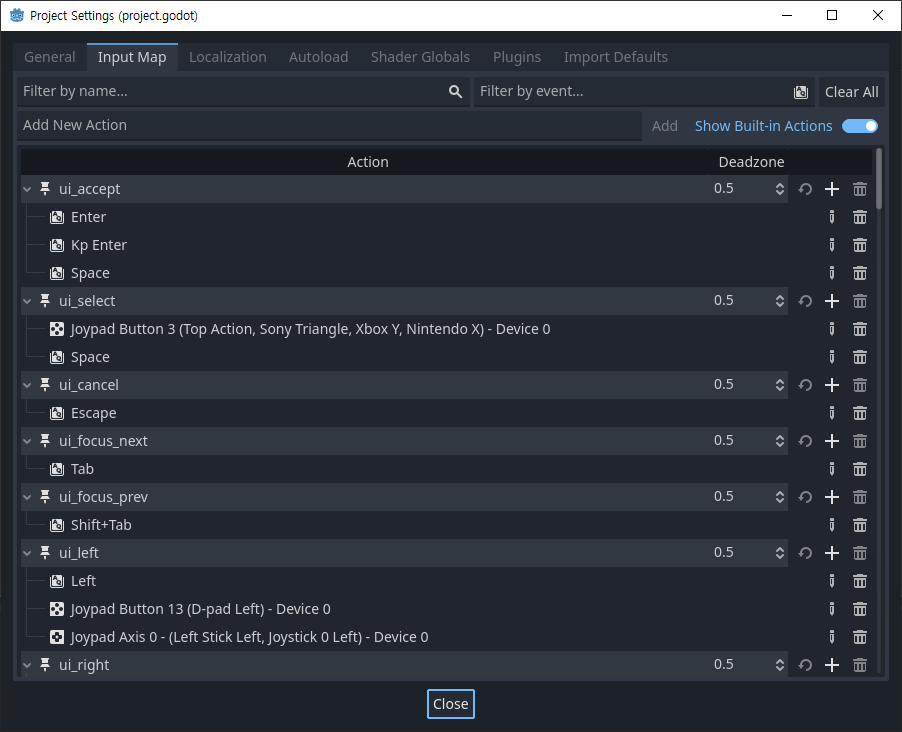
Input Map에 등록된 목록을 사용할 수 있다.


ui_accept로 등록된 Enter키나 Space키가 눌리면 AsText()에 의해 키 이름(Enter/Space)이 출력된다.


1
2
3
4
5
6
7
8
9
10
11
12
13
14
15
16
17
18
19
20
21
22
23
24
25
using Godot;
 
public partial class Script : Node2D
{
    public override void _Input(InputEvent @event)
    {
        if (@event is InputEventMouseButton mouseEvent && mouseEvent.Pressed)
        {
            switch (mouseEvent.ButtonIndex)
            {
                case MouseButton.Left:
                    GD.Print(@event.AsText() + " at: " + mouseEvent.Position);
                    break;
                case MouseButton.Right:
                    GD.Print(@event.AsText() + " at: " + GetViewport().GetMousePosition());
                    // mouseEvent.position과 GetViewport().GetMousePosition()는 같은
                    // 결과를 출력한다.
                    break;
                case MouseButton.WheelUp:
                    GD.Print(@event.AsText());
                    break;
            }
        }
    }
}


이번엔 버튼 동작을 구분하는 코드를 입력한다.


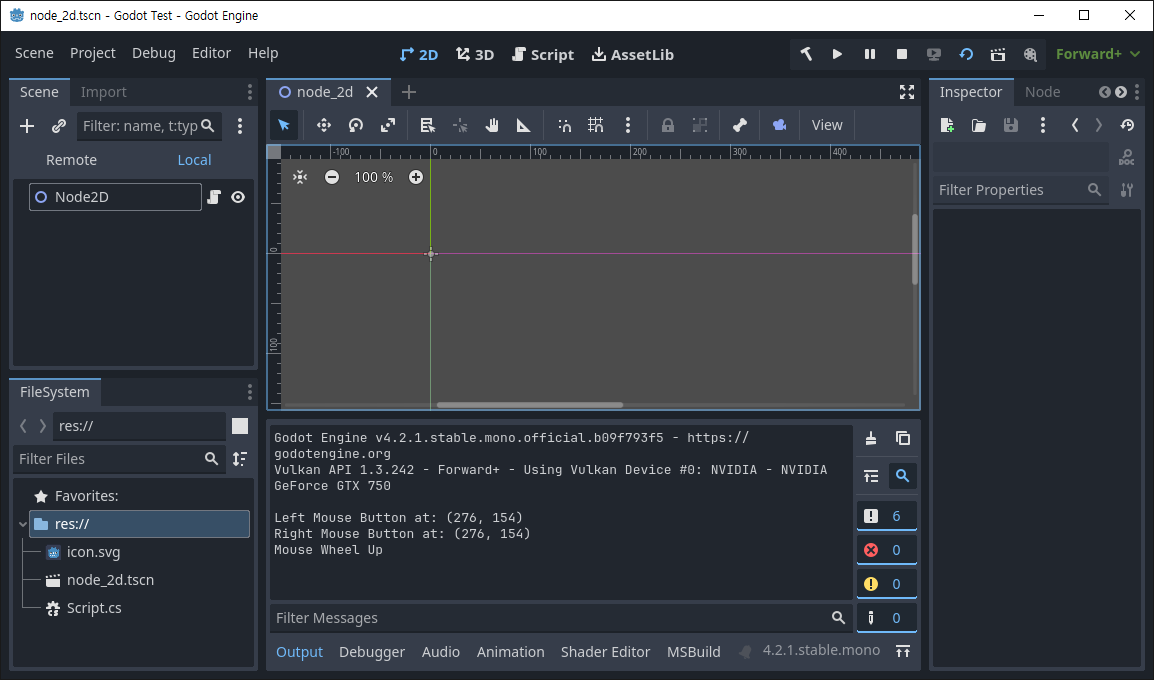
버튼 동작과 위치가 표시된다.


※ 참고

Input Handling


반응형
Posted by J-sean
:
반응형

컴퓨터에 연결된 모든 HID(Human Interface Devices)를 확인하고 조이스틱(게임패드)의 입력을 체크해 보자.


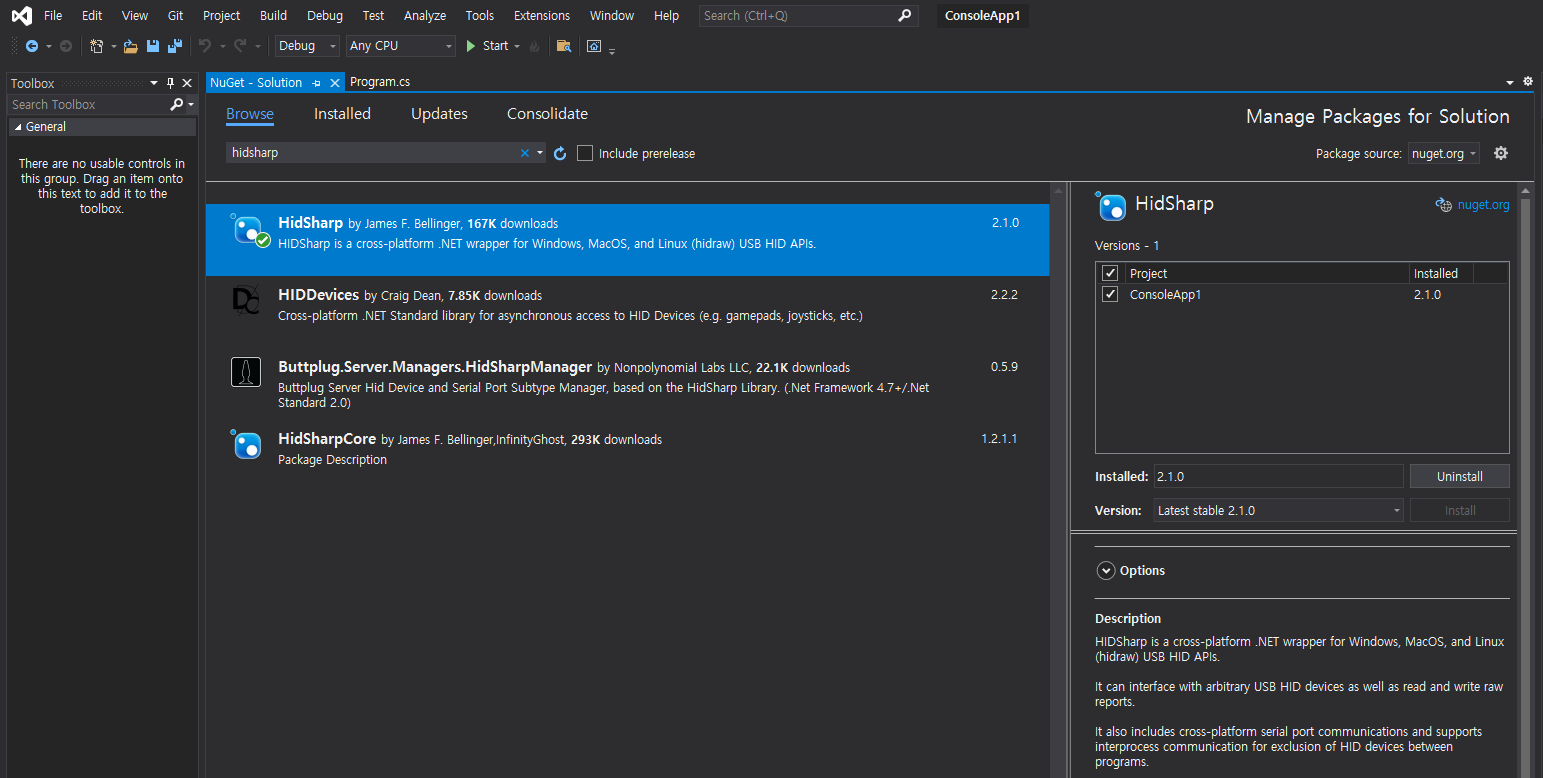
HidSharp를 설치한다.


1
2
3
4
5
6
7
8
9
10
11
12
13
14
15
16
17
18
19
20
21
22
23
24
25
26
27
28
29
30
31
32
33
34
35
36
37
38
39
40
41
42
43
44
45
46
47
48
49
50
51
52
53
54
55
56
57
58
59
60
61
62
63
64
65
66
67
68
69
70
71
72
73
74
75
76
77
78
79
80
81
82
83
84
85
86
87
88
89
90
91
92
93
94
95
96
97
98
99
100
101
102
103
104
105
106
107
108
109
110
111
112
113
114
115
116
117
118
119
120
121
122
123
124
125
126
127
128
129
130
131
132
133
134
135
136
137
using System;
using System.Collections.Generic;
using System.Linq;
using System.Text;
using System.Threading.Tasks;
 
using System.Threading;
using System.Diagnostics;
 
using HidSharp;
using HidSharp.Utility;
using HidSharp.Reports;
 
namespace ConsoleApp1
{
    class Program
    {
        static void WriteDeviceItemInputParserResult(HidSharp.Reports.Input.DeviceItemInputParser parser)
        {
            while (parser.HasChanged)
            {
                int changedIndex = parser.GetNextChangedIndex();
                DataValue previousDataValue = parser.GetPreviousValue(changedIndex);
                DataValue dataValue = parser.GetValue(changedIndex);
 
                Console.WriteLine(string.Format("  {0}: {1} -> {2}", (Usage)dataValue.Usages.FirstOrDefault(),
                    previousDataValue.GetPhysicalValue(), dataValue.GetPhysicalValue()));
            }
        }
 
        static void Main(string[] args)
        {
            HidSharpDiagnostics.EnableTracing = true;
            HidSharpDiagnostics.PerformStrictChecks = true;
 
            DeviceList list = DeviceList.Local;
            list.Changed += (sender, e) => Console.WriteLine("Device list changed.");
 
            Device[] allDeviceList = list.GetAllDevices().ToArray();
            Console.WriteLine("■ All device list:");
            foreach (Device dev in allDeviceList)
            {
                Console.WriteLine("- Name: " + dev.ToString() + "\n" + "  Path: " + dev.DevicePath);
            }
 
            Console.WriteLine("-----------------------------------------------");
 
            Stopwatch stopwatch = Stopwatch.StartNew();
            HidDevice[] hidDeviceList = list.GetHidDevices().ToArray();
 
            Console.WriteLine("■ HID device list (took {0} ms to get {1} devices):",
                              stopwatch.ElapsedMilliseconds, hidDeviceList.Length);
 
            foreach (HidDevice dev in hidDeviceList)
            {
                Console.WriteLine("- Name: " + dev);
                Console.WriteLine("  Path: " + dev.DevicePath);
 
                try
                {
                    ReportDescriptor reportDescriptor = dev.GetReportDescriptor();
 
                    // Lengths should match.
                    Debug.Assert(dev.GetMaxInputReportLength() == reportDescriptor.MaxInputReportLength);
                    Debug.Assert(dev.GetMaxOutputReportLength() == reportDescriptor.MaxOutputReportLength);
                    Debug.Assert(dev.GetMaxFeatureReportLength() == reportDescriptor.MaxFeatureReportLength);
 
                    foreach (DeviceItem deviceItem in reportDescriptor.DeviceItems)
                    {
                        foreach (uint usage in deviceItem.Usages.GetAllValues())
                        {
                            Console.WriteLine(string.Format("  Usage: {0:X4} {1}", usage, (Usage)usage));
                        }
 
                        {
                            Console.WriteLine("Opening device for 20 seconds...");
 
                            HidStream hidStream;
                            if (dev.TryOpen(out hidStream))
                            {
                                Console.WriteLine("Opened device.");
                                hidStream.ReadTimeout = Timeout.Infinite;
 
                                using (hidStream)
                                {
                                    byte[] inputReportBuffer = new byte[dev.GetMaxInputReportLength()];
                                    HidSharp.Reports.Input.HidDeviceInputReceiver inputReceiver = 
                                        reportDescriptor.CreateHidDeviceInputReceiver();
                                    HidSharp.Reports.Input.DeviceItemInputParser inputParser = 
                                        deviceItem.CreateDeviceItemInputParser();
 
                                    inputReceiver.Start(hidStream);
 
                                    int startTime = Environment.TickCount;
                                    while (true)
                                    {
                                        if (inputReceiver.WaitHandle.WaitOne(1000))
                                        {
                                            if (!inputReceiver.IsRunning) { break; } // Disconnected?
 
                                            Report report;
                                            while (inputReceiver.TryRead(inputReportBuffer, 0out report))
                                            {
                                                // Parse the report if possible.
                                                // This will return false if (for example) the report applies to a different DeviceItem.
                                                if (inputParser.TryParseReport(inputReportBuffer, 0, report))
                                                {
                                                    WriteDeviceItemInputParserResult(inputParser);
                                                }
                                            }
                                        }
 
                                        uint elapsedTime = (uint)(Environment.TickCount - startTime);
                                        if (elapsedTime >= 20000) { break; } // Stay open for 20 seconds.
                                    }
 
                                }
 
                                Console.WriteLine("Closed device.");
                            }
                            else
                            {
                                Console.WriteLine("Failed to open device.");
                            }
 
                            Console.WriteLine("  ---------------------------------------------");
                        }
                    }
                }
                catch (Exception e)
                {
                    Console.WriteLine(e);
                }
            }
        }
    }
}


소스를 입력하고 빌드한다.


프로그램을 실행하면 연결된 모든 디바이스와 HID가 표시되고 open 가능한 디바이스(usb gamepad)는 입력을 받아 표시한다.

포커스가 다른 프로그램에 있어도 디바이스의 입력을 확인 할 수 있다.


각 버튼이 눌렸을때 inputReportBuffer의 변화되는 내용을 확인해 보면 아래와 같다.

(첫 번째 바이트의 '01'은 Report ID인거 같다)


1
Console.WriteLine(BitConverter.ToString(inputReportBuffer));


01-80-80-7F-7F-0F-00-00
01-80-80-00-7F-0F-00-00
  GenericDesktopX: 127 -> 0

01-80-80-7F-7F-0F-00-00
01-80-80-FF-7F-0F-00-00
  GenericDesktopX: 127 -> 255

01-80-80-7F-7F-0F-00-00
01-80-80-7F-00-0F-00-00
  GenericDesktopY: 127 -> 0
  
01-80-80-7F-7F-0F-00-00
01-80-80-7F-FF-0F-00-00
  GenericDesktopY: 127 -> 255
※게임패드의 방향버튼은 기본이(버튼이 눌리지 않았을때) 127

01-80-80-7F-7F-0F-00-00
01-80-80-7F-7F-1F-00-00
  Button1: 0 -> 1

01-80-80-7F-7F-0F-00-00
01-80-80-7F-7F-2F-00-00
  Button2: 0 -> 1
  
01-80-80-7F-7F-0F-00-00
01-80-80-7F-7F-4F-00-00
  Button3: 0 -> 1

01-80-80-7F-7F-0F-00-00
01-80-80-7F-7F-8F-00-00
  Button4: 0 -> 1
※게임패드의 버튼은 기본이(버튼이 눌리지 않았을때) 0


※ HidSharp


반응형
Posted by J-sean
:
반응형

The SendInput function inserts the events in the INPUT structures serially into the keyboard or mouse input stream.

키보드 입력을 보낸다.


2020/10/17 - [Raspberry Pi & Arduino] - Turn your Arduino Pro Micro into a USB Keyboard - 아두이노 프로 마이크로 USB 키보드 만들기


1
2
3
4
5
6
7
8
9
10
11
12
13
14
15
16
17
18
19
20
21
22
23
24
25
26
27
28
29
30
31
32
33
34
35
36
37
38
39
40
41
42
43
44
45
46
47
48
49
50
51
52
53
54
55
56
57
58
59
60
61
62
63
64
65
66
67
68
69
70
71
72
73
74
75
76
77
78
79
80
81
82
83
84
85
86
87
88
89
90
91
92
93
94
95
96
97
98
99
100
101
102
103
104
105
106
107
108
109
110
111
112
113
114
#include <Windows.h>
#include <iostream>
 
using namespace std;
 
void PrintMenu()
{
    cout << "--- Key sender ---" << endl << endl;
    cout << "0: End" << endl;
    cout << "1: Send left key" << endl;
    cout << "2: Send right key" << endl;
    cout << "3: Send up key" << endl;
    cout << "4: Send down key" << endl;
    cout << "5: Send enter key" << endl;
    cout << "6: Send 'aA'" << endl;
    cout << "Choose: ";
}
 
// Virtual-Key Codes: https://docs.microsoft.com/ko-kr/windows/win32/inputdev/virtual-key-codes
void SendVKcodes(BYTE vk)
{
    Sleep(5000); // Wait for 5 seconds before sending a keycode.
 
    INPUT input;
    ZeroMemory(&input, sizeof(INPUT));
    input.type = INPUT_KEYBOARD;
    input.ki.wVk = vk;
    // A virtual-key code. The code must be a value in the range 1 to 254. If the dwFlags member
    // specifies KEYEVENTF_UNICODE, wVk must be 0.
 
    // input.ki.wScan = vk;
    // A hardware scan code for the key. If dwFlags specifies KEYEVENTF_UNICODE, wScan specifies
    // a Unicode character which is to be sent to the foreground application.
 
    SendInput(1&input, sizeof(INPUT));
 
    input.ki.dwFlags = KEYEVENTF_KEYUP;
    // If specified, the key is being released. If not specified, the key is being pressed.
    SendInput(1&input, sizeof(INPUT));
}
 
void SendaA()
{
    Sleep(5000);
 
    // Send 'a'
    INPUT input;
    ZeroMemory(&input, sizeof(INPUT));
    input.type = INPUT_KEYBOARD;
    input.ki.wVk = 0x41;    // a key
    SendInput(1&input, sizeof(INPUT));
 
    input.ki.dwFlags = KEYEVENTF_KEYUP;
    SendInput(1&input, sizeof(INPUT));
 
    // Sned 'A'
    input.ki.dwFlags = 0;
    input.ki.wVk = VK_SHIFT;
    SendInput(1&input, sizeof(INPUT));
 
    input.ki.wVk = 0x41;    // a key
    SendInput(1&input, sizeof(INPUT));
 
    input.ki.dwFlags = KEYEVENTF_KEYUP;
    SendInput(1&input, sizeof(INPUT));
 
    input.ki.wVk = VK_SHIFT;
    SendInput(1&input, sizeof(INPUT));
}
 
int main()
{
    int choice = 1;
 
    while (choice)
    {
        PrintMenu();
        cin >> choice;
 
        switch (choice)
        {
        case 1:
            SendVKcodes(VK_LEFT);
 
            break;
        case 2:
            SendVKcodes(VK_RIGHT);
 
            break;
        case 3:
            SendVKcodes(VK_UP);
 
            break;
        case 4:
            SendVKcodes(VK_DOWN);
 
            break;
        case 5:
            SendVKcodes(VK_RETURN);
 
            break;
 
        case 6:
            SendaA();
 
            break;
        default:
 
            return 0;
        }
    }
 
    return 0;
}


Run the program and choose the key you want to send.


※ Adjust key down duration by adding Sleep() between KEYEVENTF_KEYDOWN and KEYEVENTF_KEYUP.

For short key down duration, give 60~100 to Sleep() for the better result although some keys don't need Sleep() at all for very short key down duration.


반응형
Posted by J-sean
: