[OpenCV] CPU, GPU Image Processing Comparison 이미지 처리 속도 비교
Computer Vision 2026. 4. 26. 14:30 |반응형
CPU와 GPU의 이미지 처리 속도를 비교해 보자.
#include <iostream>
#include <opencv2/opencv.hpp>
#include <opencv2/cudafilters.hpp>
#include <opencv2/cudaimgproc.hpp>

#pragma comment(lib, "opencv_core4d.lib")
#pragma comment(lib, "opencv_highgui4d.lib")
#pragma comment(lib, "opencv_imgcodecs4d.lib")
#pragma comment(lib, "opencv_imgproc4d.lib")
#pragma comment(lib, "opencv_cudaimgproc4d.lib")
#pragma comment(lib, "opencv_cudafilters4d.lib")

int main() {
	cv::utils::logging::setLogLevel(cv::utils::logging::LOG_LEVEL_ERROR);

	cv::Mat image = cv::imread("palvin1.png");
	if (image.empty()) {
		std::cerr << "Error: Could not open image file" << std::endl;

		return -1;
	}

	int64 start;
	double timeSec;

	// For CPU processing
	std::vector<cv::Vec4i> lines;
	cv::Mat grayImage;
	cv::Mat resultImage;

	// For GPU processing
	cv::cuda::GpuMat gpuImage;
	cv::cuda::GpuMat gpuResultImage;
	cv::cuda::GpuMat gpuLines;
	cv::cuda::GpuMat gpuGrayImage;

	/////////////// CPU Processing ///////////////
	start = cv::getTickCount();

	cv::cvtColor(image, grayImage, cv::COLOR_BGR2GRAY);
	cv::HoughLinesP(grayImage, lines, 1, CV_PI / 180, 50, 50, 10); // 이 함수의 연산량이 굉장히 크다
	cv::Sobel(image, resultImage, CV_8U, 1, 0, 3);
	cv::Canny(grayImage, resultImage, 50, 150, 3);

	timeSec = (cv::getTickCount() - start) / cv::getTickFrequency();
	std::cout << "CPU Processing Time : " << timeSec << " sec" << std::endl;
	///////////////////////////////////////////////

	//////////////// GPU Processing ///////////////
	start = cv::getTickCount();

	gpuImage.upload(image);

	cv::cuda::cvtColor(gpuImage, gpuGrayImage, cv::COLOR_BGR2GRAY);

	cv::Ptr<cv::cuda::HoughSegmentDetector> houghDetector = cv::cuda::createHoughSegmentDetector(1, CV_PI / 180, 50, 50, 10);
	houghDetector->detect(gpuGrayImage, gpuLines);
	gpuLines.download(lines);

	cv::Ptr<cv::cuda::Filter> sobelFilter = cv::cuda::createSobelFilter(gpuImage.type(), CV_8UC3, 1, 0, 3);
	sobelFilter->apply(gpuImage, gpuResultImage);

	cv::Ptr<cv::cuda::CannyEdgeDetector> cannyDetector = cv::cuda::createCannyEdgeDetector(50, 150, 3);
	cannyDetector->detect(gpuGrayImage, gpuResultImage);

	gpuImage.download(image);

	timeSec = (cv::getTickCount() - start) / cv::getTickFrequency();
	std::cout << "GPU Processing Time : " << timeSec << " sec" << std::endl;
	////////////////////////////////////////////////

	cv::imshow("Original Image", image);

	cv::waitKey(0);

	cv::destroyAllWindows();

	return 0;
}

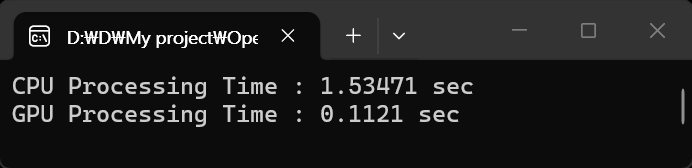
나름 공정하게 비교했는데 정확한지는 모르겠다.
어쨌든 10배 이상의 속도 차이가 난다.
HoughLinesP()의 연산량이 커서 속도에 큰 차이가 벌어지는데, HoughLinesP()를 몇 번 더 호출하면 더 큰 차이를 보이게 된다.
	/////////////// CPU Processing ///////////////
	start = cv::getTickCount();

	cv::cvtColor(image, grayImage, cv::COLOR_BGR2GRAY);
	cv::HoughLinesP(grayImage, lines, 1, CV_PI / 180, 50, 50, 10);
	cv::HoughLinesP(grayImage, lines, 1, CV_PI / 180, 50, 50, 10);
	cv::HoughLinesP(grayImage, lines, 1, CV_PI / 180, 50, 50, 10);
	cv::Sobel(image, resultImage, CV_8U, 1, 0, 3);
	cv::Canny(grayImage, resultImage, 50, 150, 3);

	timeSec = (cv::getTickCount() - start) / cv::getTickFrequency();
	std::cout << "CPU Processing Time : " << timeSec << " sec" << std::endl;
	///////////////////////////////////////////////

	//////////////// GPU Processing ///////////////
	start = cv::getTickCount();

	gpuImage.upload(image);

	cv::cuda::cvtColor(gpuImage, gpuGrayImage, cv::COLOR_BGR2GRAY);

	cv::Ptr<cv::cuda::HoughSegmentDetector> houghDetector = cv::cuda::createHoughSegmentDetector(1, CV_PI / 180, 50, 50, 10);
	houghDetector->detect(gpuGrayImage, gpuLines);
	gpuLines.download(lines);

	houghDetector->detect(gpuGrayImage, gpuLines);
	gpuLines.download(lines);

	houghDetector->detect(gpuGrayImage, gpuLines);
	gpuLines.download(lines);

	cv::Ptr<cv::cuda::Filter> sobelFilter = cv::cuda::createSobelFilter(gpuImage.type(), CV_8UC3, 1, 0, 3);
	sobelFilter->apply(gpuImage, gpuResultImage);

	cv::Ptr<cv::cuda::CannyEdgeDetector> cannyDetector = cv::cuda::createCannyEdgeDetector(50, 150, 3);
	cannyDetector->detect(gpuGrayImage, gpuResultImage);

	gpuImage.download(image);

	timeSec = (cv::getTickCount() - start) / cv::getTickFrequency();
	std::cout << "GPU Processing Time : " << timeSec << " sec" << std::endl;
	////////////////////////////////////////////////

반대로 HoughLinesP() 호출을 삭제하면 오히려 GPU보다 CPU가 더 빠른 결과를 보인다.
GPU 연산을 위한 메모리 복사 등의 오버헤드가 크기 때문이다.
	/////////////// CPU Processing ///////////////
	start = cv::getTickCount();

	cv::cvtColor(image, grayImage, cv::COLOR_BGR2GRAY);
	//cv::HoughLinesP(grayImage, lines, 1, CV_PI / 180, 50, 50, 10);
	cv::Sobel(image, resultImage, CV_8U, 1, 0, 3);
	cv::Canny(grayImage, resultImage, 50, 150, 3);

	timeSec = (cv::getTickCount() - start) / cv::getTickFrequency();
	std::cout << "CPU Processing Time : " << timeSec << " sec" << std::endl;
	///////////////////////////////////////////////

	//////////////// GPU Processing ///////////////
	start = cv::getTickCount();

	gpuImage.upload(image);

	cv::cuda::cvtColor(gpuImage, gpuGrayImage, cv::COLOR_BGR2GRAY);

	//cv::Ptr<cv::cuda::HoughSegmentDetector> houghDetector = cv::cuda::createHoughSegmentDetector(1, CV_PI / 180, 50, 50, 10);
	//houghDetector->detect(gpuGrayImage, gpuLines);
	//gpuLines.download(lines);

	cv::Ptr<cv::cuda::Filter> sobelFilter = cv::cuda::createSobelFilter(gpuImage.type(), CV_8UC3, 1, 0, 3);
	sobelFilter->apply(gpuImage, gpuResultImage);

	cv::Ptr<cv::cuda::CannyEdgeDetector> cannyDetector = cv::cuda::createCannyEdgeDetector(50, 150, 3);
	cannyDetector->detect(gpuGrayImage, gpuResultImage);

	gpuImage.download(image);

	timeSec = (cv::getTickCount() - start) / cv::getTickFrequency();
	std::cout << "GPU Processing Time : " << timeSec << " sec" << std::endl;
	////////////////////////////////////////////////

반응형
'Computer Vision' 카테고리의 다른 글
| [CUDA] C++ with CUDA (0) | 2026.04.28 |
|---|---|
| [OpenCV] OpenCV and memcpy (feat.CUDA) (0) | 2026.04.27 |
| [OpenCV] OpenCV with CUDA Build (0) | 2026.04.26 |
| [OpenCV] Image Resize 영상 리사이즈 (feat.LogLevel) (0) | 2026.04.23 |
| [OpenCV] Nozzle Number, Stream & Suckback Level Detection 노즐 번호, 물줄기 및 Suckback 높이 검출 (0) | 2026.04.18 |